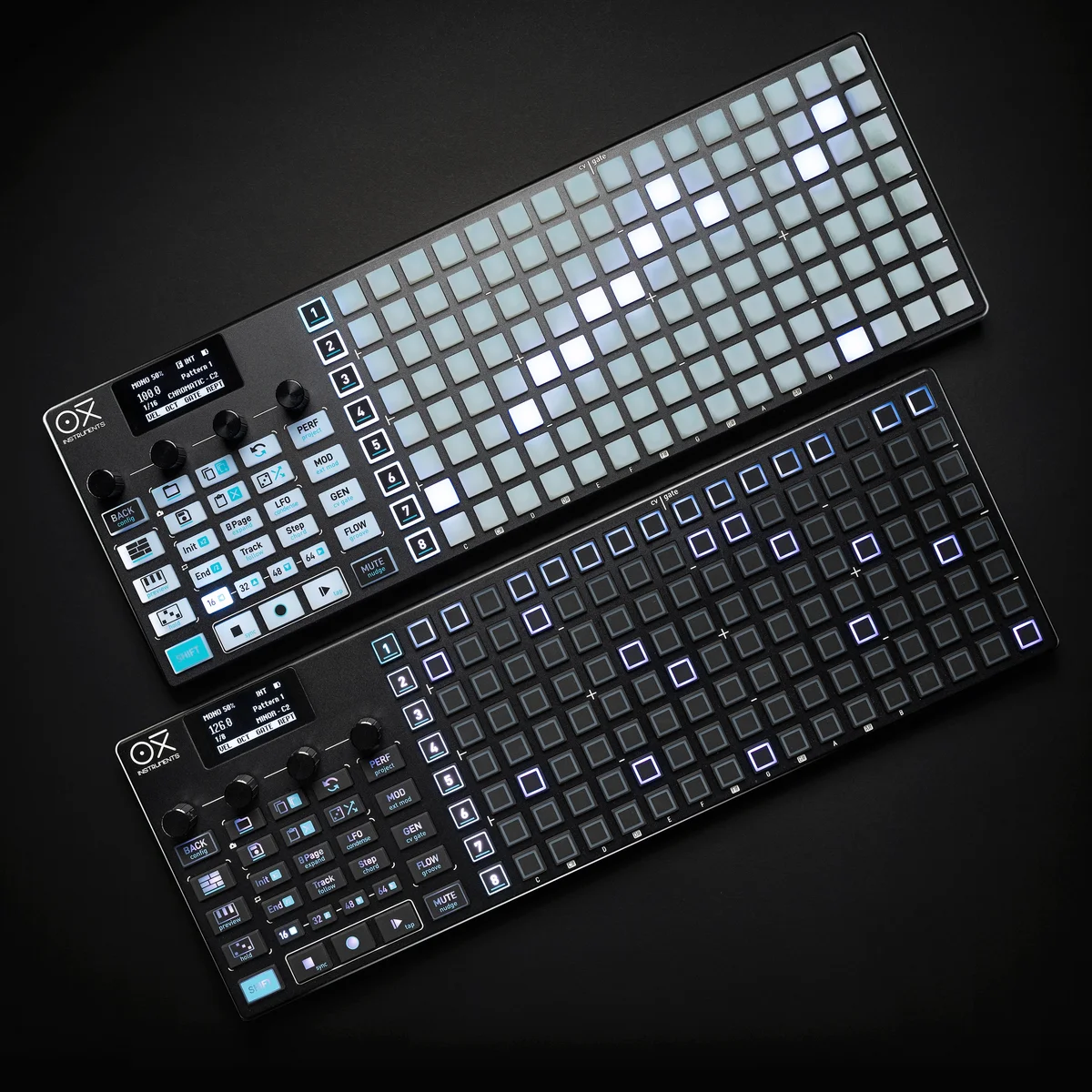
Welcome to EP.4 of the OXI ONE MKII guide series. This time, we're taking a deep dive into Accumulator, one of the standout features of Mono Mode.
I covered the basics of the Accumulator in EP.2, but this feature actually runs quite deep. From the different modes and Trig settings to logic conditions, Track Accumulation, and Accumulator in Poly Mode — this episode covers the full picture.
You can find the previous episodes here:
- OXI ONE MKII Guide EP.1: Getting the Big Picture
- OXI ONE MKII Guide EP.2: Mastering Mono Mode
- OXI ONE MKII Guide EP.3: Breathing Life into Patterns with Groove
- What Is the Accumulator?
- Accumulator Parameters
- Accumulator Modes
- Trig: What the Accumulator Applies To
- Logic Conditions and Probability
- Track Accumulation
- Accumulator in Poly Mode
What Is the Accumulator?
The Accumulator is an engine that progressively shifts a step's pitch by a set interval (in semitones) each time that step is triggered. Since the pitch offset accumulates with every playback of the same step, even a simple pattern continuously evolves over time, creating generative movement.
Pitch changes are quantized to a scale. Notes move within the scale you've set, making it easy to get musical results without unintended dissonance.
I introduced the basics in EP.2, so let's now look at the more detailed parameters and advanced techniques.
Accumulator Parameters
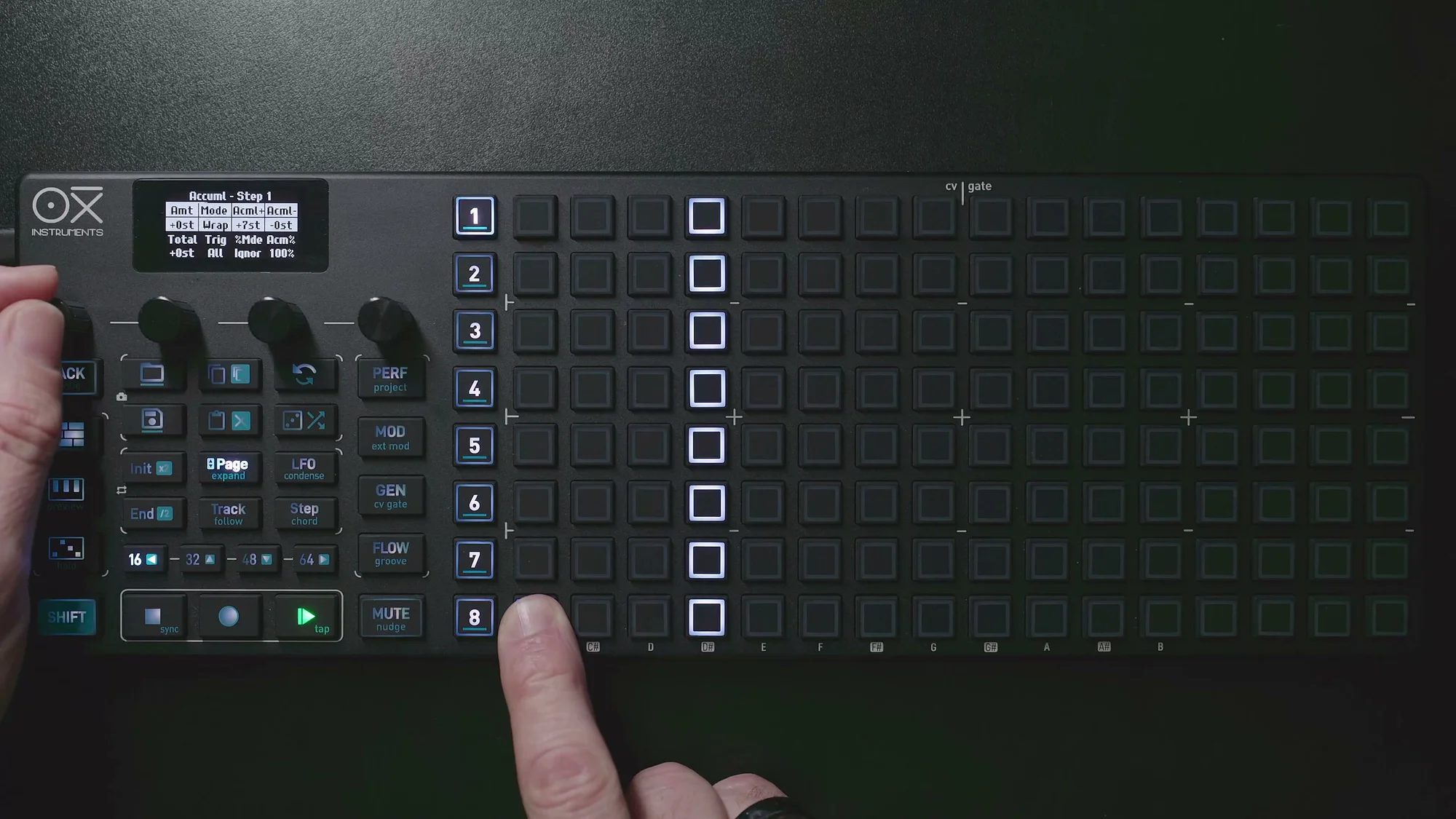
Hold down a step's [Pad] and tap [Page] to access the Accumulator page (Page 3). The following parameters are available:
- Amt (Amount): The pitch change interval. Specified in semitones with a +/- direction. For example,
+1stmeans the pitch goes up by 1 semitone with each trigger - Mode: The accumulation pattern (explained in detail below)
- Acml+: The upper accumulation limit. When reached, a reset action occurs depending on the mode
- Acml-: The lower accumulation limit
- Total: The current accumulation count (display only). Shows how many semitones of offset are currently applied
- Trig: What the Accumulator applies to (explained below)
- %Mde: Behavior when the logic condition is false
- Acm%: Probability and logic conditions for accumulation
To reset a parameter, long-press the encoder to return it to its default value.
Accumulator Modes
There are four Accumulator modes, each producing dramatically different pitch change patterns.
Clip
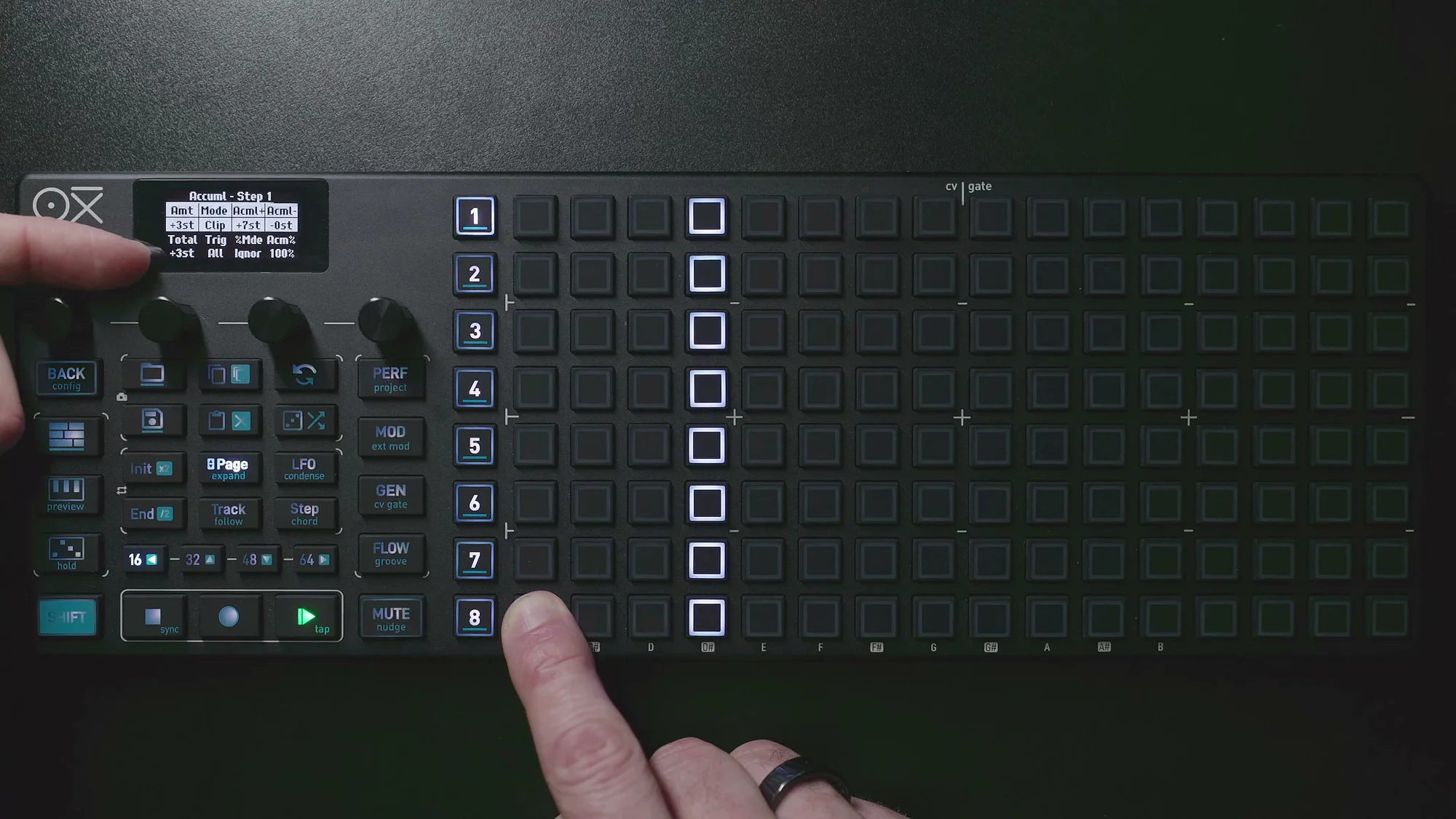
Accumulates by the interval set in Amt, and resets to zero when the upper limit (Acml+) is reached, starting over from the beginning.
For example, with Amt set to +3st and Acml+ set to +7st, the accumulated value changes like 0 → +3 → +6 → +1 → +4 → +7 → +2 → +5 → 0. The amount exceeding the upper limit wraps around from the bottom, so the pitch cycles through various notes in the scale.
Wrap
Accumulates by the interval set in Amt, and when the upper or lower limit is exceeded, it folds back while continuing to count the interval. The difference from Clip is in the timing of the reset and how the folding works.
Pendulum
When the upper limit is reached, the direction reverses and descends; when the lower limit is reached, it reverses again and ascends — like a pendulum. Since the pitch naturally moves up and down, this mode makes it easy to create melodic variations.
Below is a comparison of how each mode behaves with a 4-step pattern. The orange step has the Accumulator applied, and the changes over 4 cycles are shown from left to right.
Hold
When the upper limit is reached, accumulation stops and no further offset is added. The pitch rises to a certain point and then stays there, which is useful for patterns that gradually evolve toward a "final form."
Random Variations
Each mode also has a random variation. The basic movement pattern remains the same, but the direction of accumulation (addition or subtraction) is randomly determined. Since the interval value stays the same, it's not completely random — you get a controlled randomness.
Trig: What the Accumulator Applies To
The Trig parameter controls when the Accumulator is applied. This setting becomes especially important when combined with Repetitions.
In the video, this is demonstrated with an example where a single step has 4 repetitions set to cover 4 steps.
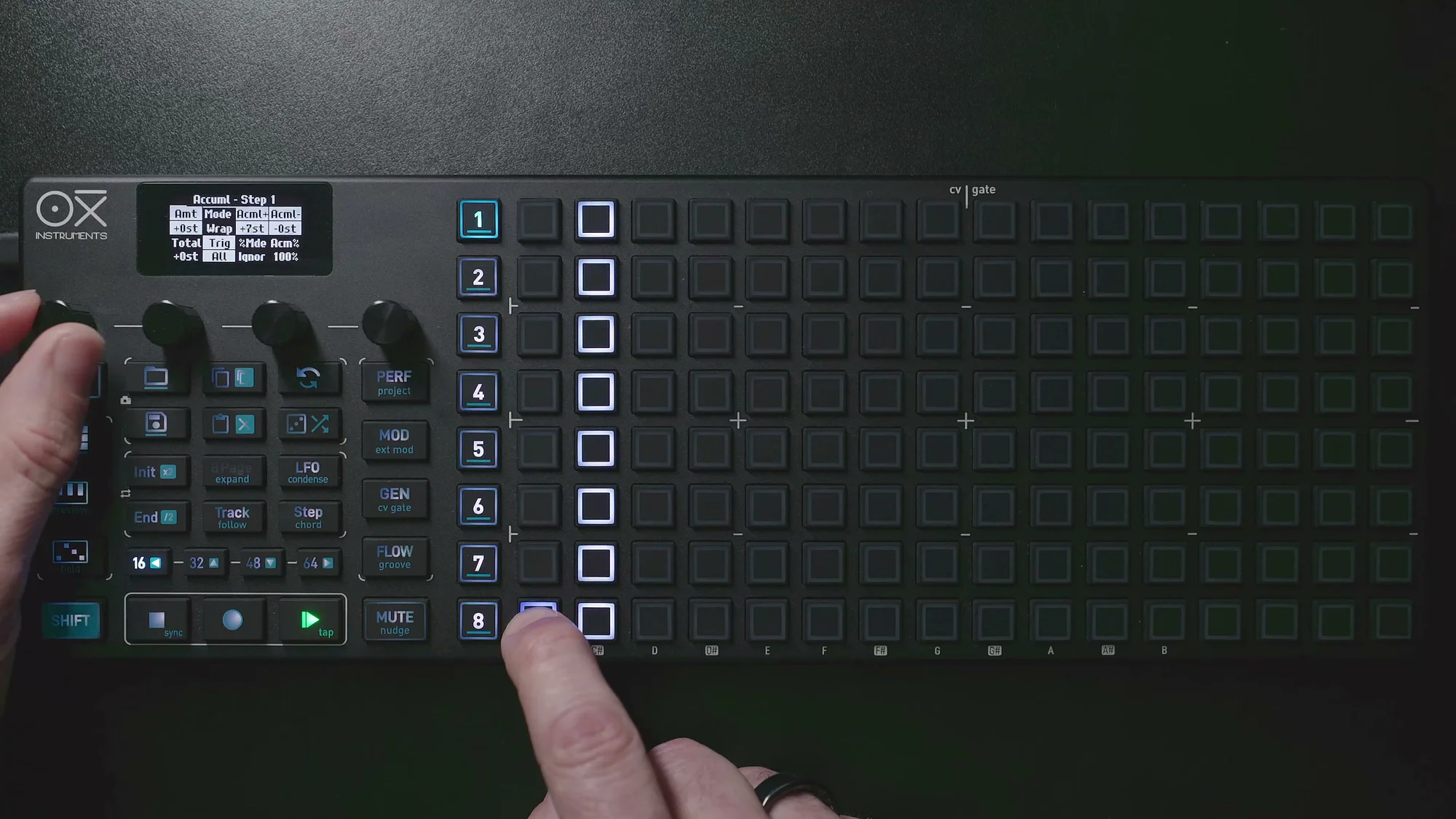
All
The Accumulator is applied to both the step trigger and its repetitions. This means the pitch accumulates with every repetition too, so the pitch changes rapidly even within a single step.
Step
The Accumulator is applied only at the step's trigger, and while the offset carries over to repetitions, no additional accumulation occurs with each repetition. The offset value at the time the step is triggered applies to all of that step's repetitions.
Repetition
The first trigger plays at the original pitch, and the Accumulator is applied only to the repetitions. This is useful when you want to maintain a pedal note while only the repetition portion changes. For example, you can create phrases where the bass root note stays the same while the repetitions move around within the scale.
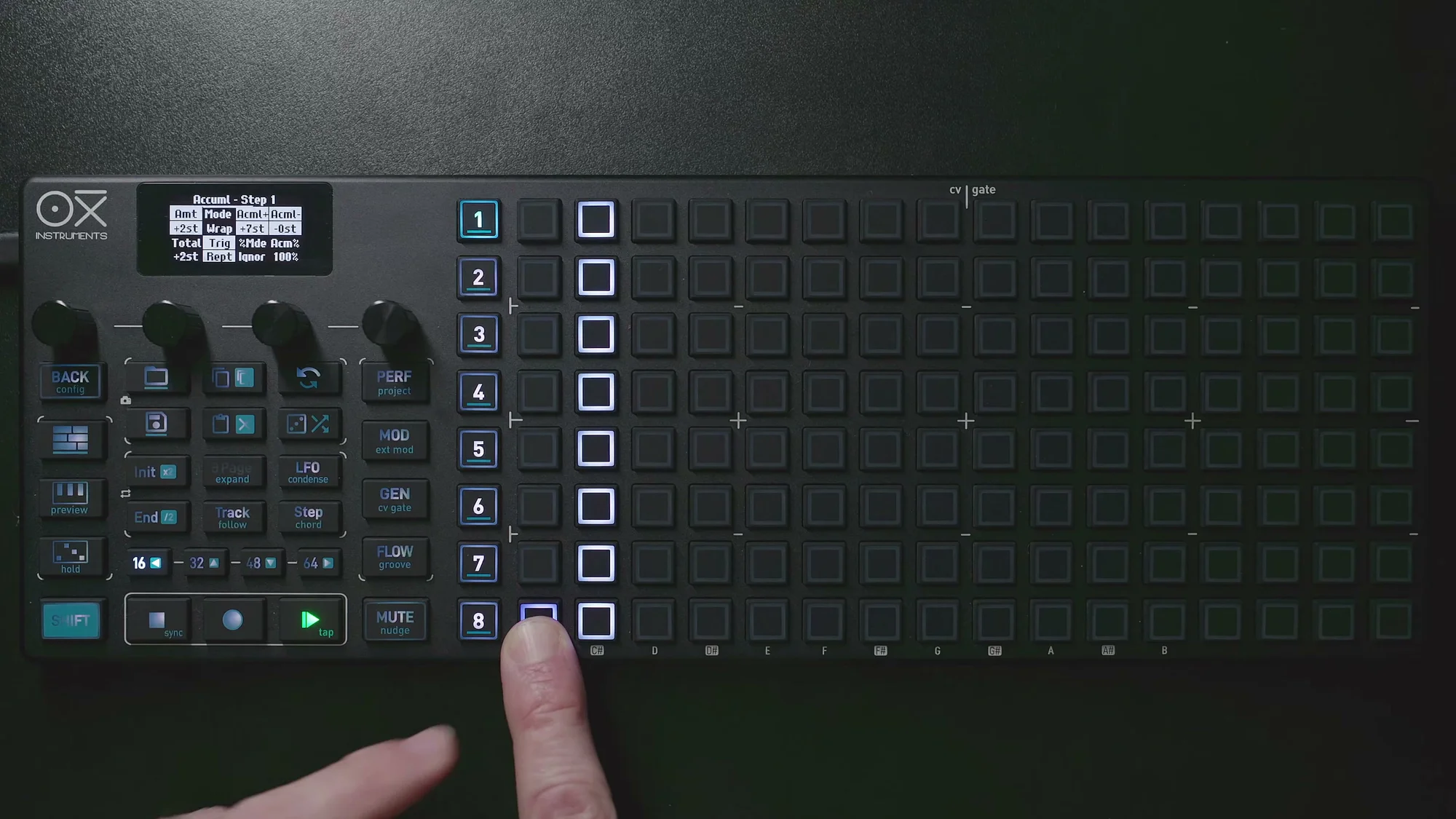
Below is a comparison of Trig modes with 4 repetitions set on a single step. Orange notes indicate where the Accumulator is applied.
None
Temporarily disables the Accumulator. However, the settings are retained, so switching back to All or Step will immediately resume accumulation.
Note that even when set to None, the Accumulator continues calculating in the background. It's not visible, but the accumulation keeps progressing behind the scenes. So the moment you switch from None to All, all the accumulated offset is applied at once.
Logic Conditions and Probability
Probability Settings
The Acm% parameter lets you set the probability of the Accumulator being applied. At 100%, it's applied every time; at 50%, it's applied to roughly half of the triggers.
You can also set it to apply on specific cycle intervals. For example, setting it to "every 2 cycles" means the Accumulator takes effect only once every 2 cycles.
%Mde: Behavior When the Condition Is False
When the Accumulator isn't applied due to probability or logic conditions, you can choose between two behaviors: Ignore and Skip.
- Ignore: When the condition isn't met, the accumulated value is ignored and the original note value is played. In other words, it temporarily returns to the original pitch
- Skip: When the condition isn't met, the last accumulated value is retained and played. No additional accumulation occurs, but the previous value is maintained
Integration with Flow
Among the logic conditions, there's also integration with the Flow button. Setting Acm% to Flow makes the Accumulator operate only while the Flow button is held down.
This is extremely powerful for performance. During normal playback, the pattern plays as-is, and the moment you press the Flow button, the Accumulator kicks in and the pattern starts evolving. Release the button and the changes stop. This instant control is perfect for live performance.
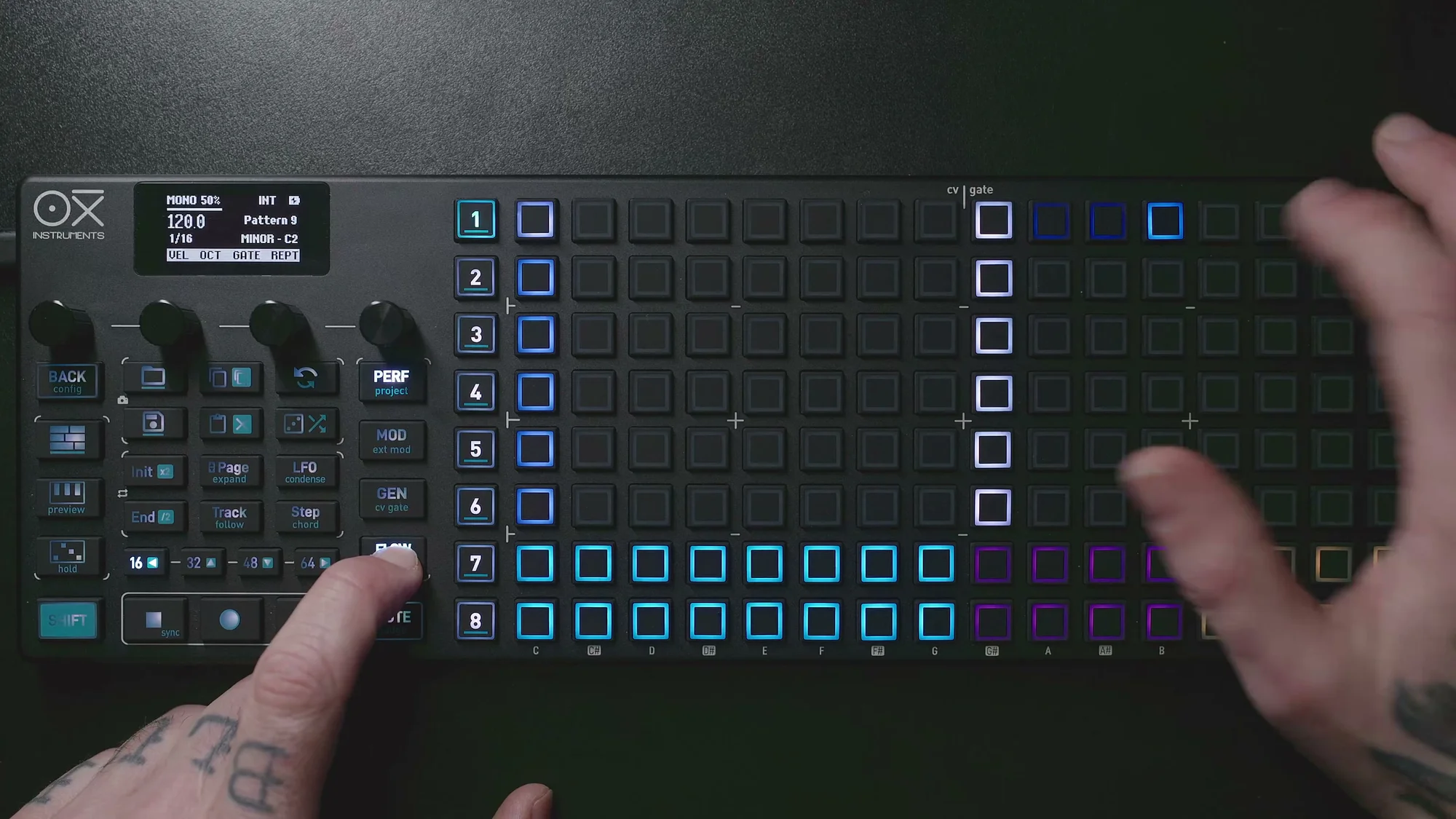
Conversely, setting it to !Flow (Non-Flow) makes the Accumulator operate only while the Flow button is not pressed. Pressing Flow stops the Accumulator for that step. You can also combine these two settings.
For example, if you set one step's Accumulator to Flow and another step's to !Flow, pressing the Flow button lets you toggle which step is changing. While held, the former changes and the latter stops; when released, it's the opposite. Manipulating the Flow button on the Performance screen while patterns shift in real time is seriously fun.
Track Accumulation
Everything so far has been about per-step Accumulators, but you can also set up Accumulation for an entire track.
Press the [Step] button to access the global view and switch the accumulation mode from Step to Track. In Track Accumulation, you set the upper and lower limits here, and the Accumulator is applied to all steps at once.
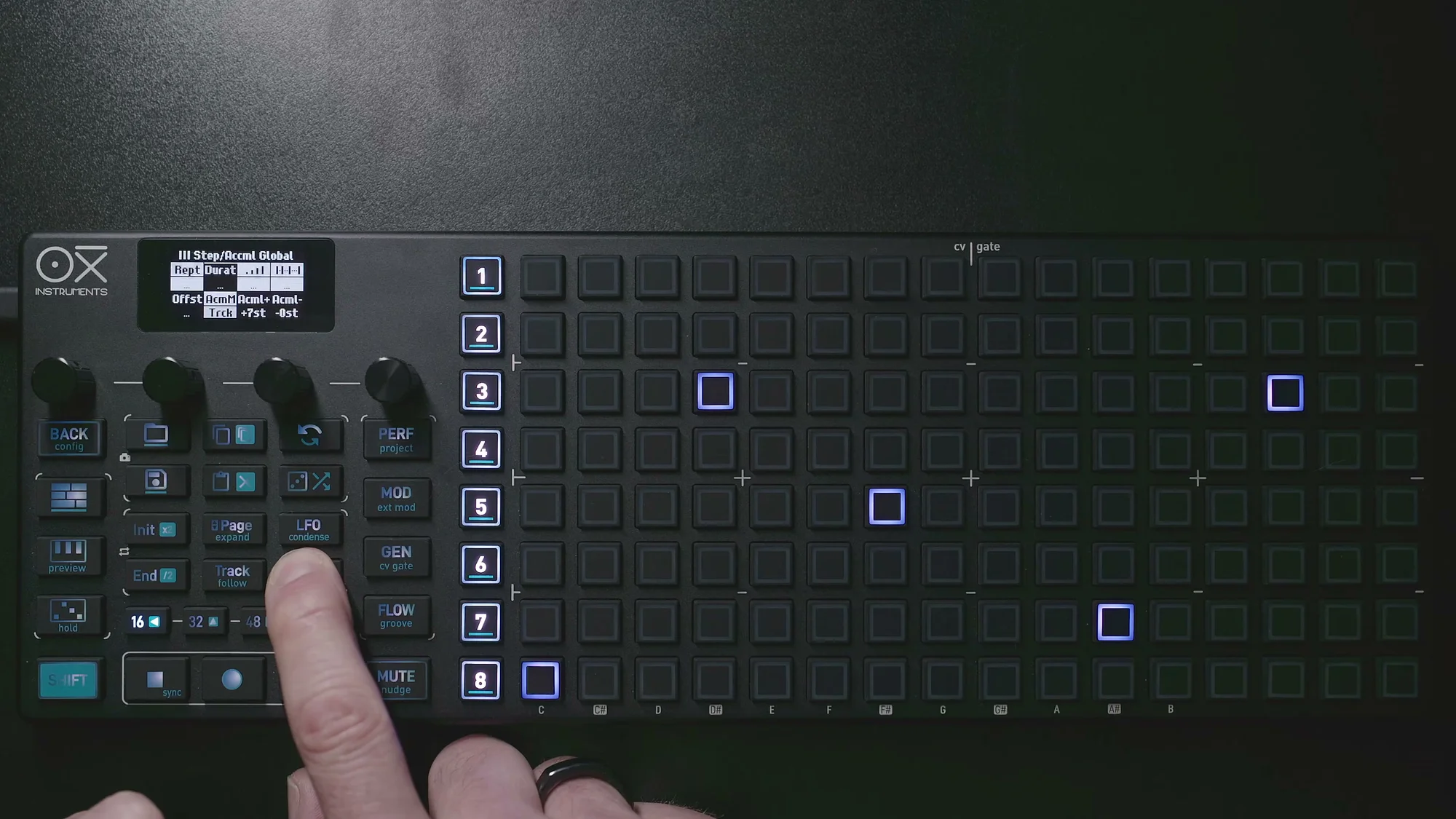
On individual step Accumulator pages, you can set the global accumulation value. This means all steps accumulate by the same amount.
This is where the Trig None setting mentioned earlier comes in handy. With Track Accumulation enabled, setting a specific step's Trig to None excludes just that step from the Accumulator's effect. All other steps keep changing while that particular step maintains its original pitch.
Accumulator in Poly Mode
The latter half of the video introduces Accumulator support in Poly Mode. This is a significant feature addition.
In Poly Mode, you can place multiple notes on a step. When you apply the Accumulator to that step, all notes on that step are offset simultaneously. In other words, you can move entire chords with the Accumulator.
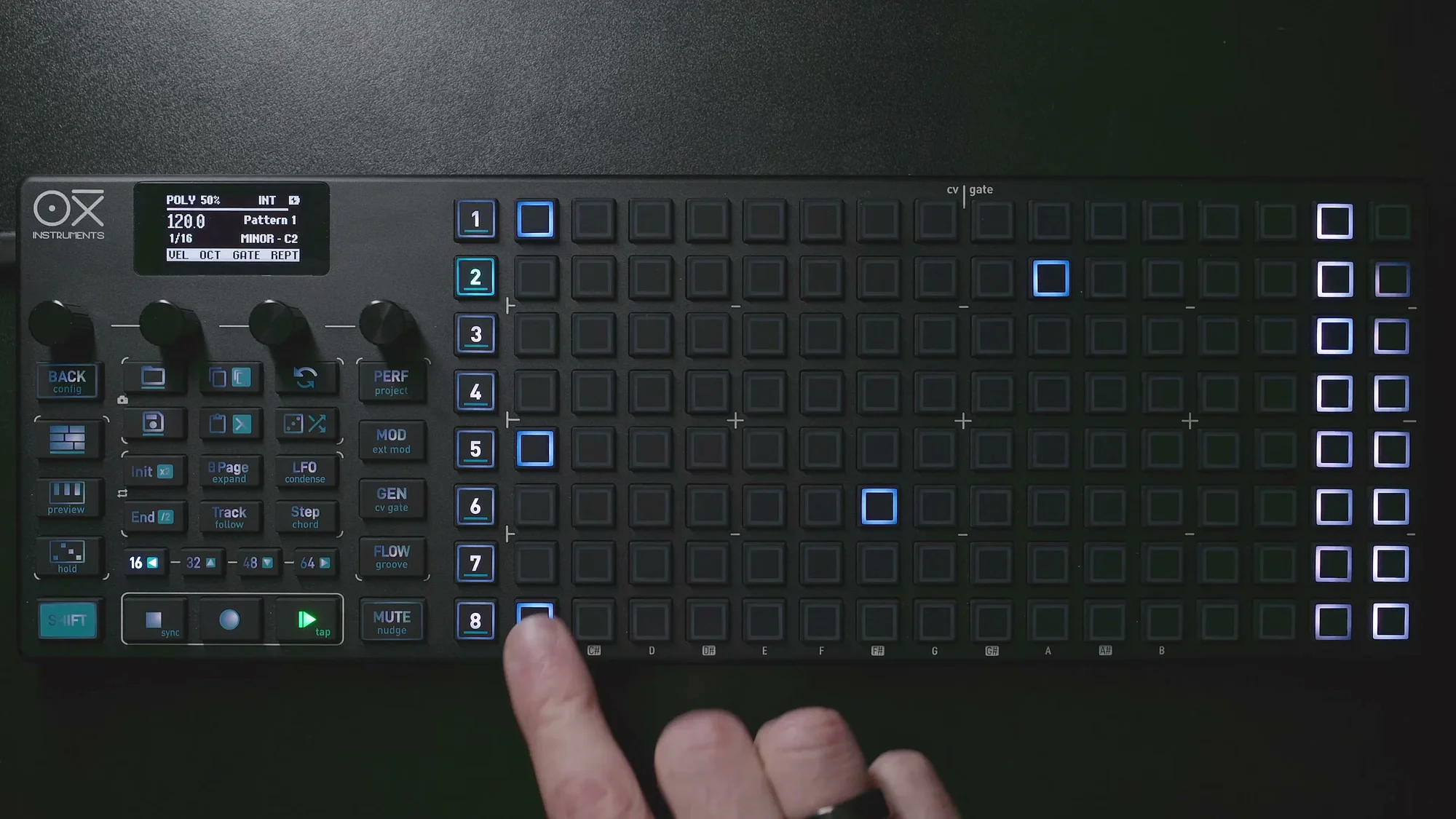
Automatic Chord Progression Generation
For example, place a 3-note chord on a step, set Amt to +6st and the mode to Clip, and the chord will rise by 6 semitones with each sequence cycle, resetting when the limit is reached. With the right upper limit, you can create movement where two chords alternate back and forth.
Since scale quantization is active, the chord doesn't just shift by raw semitones — it adapts to notes within the scale. This means you can automatically generate musical chord progressions with just the Accumulator, without manually programming chord changes.
Advanced Techniques
- Set different Amt values and modes on different steps to create complex chord progression patterns
- Add velocity changes for progressions with dynamics
- Layer in Groove for timing variations as well
The video demonstrates creating rich chord progressions in Poly Mode by applying different Accumulator settings to multiple steps and adding Groove on top.
That's it for EP.4. The Accumulator might seem like a subtle feature at first glance, but when you combine modes, Trig settings, logic conditions, and Track Accumulation, you can generate surprisingly complex and musical variations from simple patterns. The Flow integration in particular dramatically expands your expressive range in live performance.
And with Accumulator support in Poly Mode, a whole new possibility of automatic chord progression generation has been added. I encourage you to experiment with it.
- OXI ONE MKII Guide EP.5: Chords and Performance with Poly Mode
- OXI ONE MKII Guide EP.6: Planting Creative Seeds with Random Generator
OXI ONE MKII Product Page
See the product details for the OXI ONE MKII below.
OXI ONE MKII Black Edition, next-generation model with 8-part sequencer. Enhanced generative features, large OLED display, and up to 64-track control.
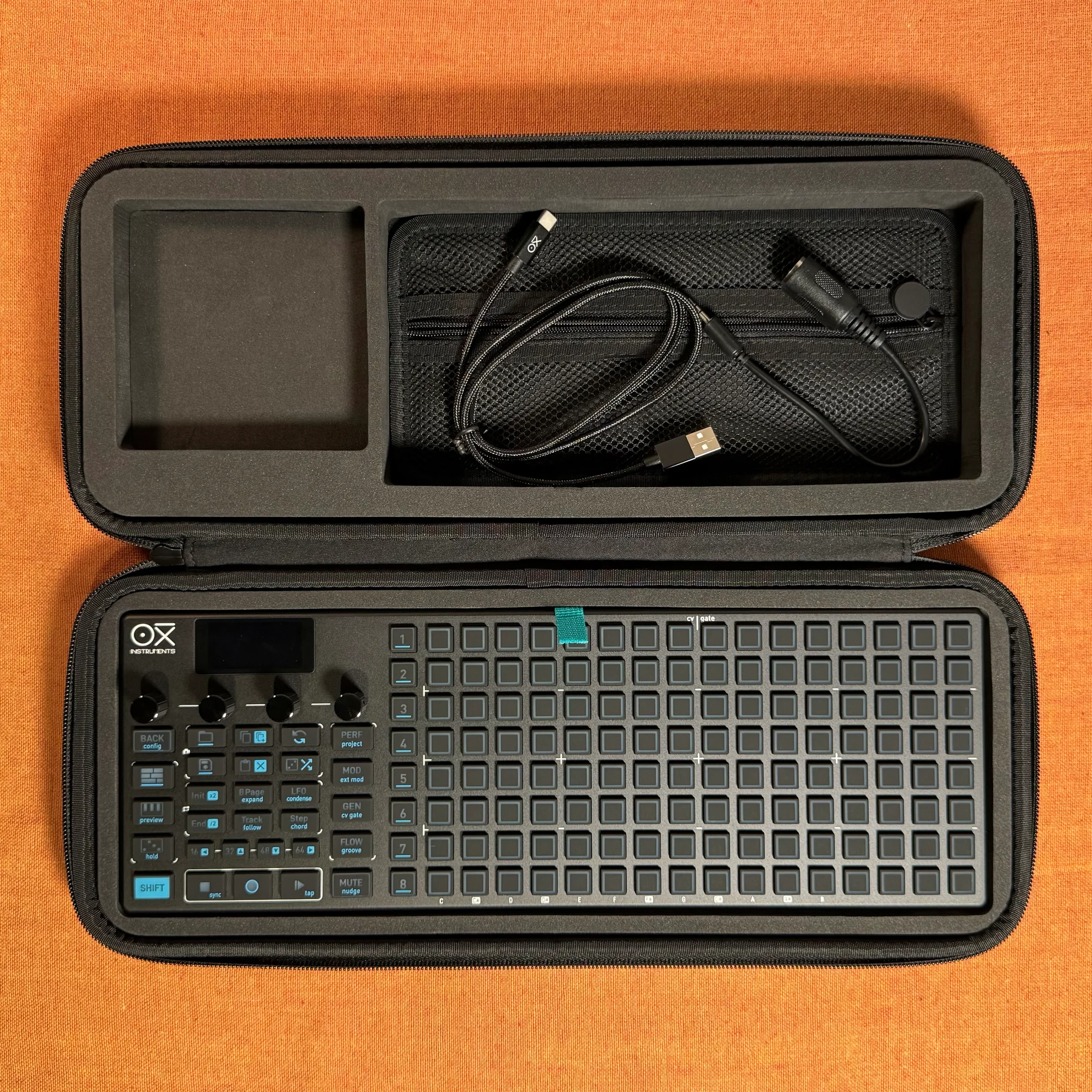
OXI ONE MKII, next-generation model with 8-part sequencer. Enhanced generative features, large OLED display, and up to 64-track control.