Welcome to EP.7 of the OXI ONE MKII guide series. This time, I’ll be covering Pattern Workflow.
A sequence on the OXI ONE MKII consists of 16 steps x 8 pages = up to 128 steps. With that much length available, operations like page navigation, pattern length settings, loops, and copy & paste become really important. In EP.7, I’ll walk through the workflow for managing this overall sequence structure. Starting with page navigation, then pattern length settings, temporary loops, temporary selection, Follow mode, and preview. These are all operations you’ll use frequently when building sequences, so they’re definitely worth learning.
- Page Navigation
- Setting Pattern Length
- 128-Step Sequences
- Automatic Adjustment of Start and End Points
- Clear and Reset
- Copy & Paste
- Modulation Lanes
- Temporary Loop vs Init/End
- Temporary Selection
- Cross-Page Ties
- Follow Mode
- Preview
Page Navigation
Sequences on the OXI ONE MKII consist of 8 pages, with 16 steps per page. That’s 128 steps in total.
The first 4 pages (steps 1-64) can be accessed directly using the page buttons. The number printed on each button represents the last step number of that page. For example, pressing the 32 button displays steps 17-32.
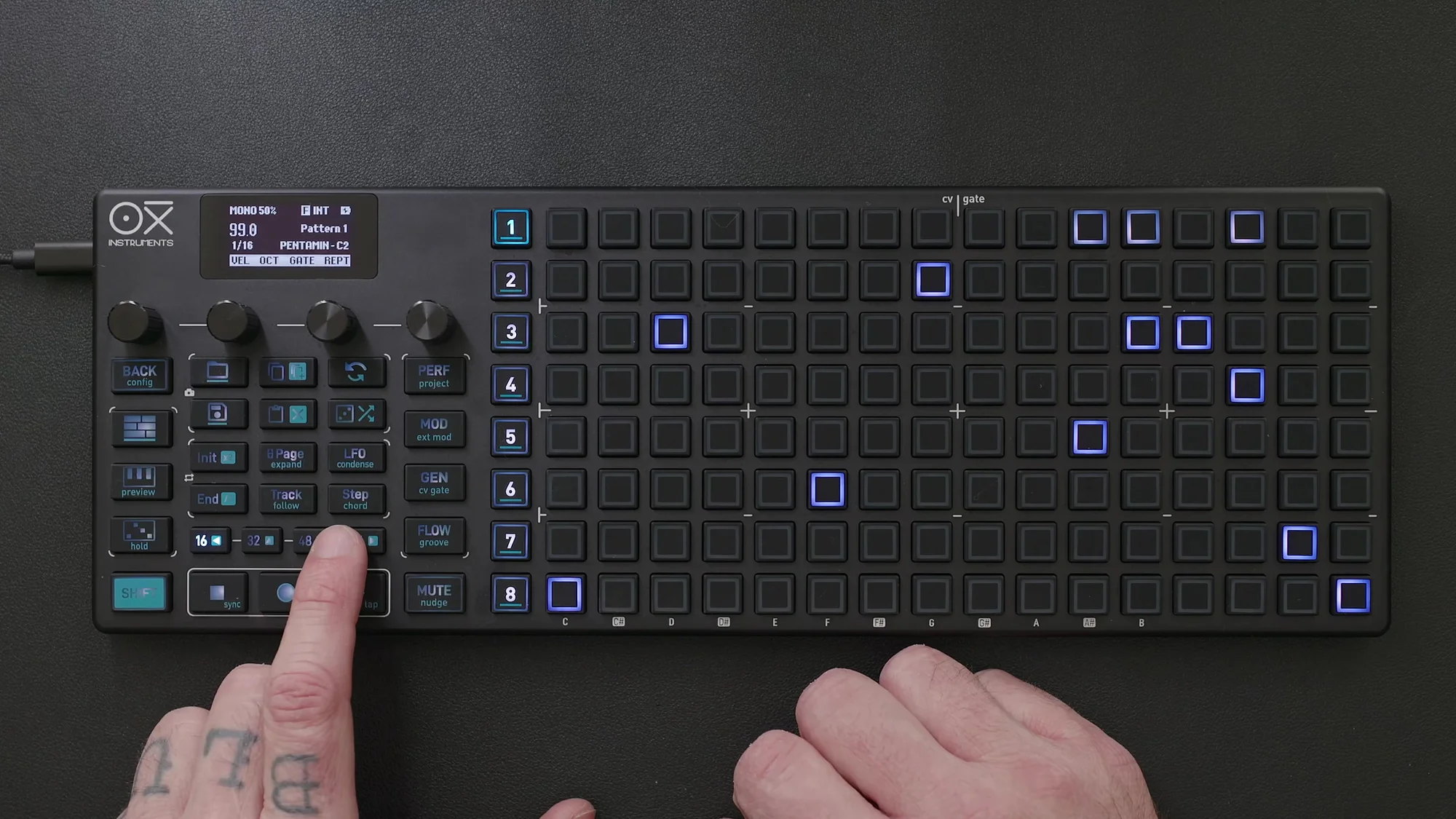
To access the latter 4 pages (steps 65-128), press the same page button a second time. The button turns cyan, indicating you’ve entered the extended pages. The step numbers for extended pages are calculated by adding 64 to the button’s number. For example, pressing the 48 button twice displays steps 97-112.
If the steps on a page appear dimly lit, it means the current pattern length doesn’t extend to that page. Steps outside the pattern range are displayed dim, so you can visually tell which steps are currently active.
Setting Pattern Length
The pattern length is defined by setting a start point (Init) and an end point (End). There are two ways to do this.
Selecting Steps Directly
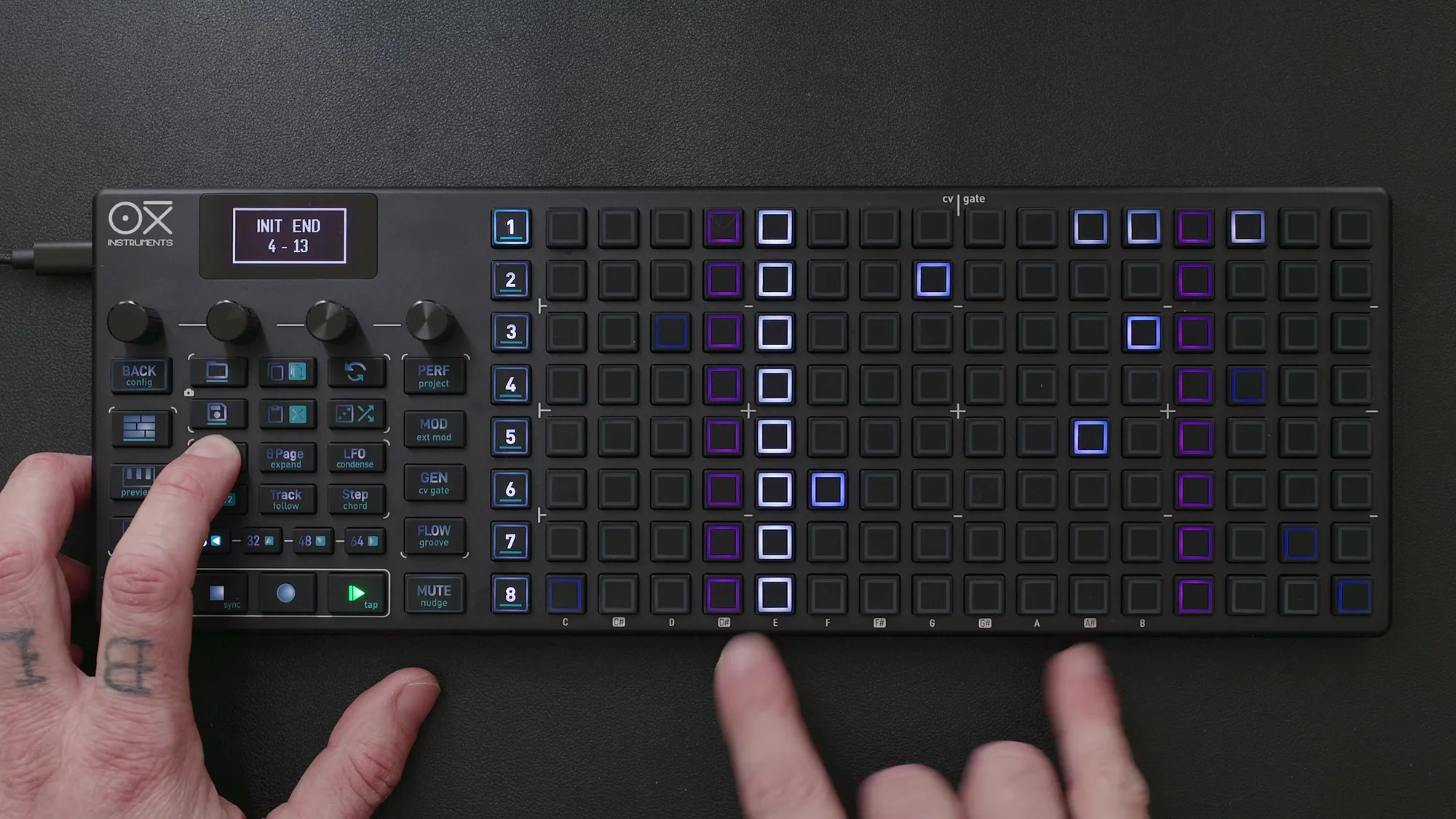
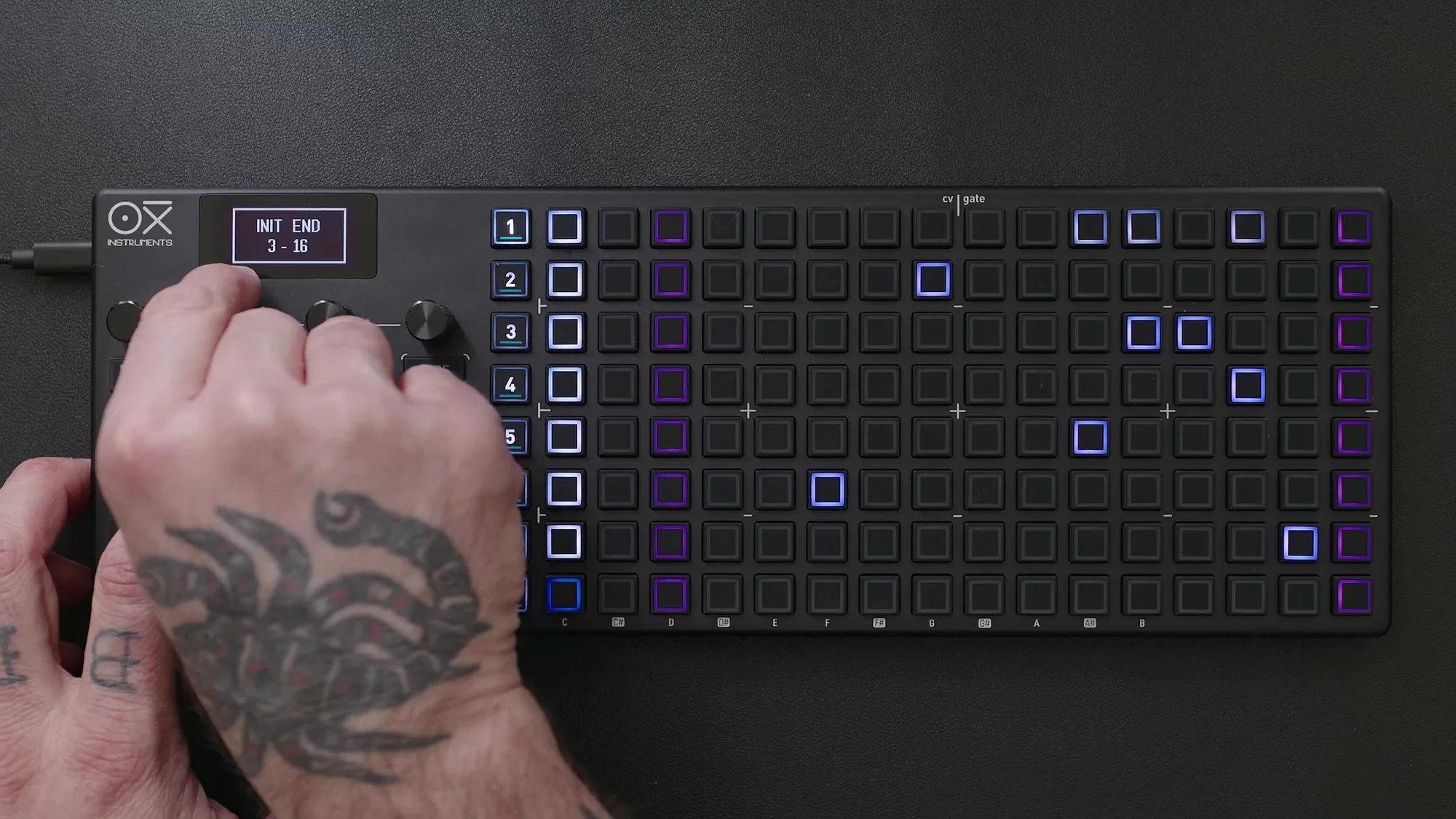
Press the Init or End button, then select any step. For example, pressing End and then selecting step 32 sets the pattern length to 32 steps.
Adjusting with Encoders
Hold Init or End while turning Encoder 2 and Encoder 3 to fine-tune the start and end points.
With either method, the display shows two pink bars indicating the current pattern length.
Quick Extension with Page Buttons
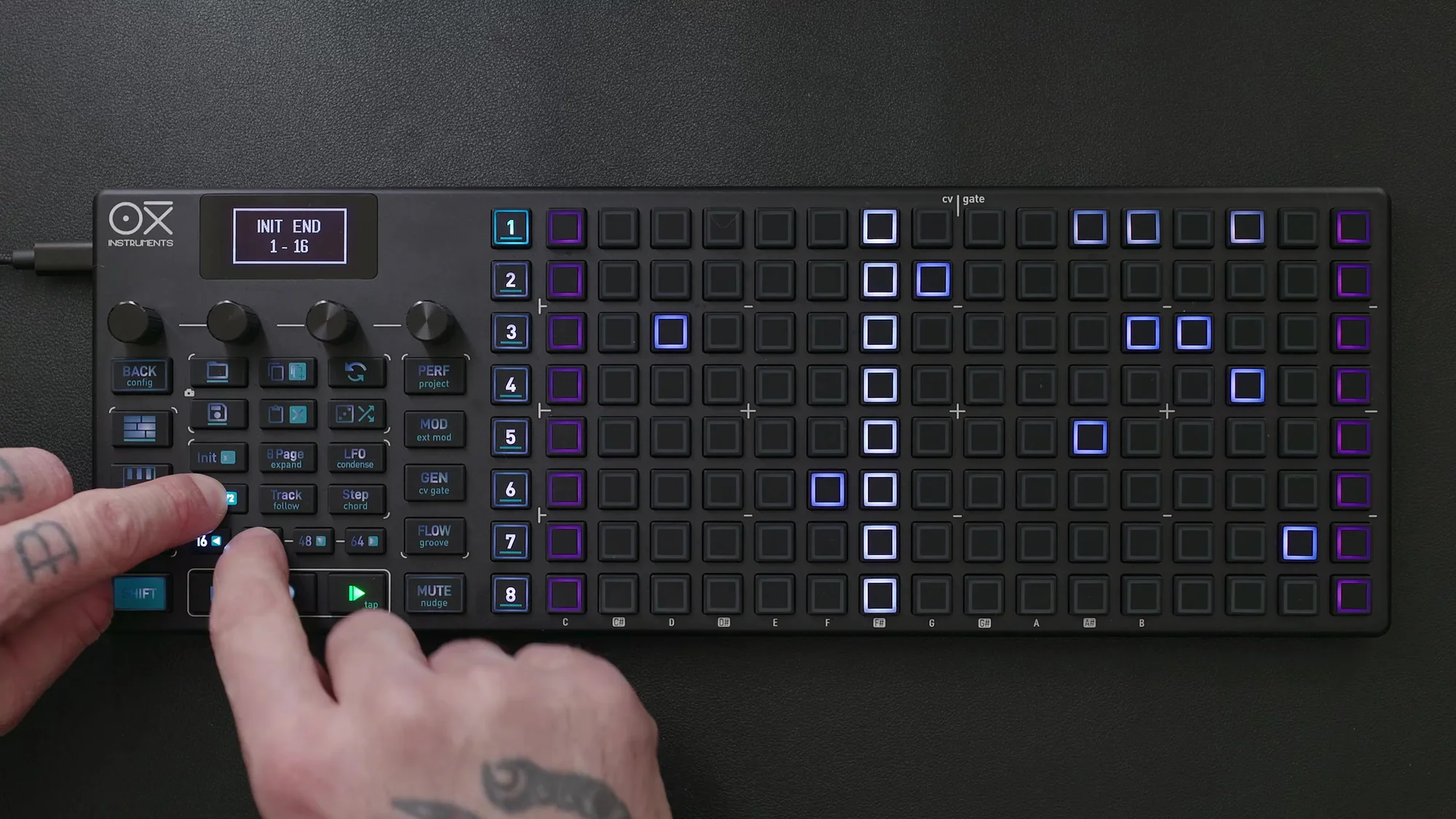
To quickly extend a pattern by page increments, hold End while pressing a page button. For example, if you have a 16-step pattern and hold End while pressing the 32 button, it instantly becomes a 32-step pattern. It’s intuitive and fast.
128-Step Sequences
To create sequences longer than 64 steps, you need to press a page button twice to access the extended pages.
For example, to create a maximum 128-step sequence, press End and then press the 64 button twice. This sets up a full 128-step sequence.
Similarly, you can change the start point using the Init button. Press Init and select a step on the extended pages to create a sequence that starts from, say, step 65.
Automatic Adjustment of Start and End Points
When setting the start and end points of a pattern, the OXI ONE MKII behaves intelligently.
If you press Init and select a step beyond the current end point, the loop point is automatically adjusted to maintain the sequence length. Likewise, if you press End and select a step before the current start point, the loop point is adjusted to keep the length consistent.
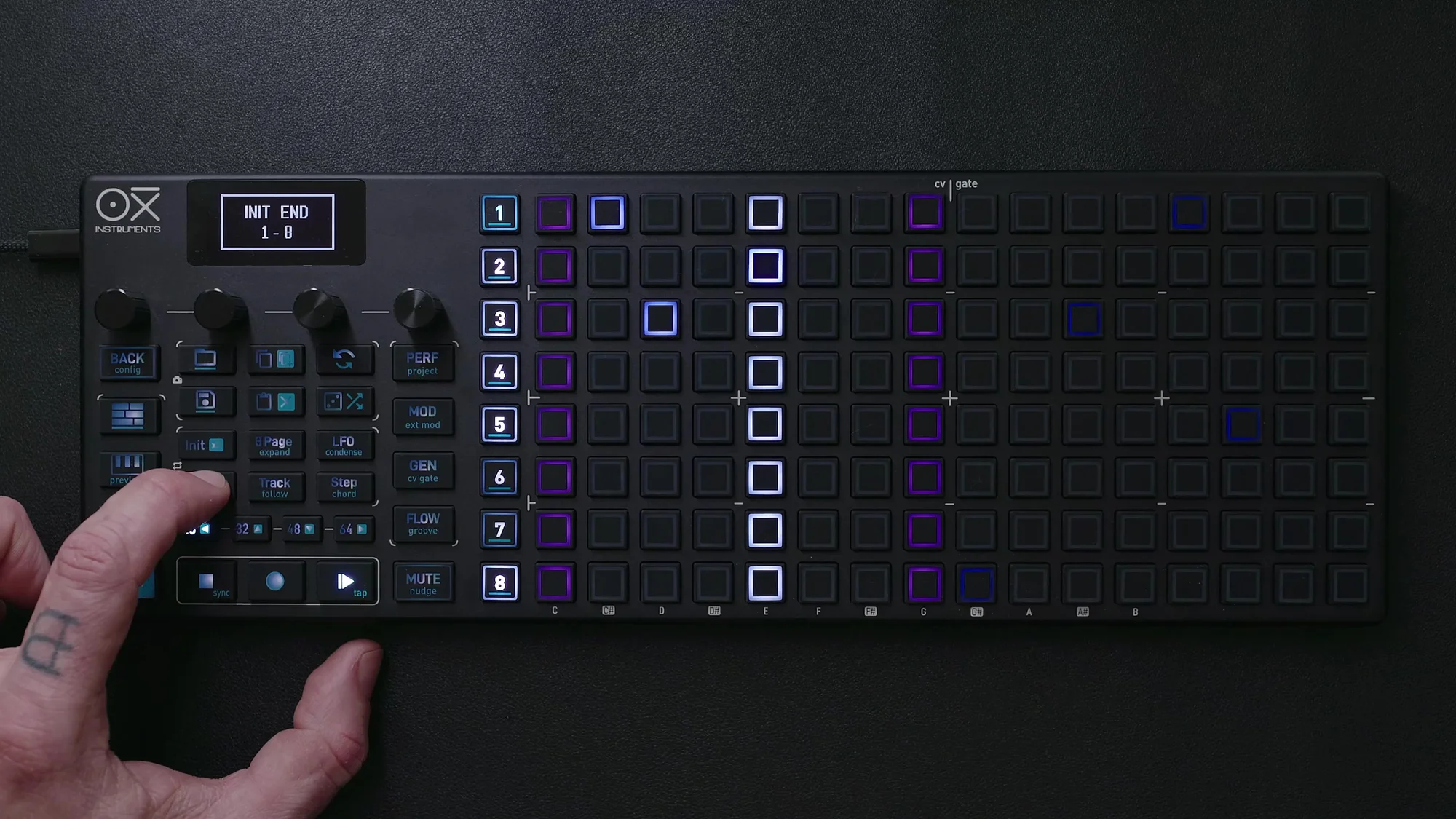
In other words, it’s designed so that unintended length shifts are unlikely to happen. You can confidently adjust Init and End without worrying.
Clear and Reset
There are two types of clear operations for patterns.
Standard Clear
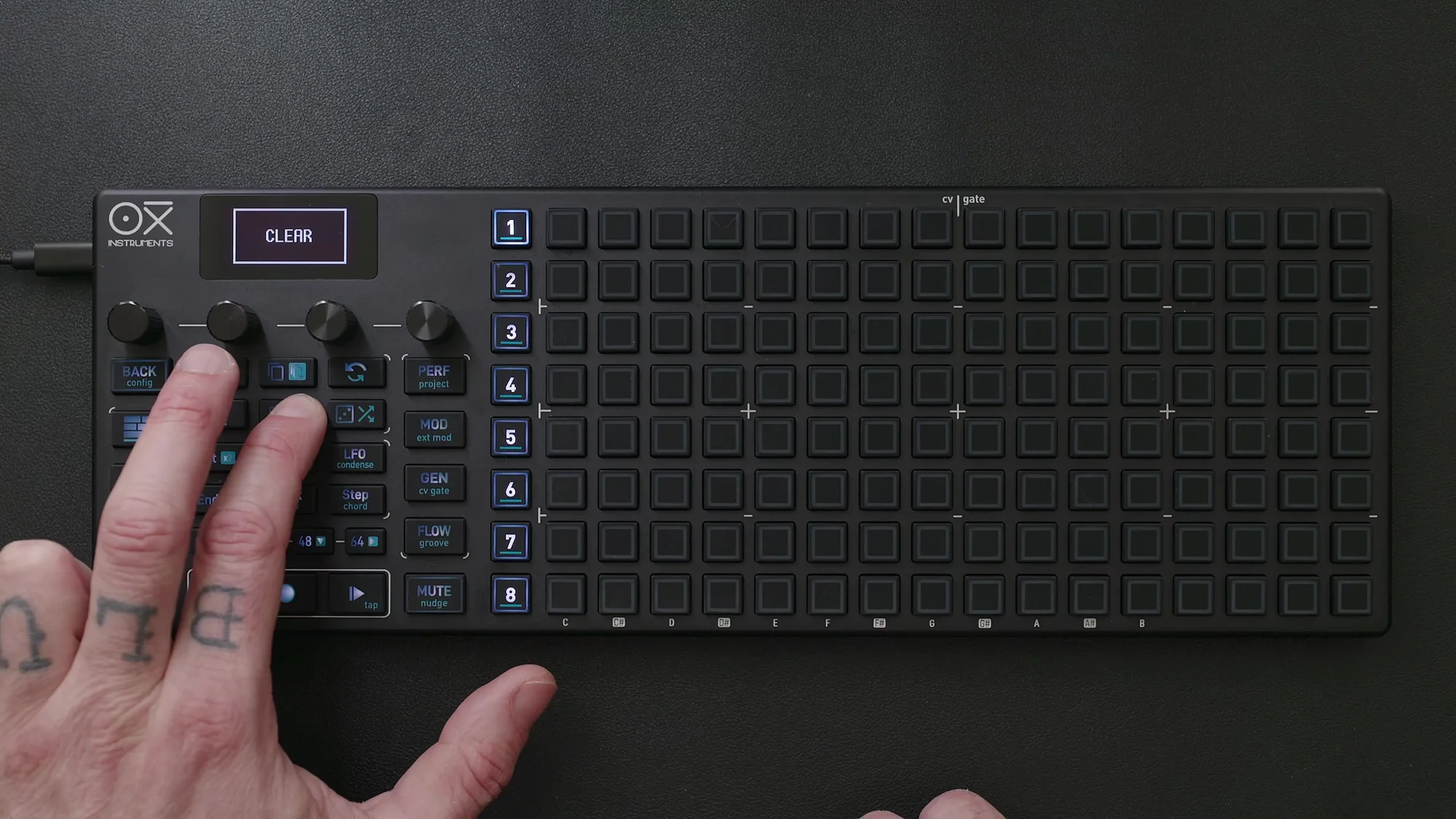
A standard Clear operation clears the pattern’s contents (notes and modulation) but preserves the pattern length and start/end points. For example, if you clear a pattern spanning steps 17-64, the notes are removed but the pattern range stays at steps 17-64.
Full Clear (Reset)
Long-pressing Shift + Clear performs a full clear. This clears not only the pattern’s contents but also resets the pattern length to the default 16 steps. Use this when you want to start completely from scratch.
Copy & Paste
Page-level copy & paste is also available.
Page Copy & Paste
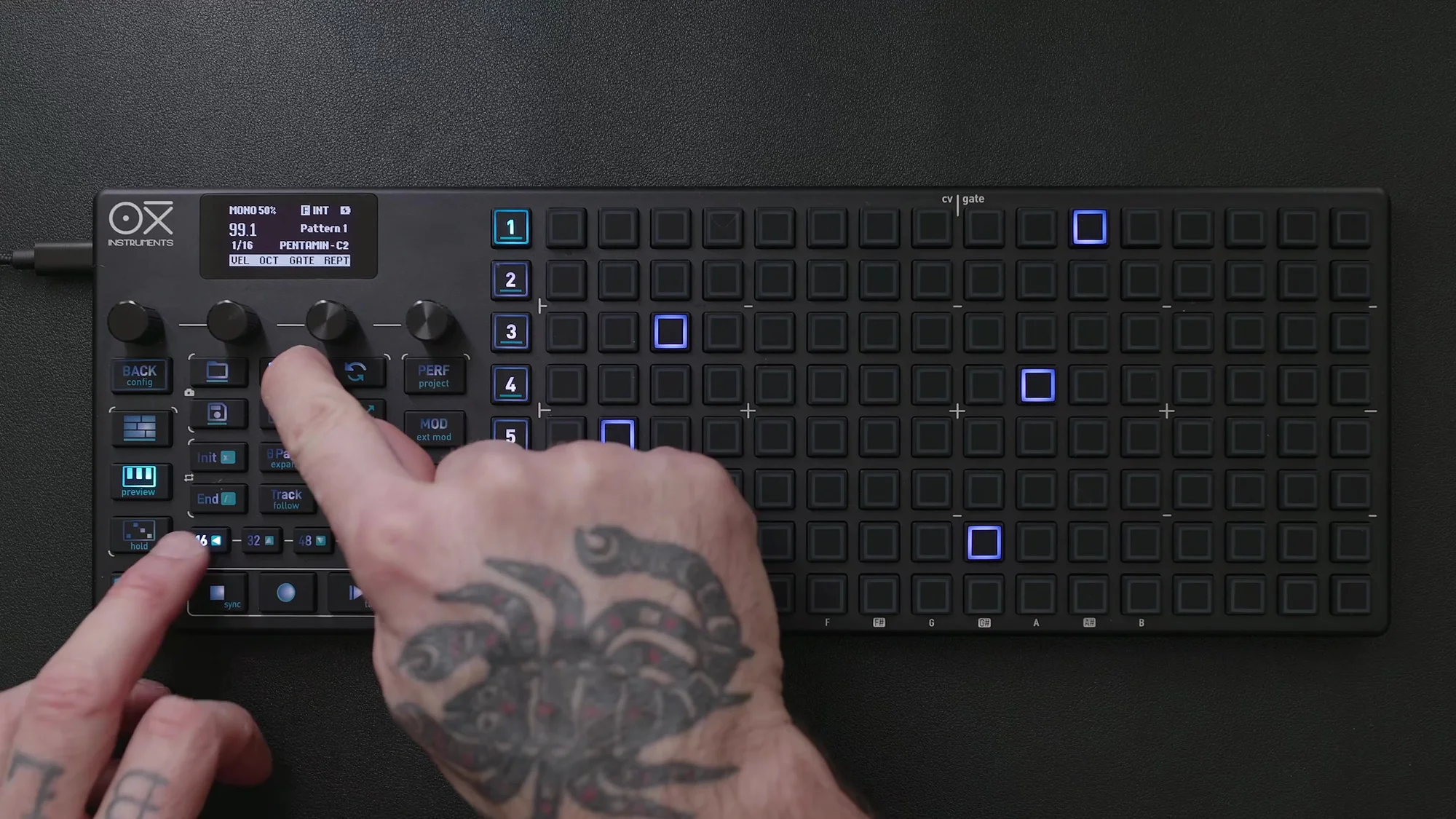
- Press the Copy button, then press the button for the page you want to copy
- Press the Paste button, then press the button for the destination page
For example, to copy page 1’s pattern to page 3: Copy -> 16 (page 1) -> Paste -> 48 (page 3). After pasting, extend the pattern length to include the pasted page, and it will play as part of the sequence.
Duplicating an Entire Pattern
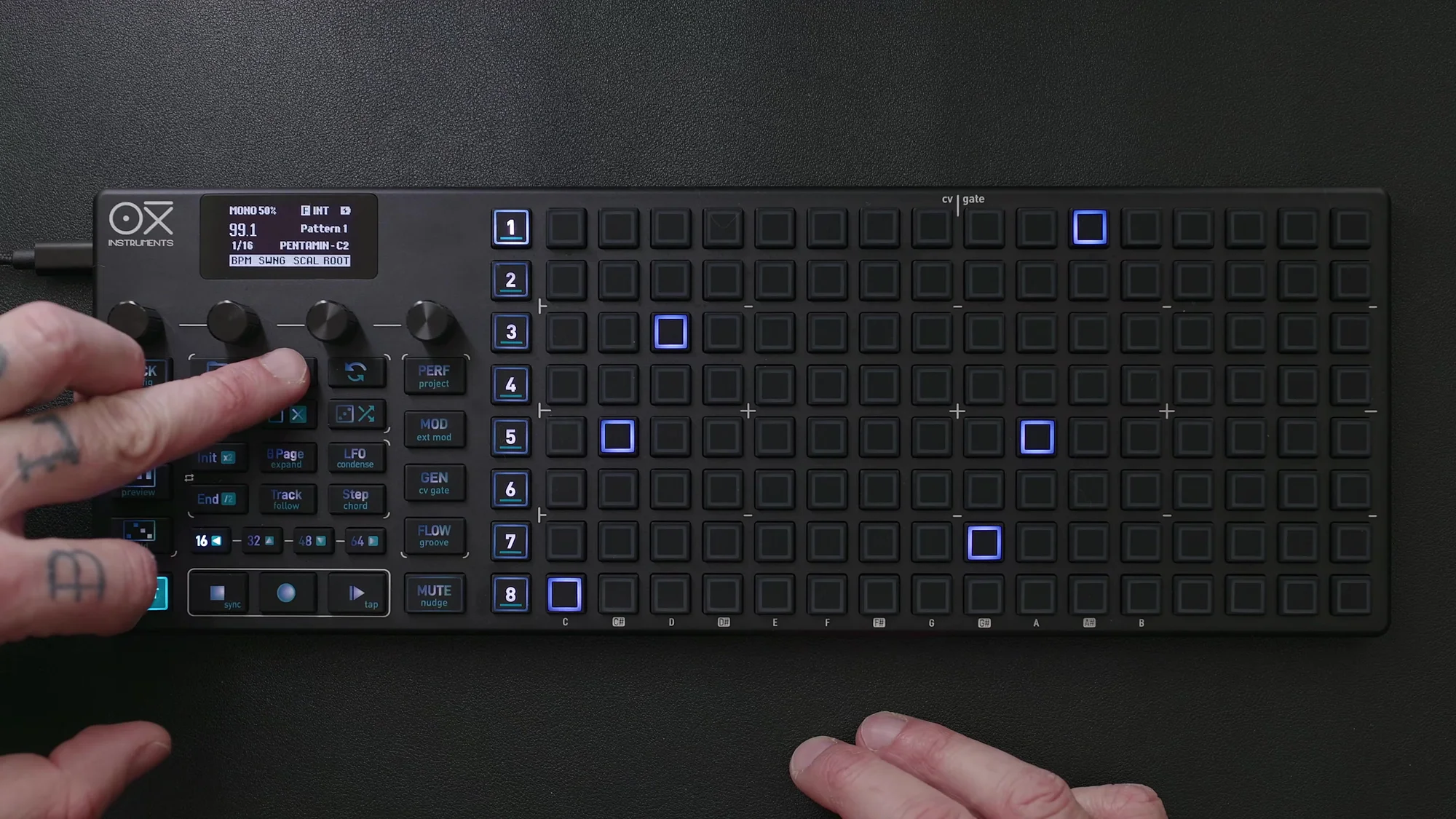
There’s also a way to duplicate an entire pattern at once. Pressing Shift + Copy duplicates the current pattern in its entirety. For example, a 16-step pattern becomes a 32-step pattern, with the first and second halves containing the same content.
This is extremely handy for creating variations. Duplicate it first, then make small changes to the second half — that workflow is incredibly comfortable.
Modulation Lanes
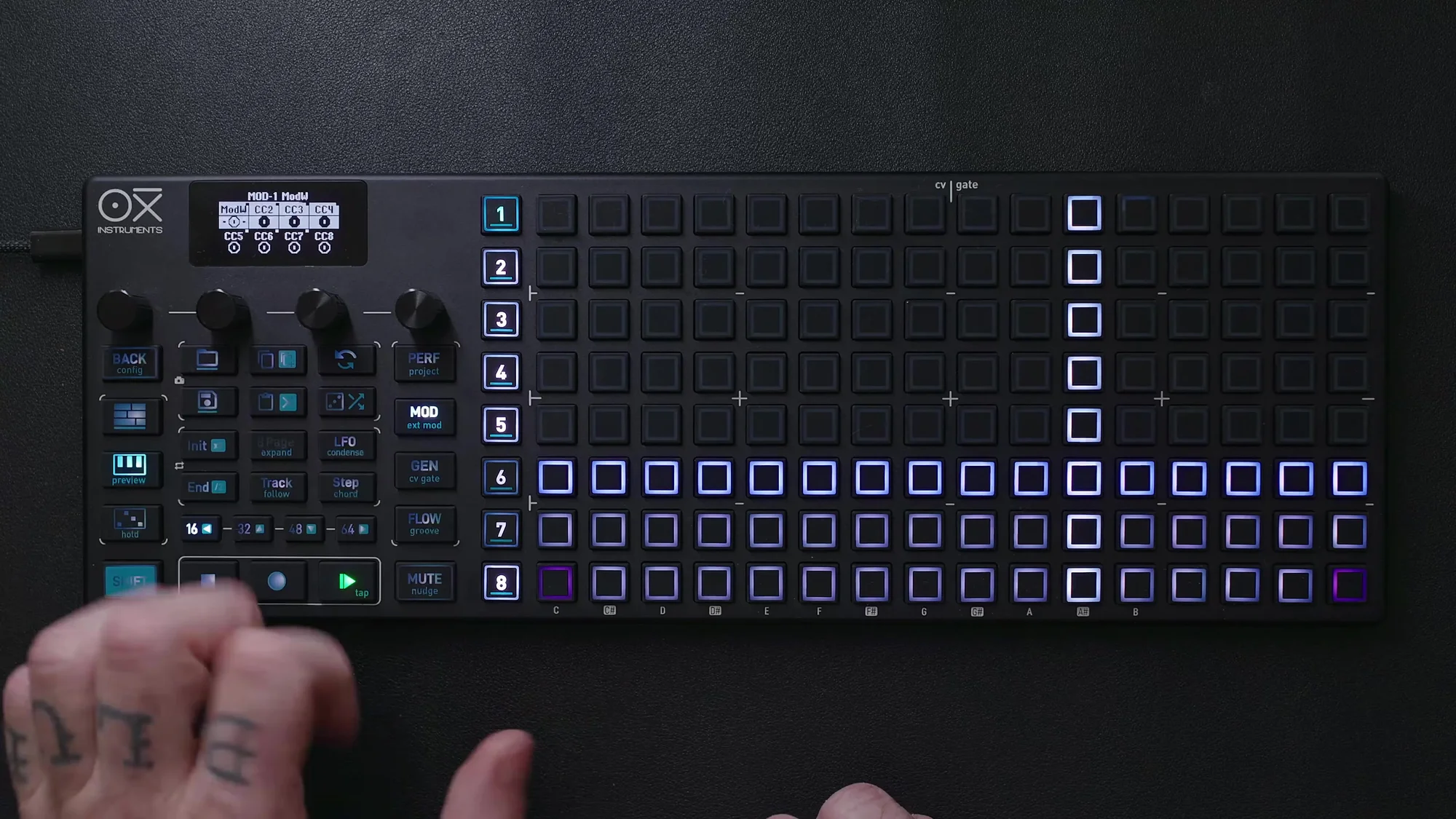
The OXI ONE MKII has 8 modulation lanes, each operating as an independent sequencer.
Here’s the key point: each modulation lane can have its own length, timing, and settings. This means you can set up modulation with a different length from the main note sequence. For example, even if the note sequence is 16 steps, setting a modulation lane to 7 steps creates polyrhythmic variation.
Init and End settings are also independent for each modulation lane, so you can treat each lane as a separate sequencer.
Temporary Loop vs Init/End
Here’s an important distinction. Init/End settings and temporary loops are different things.
Init/End (Saved Settings)
As described earlier, the start/end points set with Init and End are saved with the pattern. If you save the pattern, the Init/End settings will be preserved when you load it next time.
Temporary Loop
To create a temporary loop, press Init and End simultaneously. Then set the loop range while holding them. A temporary loop is, as the name suggests, temporary — it’s not saved with the pattern.
To release a temporary loop, press Init or End again.
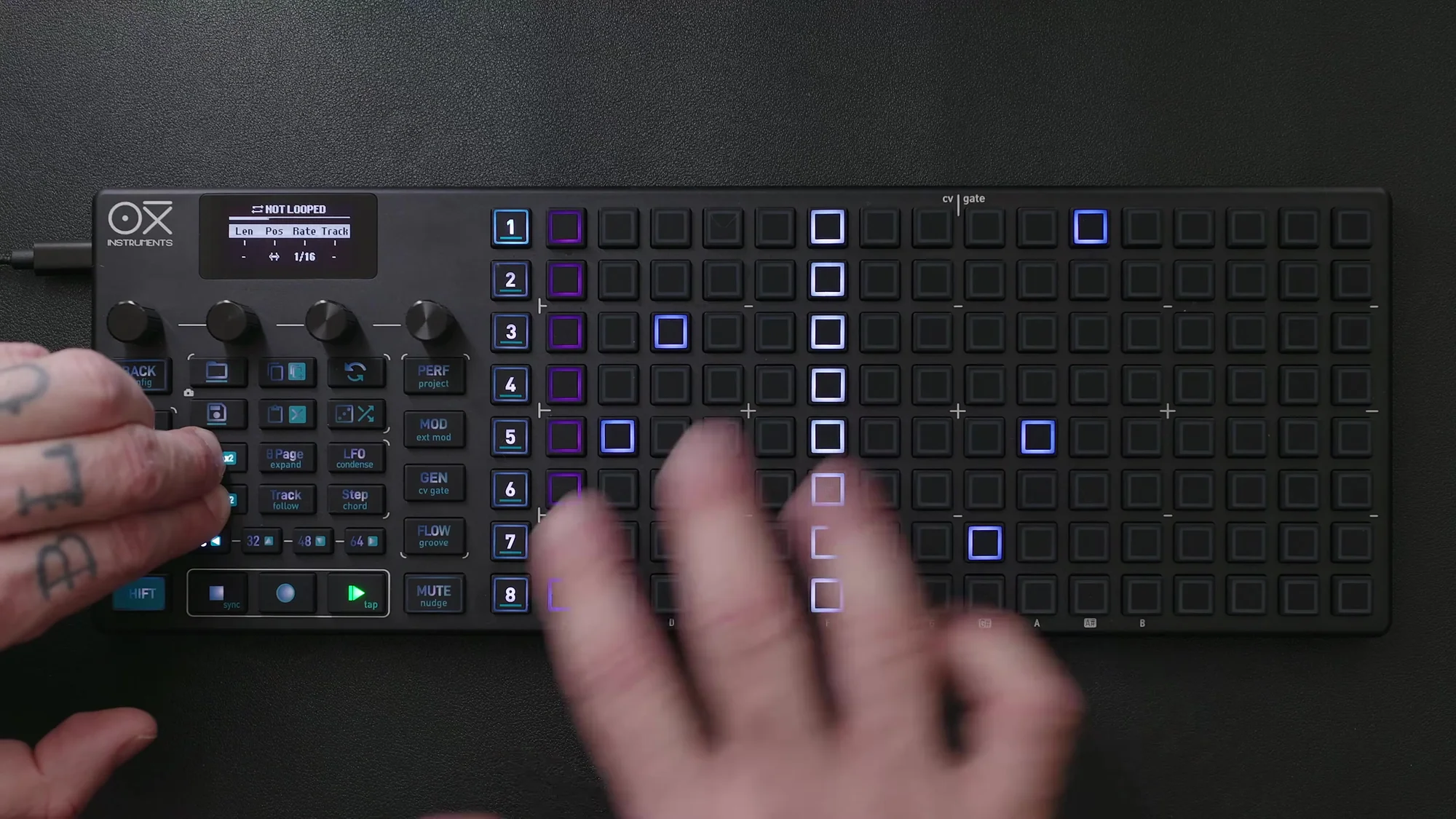
In terms of when to use which: temporary loops are handy during live performance or composition when you want to “just loop this section for a moment.” On the other hand, when you want to fix the structure of a sequence, it’s better to set it with Init/End and save.
Temporary Selection
Temporary selection is a feature for selecting and operating on only a specific part of the sequence.
The operation is: press the last step of the range you want to select, then press the first step. Once the selection is active, only that range becomes the target of operations.
Examples of operations available during temporary selection:
- Move the steps within the selected range
- Change the position of steps within the selected range
- Delete the selected range
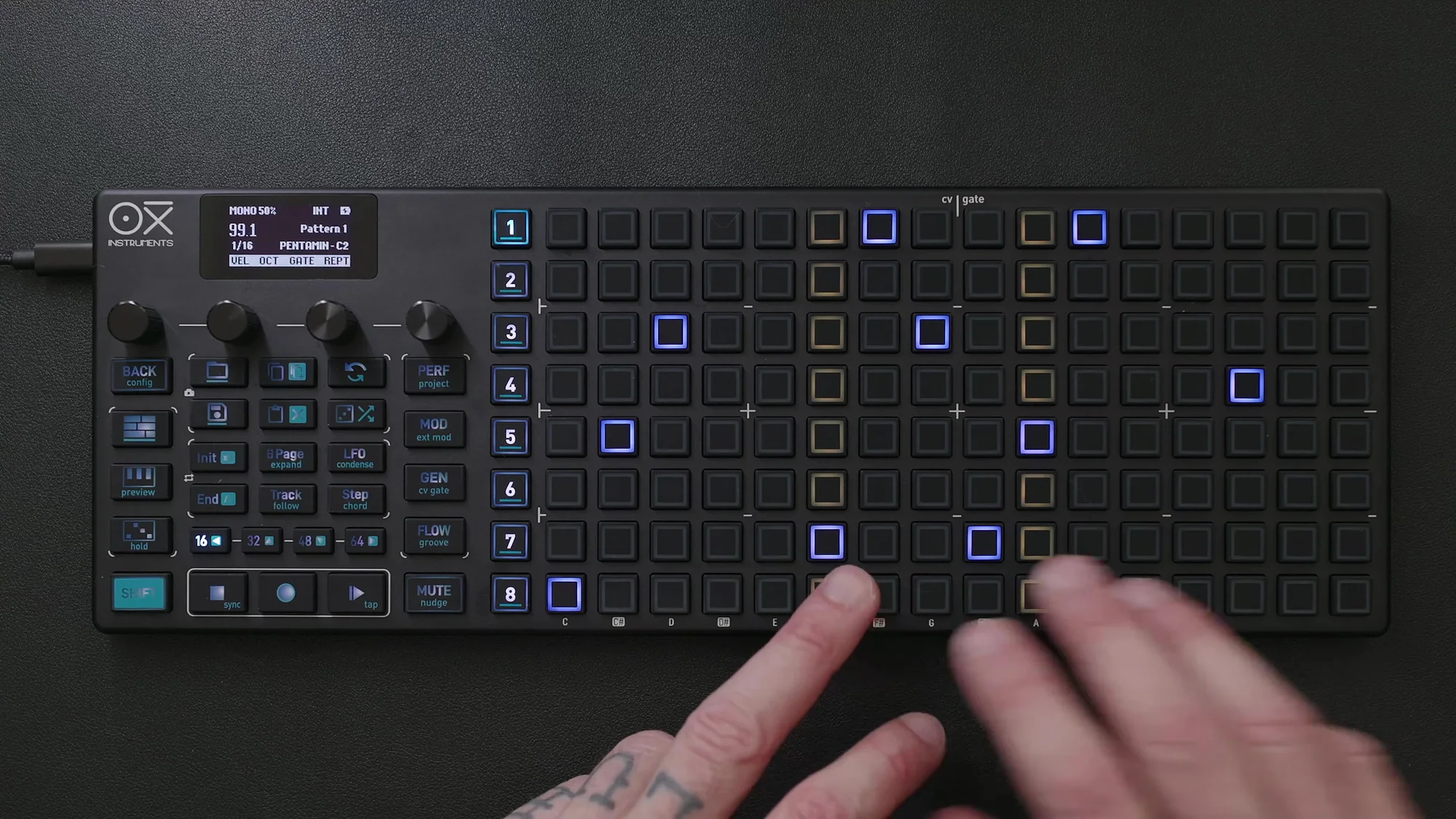
Press the Back button to release the temporary selection. This is an incredibly useful feature when you want to edit just a portion of a long sequence.
Cross-Page Ties
You can also tie notes across page boundaries.
The method is simple: hold the note you want to tie, then switch to the next page and extend the tie there. This lets you create long note values without worrying about page boundaries.
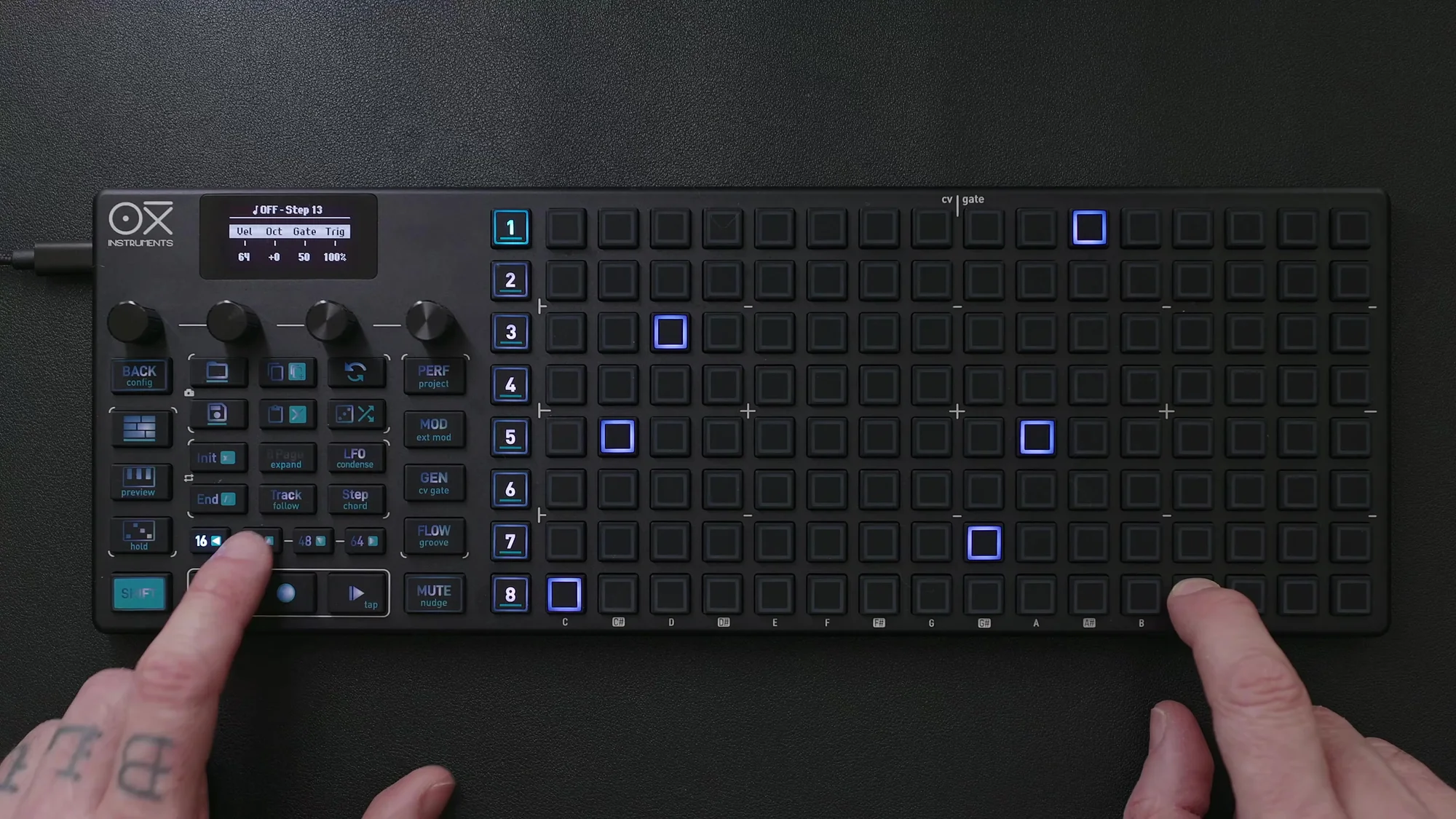
When building melodic phrases in long sequences, cross-page ties come up frequently, so it’s a useful operation to remember.
Follow Mode
When working with long sequences that span multiple pages, the Follow feature comes in handy.
With Follow enabled, the OXI ONE MKII automatically switches pages to match the transport’s playback position. In other words, you can always see on screen which step is currently playing during playback.
If you want to focus on a specific page, turn Follow off to manually select and lock a page.
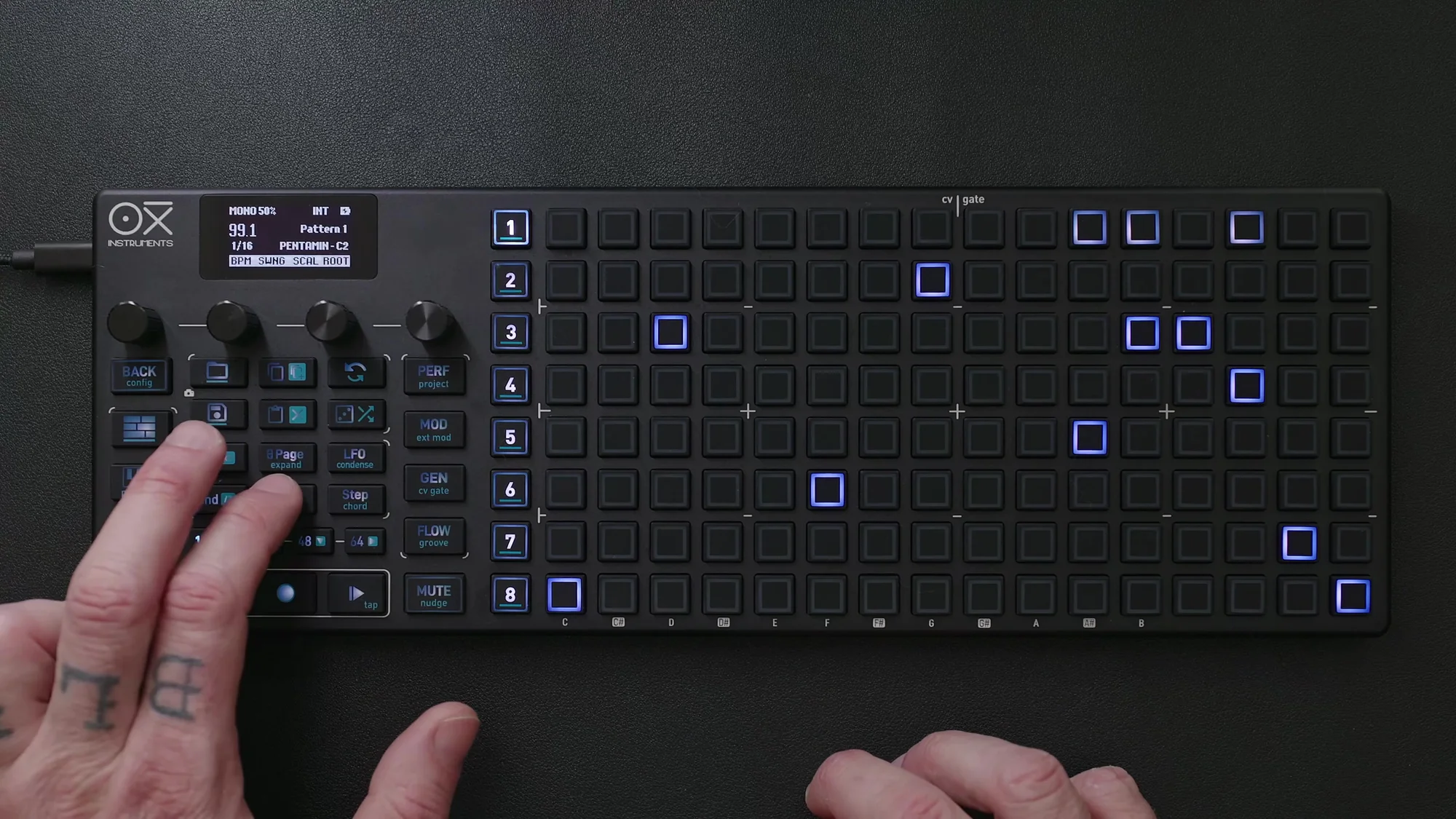
Awareness Feature
Follow also has a supplementary feature called Awareness. When you’re editing on a specific page while Follow is active, the OXI ONE MKII delays the page switch by a few seconds. This prevents you from being suddenly jumped to another page while editing, letting you finish your work in peace.
Once you’re done editing, it returns to normal Follow behavior. Whether in live performance or studio work, this kind of thoughtful detail makes the workflow significantly more comfortable.
Preview
Finally, let’s talk about the preview feature. Preview lets you hear sounds without running the sequence. It behaves differently depending on the mode.
Mono/Poly Mode
In Mono/Poly mode, pressing a step on the piano roll lets you preview the note assigned to that step. It’s really convenient for checking “what does this step sound like?” during composition.
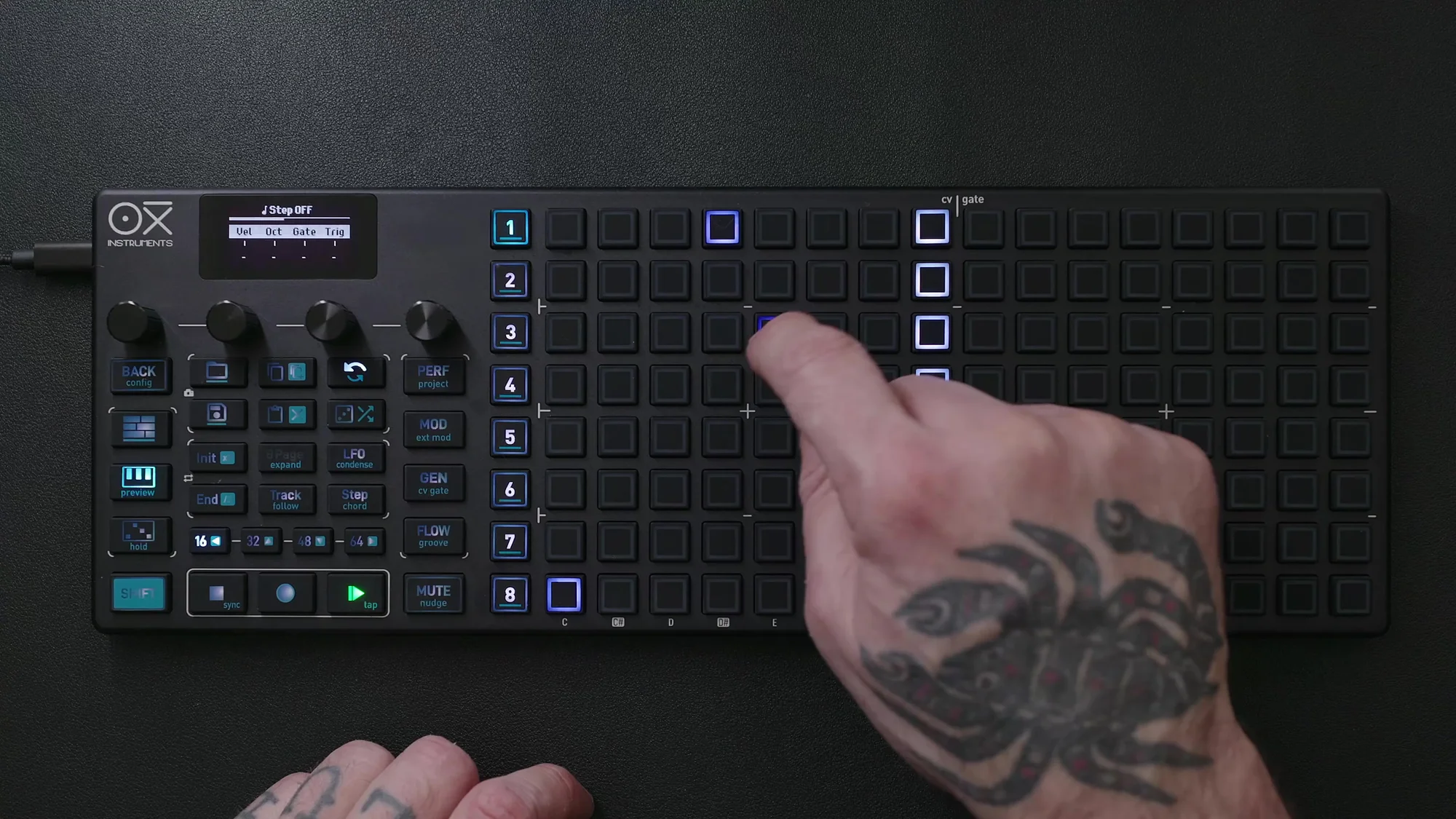
Multitrack Mode
In Multitrack mode, preview plays the root note assigned to the currently selected track.
Chord Mode
In Chord mode, you can preview different chord variations. You can build your sequence while checking how each chord sounds.
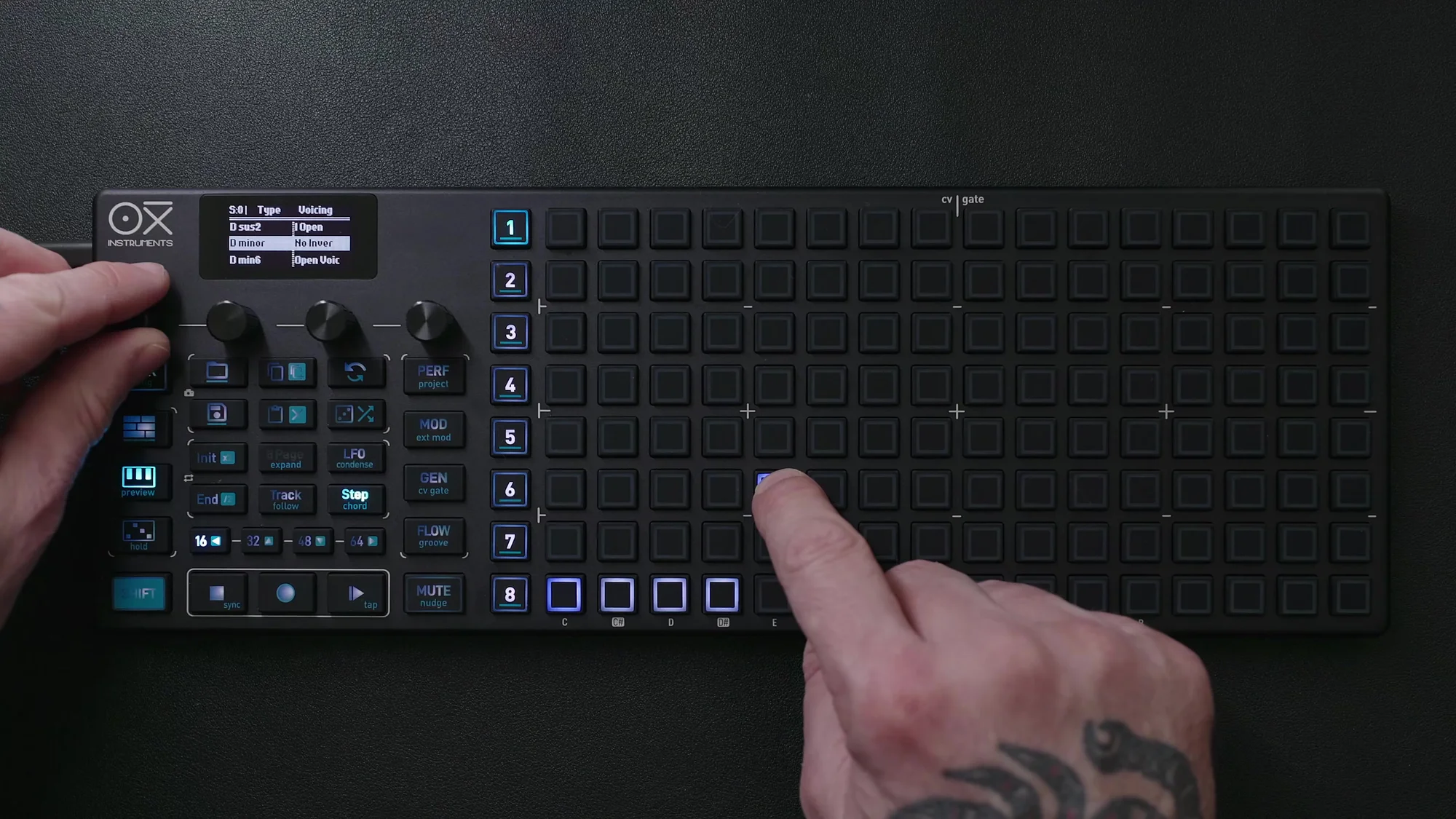
That wraps up EP.7. This time, covering pattern workflow, I walked through the operations you’ll use frequently when building sequences: page navigation, pattern length settings, copy & paste, temporary loops, Follow mode, and more. The pattern duplication with Shift+Copy and the Follow feature are especially indispensable when working with long sequences. I’d encourage you to make full use of them.
OXI ONE MKII Product Page
See the links below for OXI ONE MKII product details.
OXI ONE MKII Black Edition, next-generation model with 8-part sequencer. Enhanced generative features, large OLED display, and up to 64-track control.
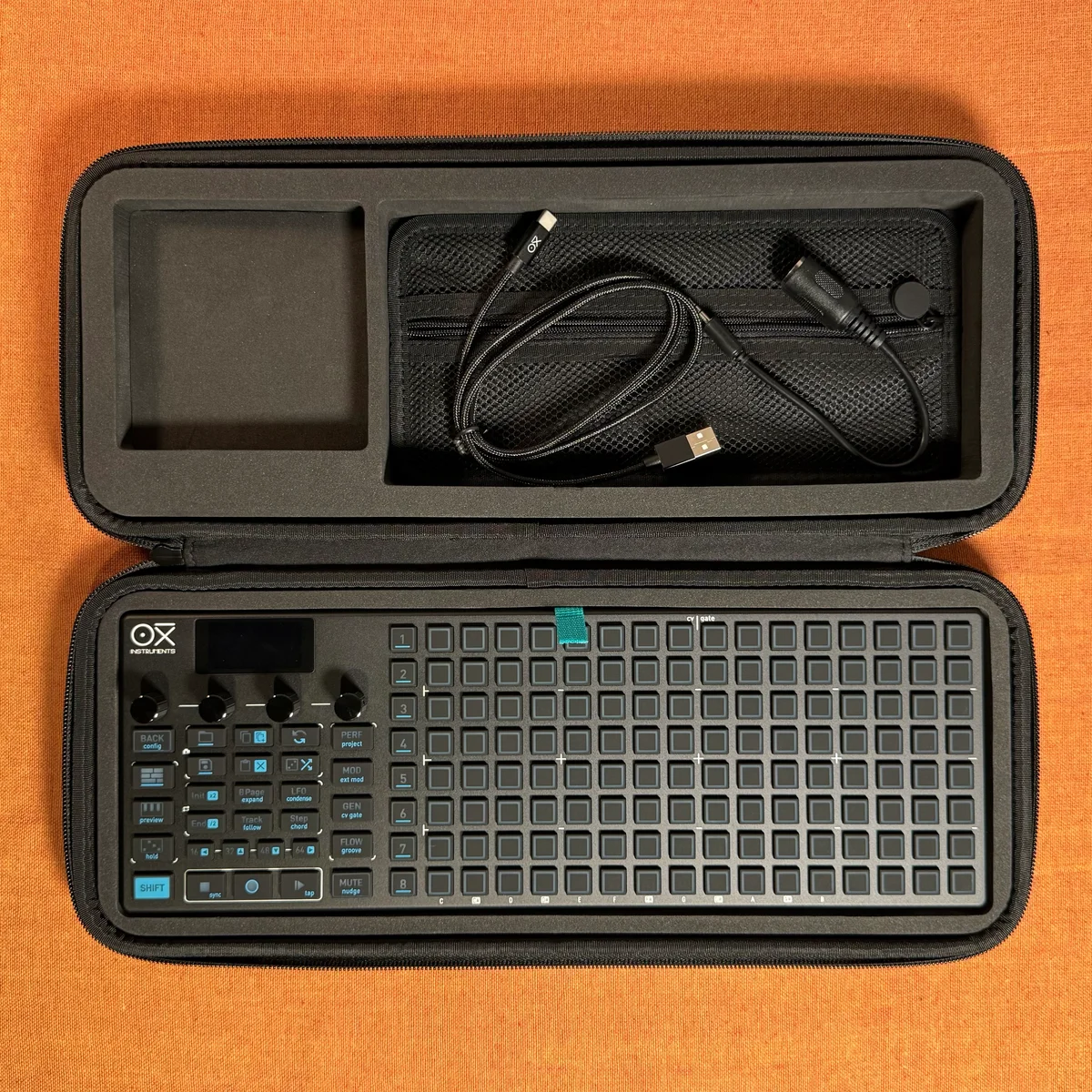
OXI ONE MKII, next-generation model with 8-part sequencer. Enhanced generative features, large OLED display, and up to 64-track control.