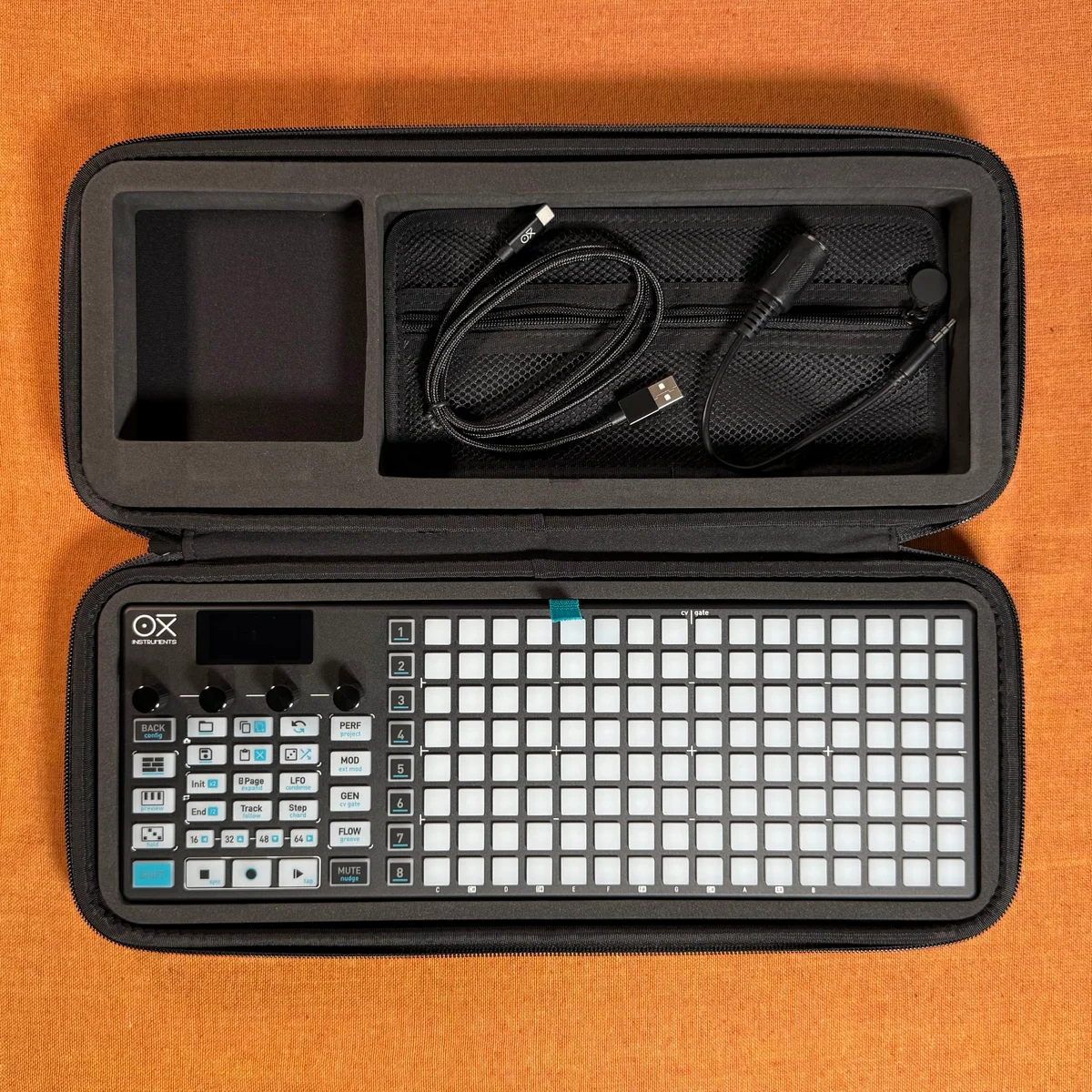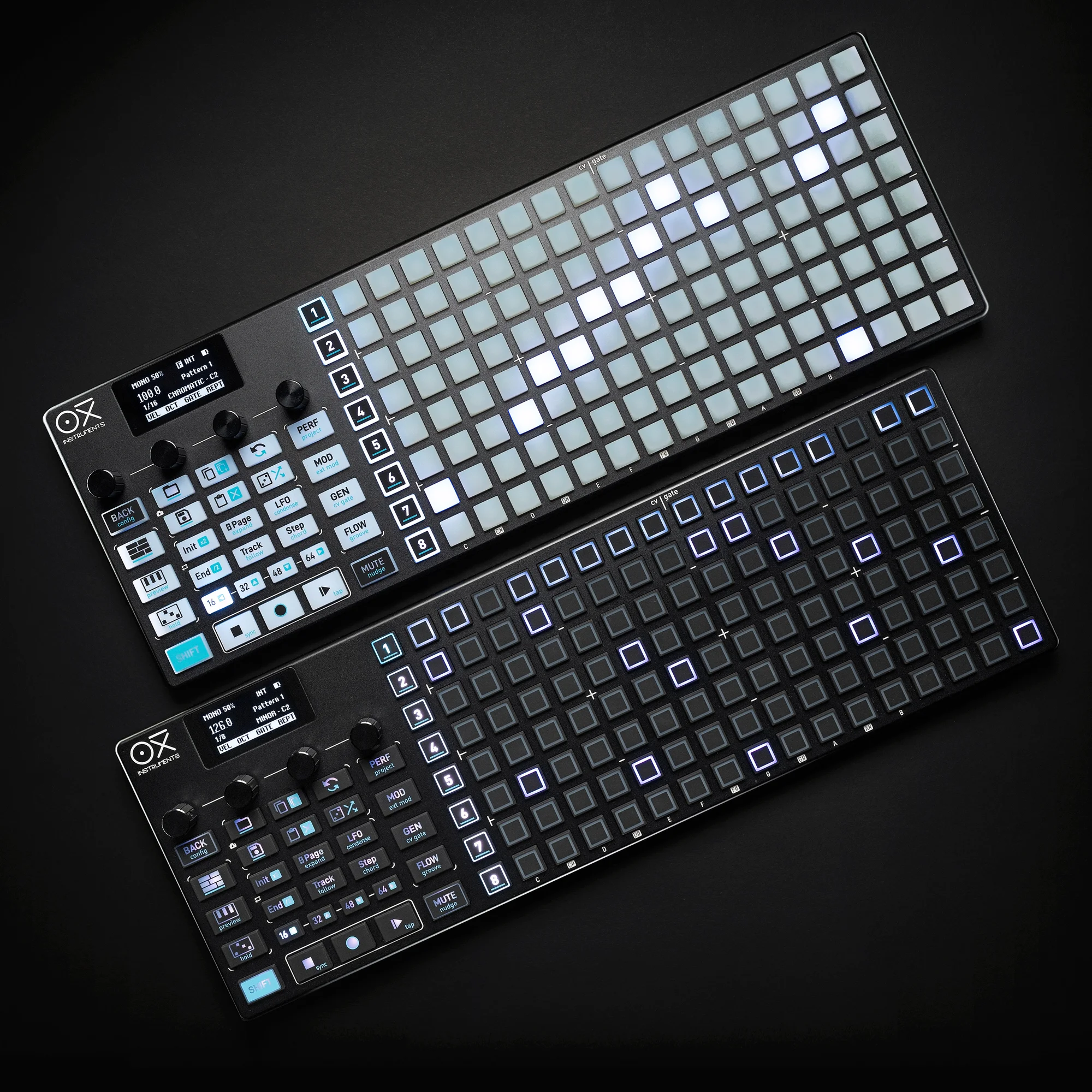
Welcome to EP.8 of the OXI ONE MKII guide series. This time, I’ll be covering Matriceal mode.
Matriceal mode is the most experimental mode on the OXI ONE MKII. It features four independent tracks, each with 10 matrices (lanes). Each lane has 16 steps with its own start/end points, speed (time division), and direction. Because rhythm and pitch are decoupled, you can take an unconventional approach to creating evolving patterns and unexpected ideas that differ from typical sequencer workflows.
- Matriceal Mode Overview
- Track Layout and Settings
- Trig Lane
- Note Lane
- Interval Lane
- Pulses Lane
- Velocity Lane
- Octave Lane
- Gate Lane
- Trigger Probability Lane
- Retrigger Lane
- CV Glide Lane
- Copy & Paste and Keyboard
- Using Multiple Tracks
Matriceal Mode Overview
In Matriceal mode, each track has the following 10 lanes (parameters), each identified by a color code:
- Trigs (white): Trigger placement
- Notes (yellow): Note settings
- Interval (pink): Cumulative pitch changes
- Pulses (orange): Step repetitions, ties, and ratcheting
- Velocity (turquoise): Velocity
- Octave (blue): Octave offset
- Gate (purple): Gate length
- Trigger Probability (violet): Trigger probability
- Retrigger (green): Retrigger (ratcheting)
- CV Glide (light blue): CV glide
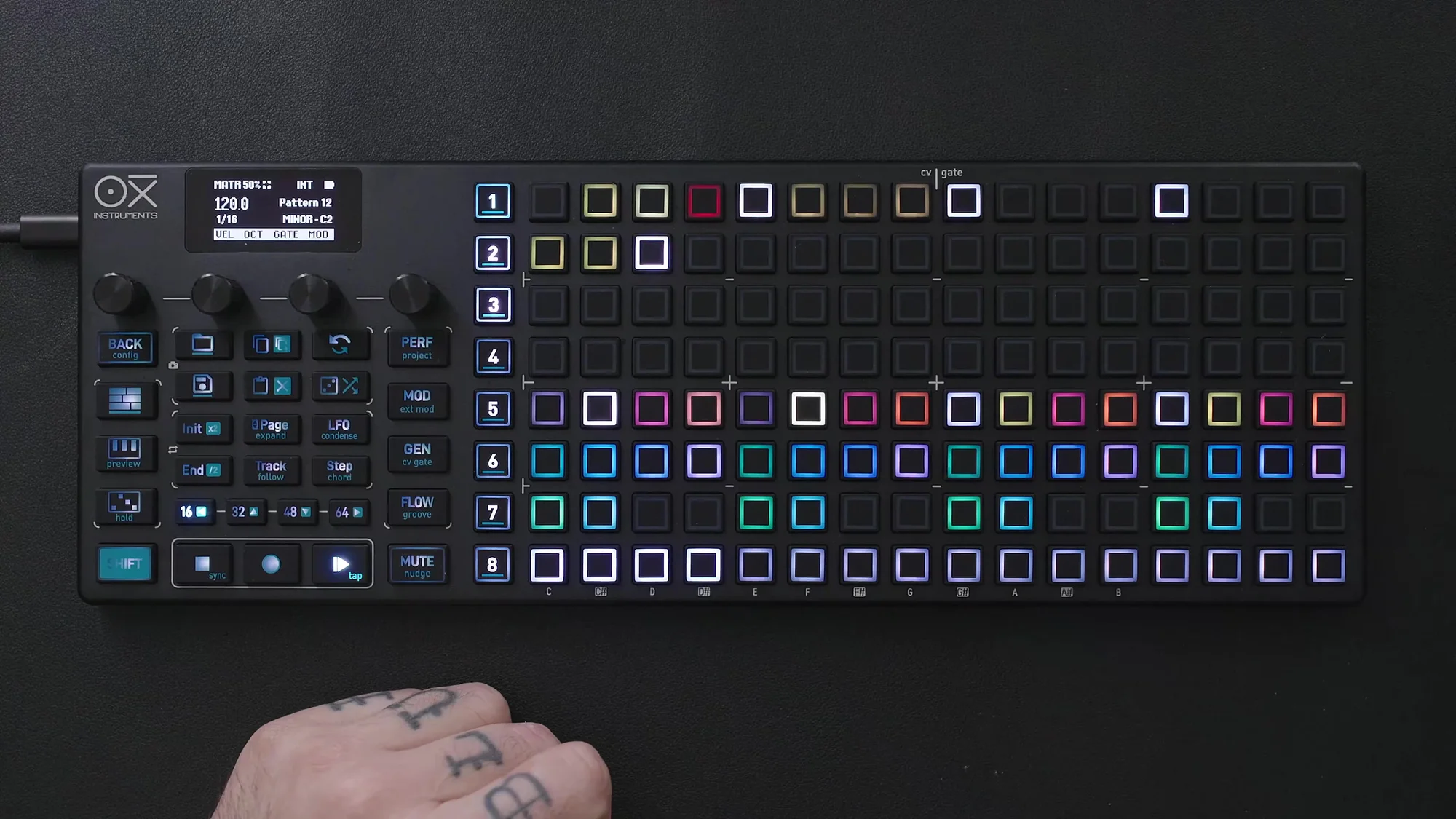
The key characteristic of this mode is that all parameters operate as independent sequencers. For example, setting the Trig lane to 8 steps and the Note lane to 5 steps means each loops independently, creating an evolving sequence.
Track Layout and Settings
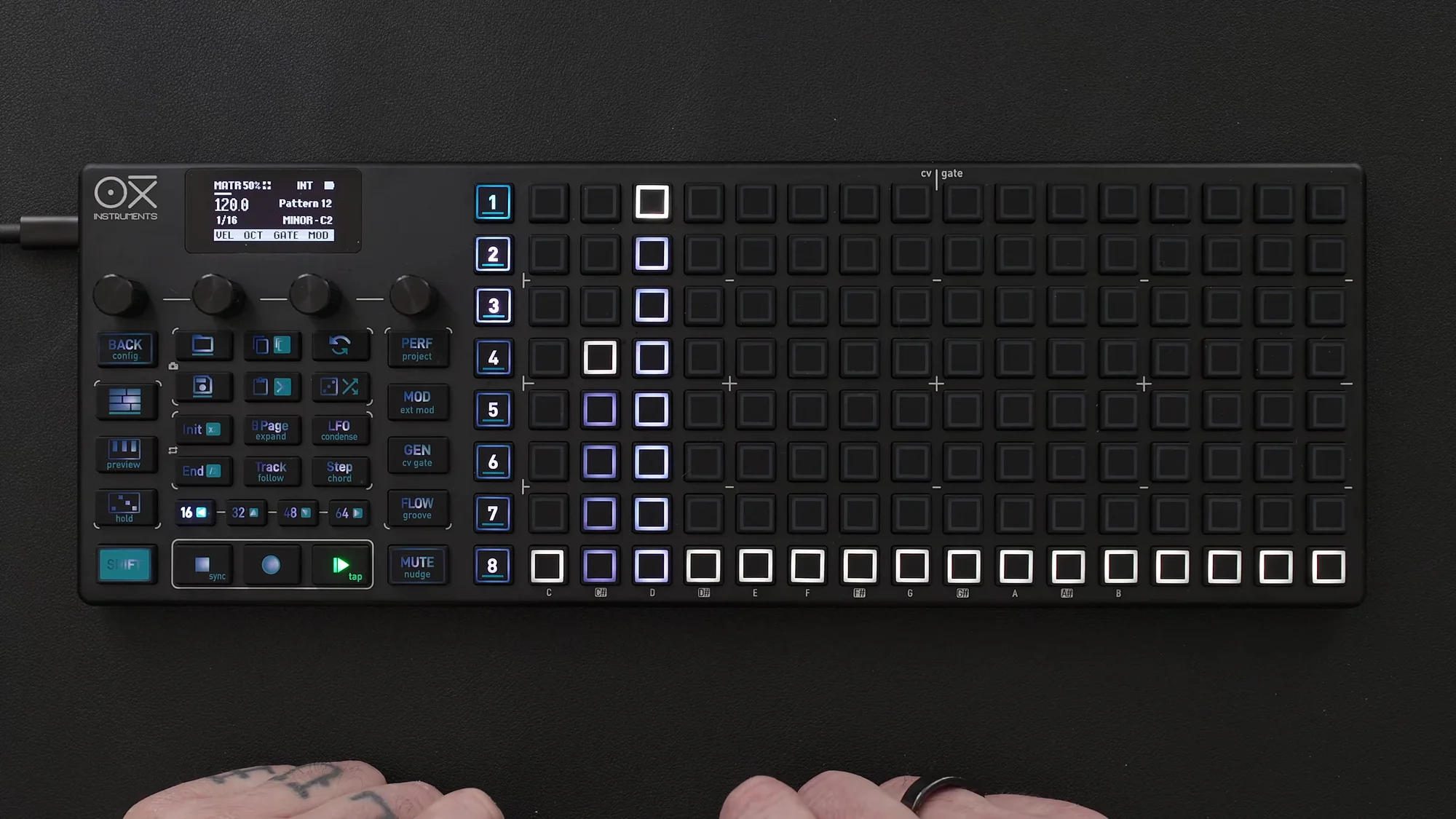
Matriceal mode has four tracks. Press the white bar at the bottom of the screen to select a track. Each track consists of two 4×4 areas: the upper area is where you place steps, and the lower area is where you select lanes.
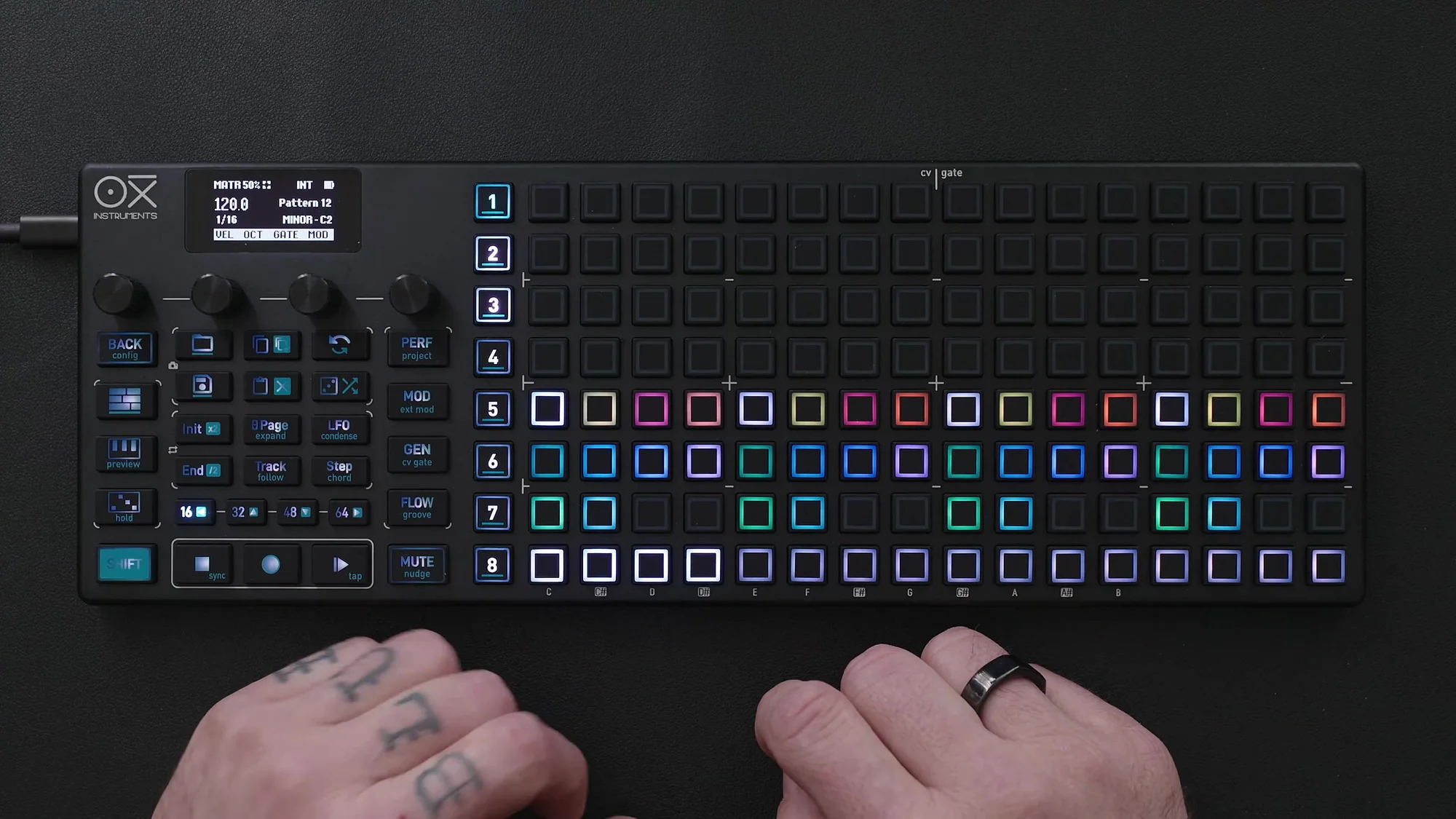
Press the track button to access each track’s settings:
- MIDI channel: Set a different MIDI channel per track
- Note offset: Default is C2
- Set Length: Defines how many steps and pulses are played before the track resets
- Encoder 4 to fully clear the track
Trig Lane
The Trig lane determines when notes are triggered. Press and hold the Trig lane button to set the time division and direction.
Placing Steps
There are two ways to place triggers:
- Tap input: Tap any step directly in the 4×4 area
- Euclidean generator: Hold a step and set the length and number of pulses (e.g., 8 steps with 5 pulses)
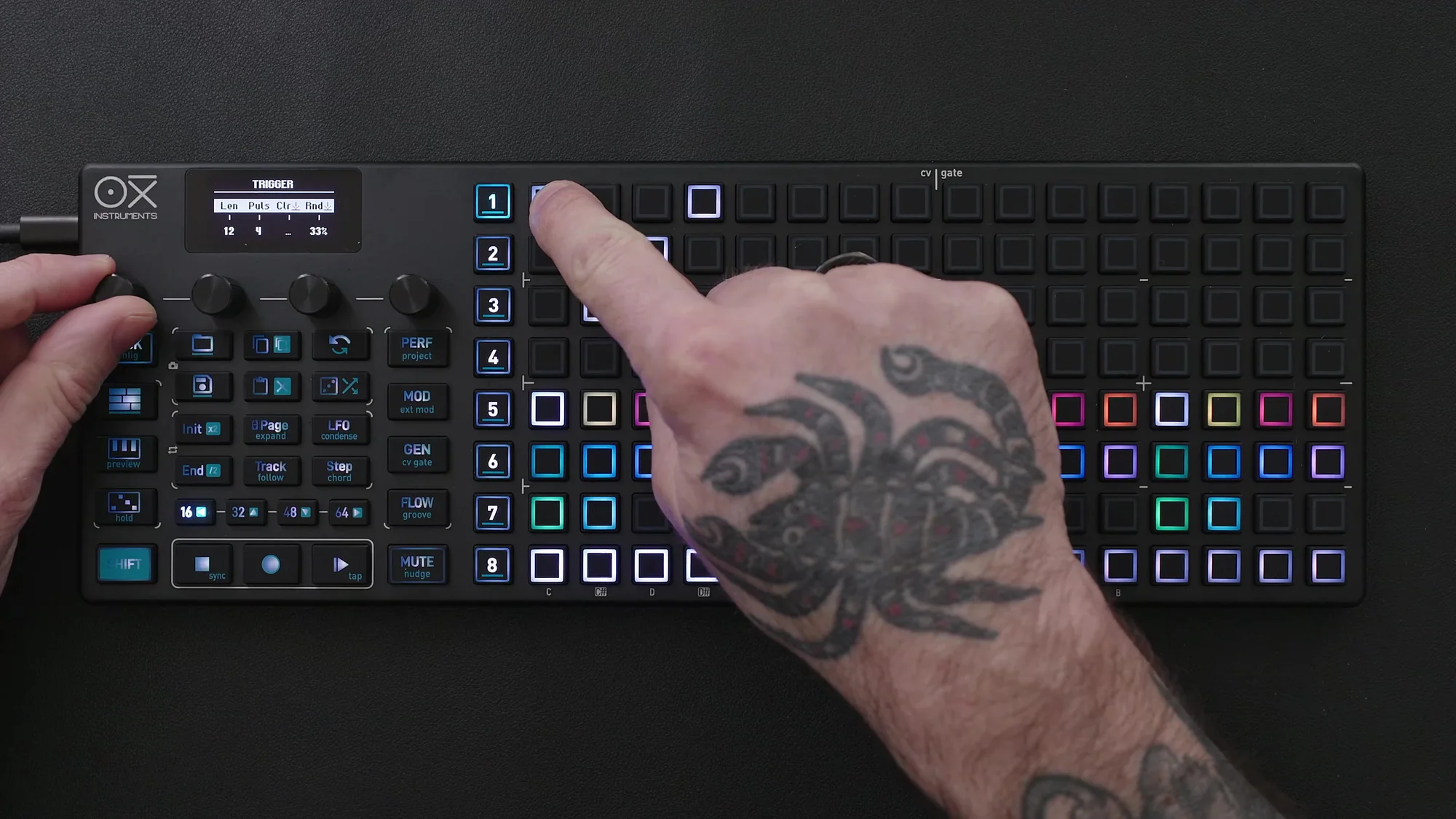
Press Encoder 3 while holding a step to clear the lane.
Init/End Settings
You can set the start and end points for each lane individually. Press Init and select a step to set the start point, or press End and select a step to set the end point.
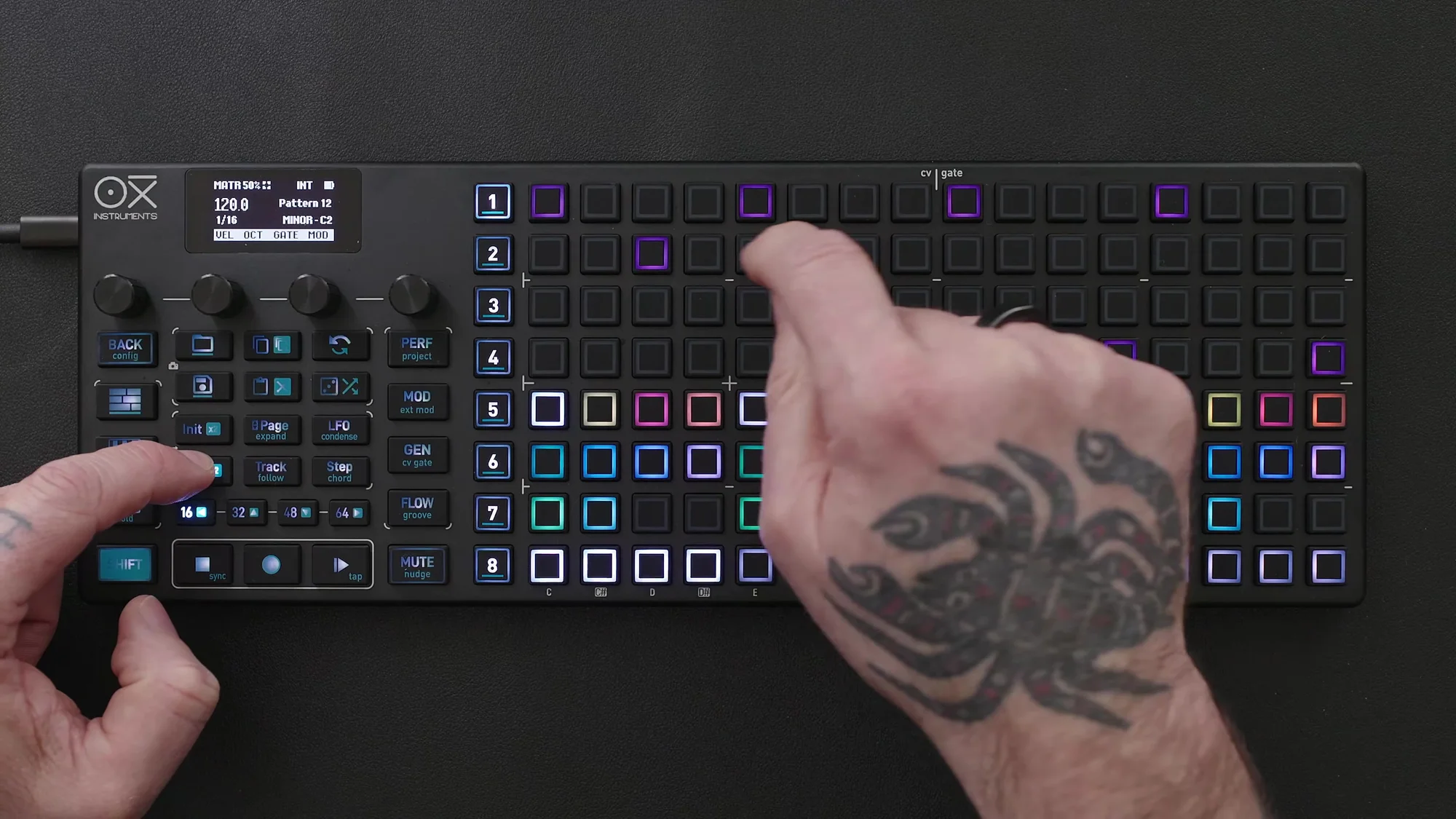
Randomization
Each lane offers two randomization functions:
- Standard randomize: Hold a step and press Encoder 4. Randomizes while keeping start/end values. Turn Encoder 4 to adjust the randomization amount (0–100)
- Full randomize: Press the Random button (dice icon) while holding a step. Randomizes everything including start/end points
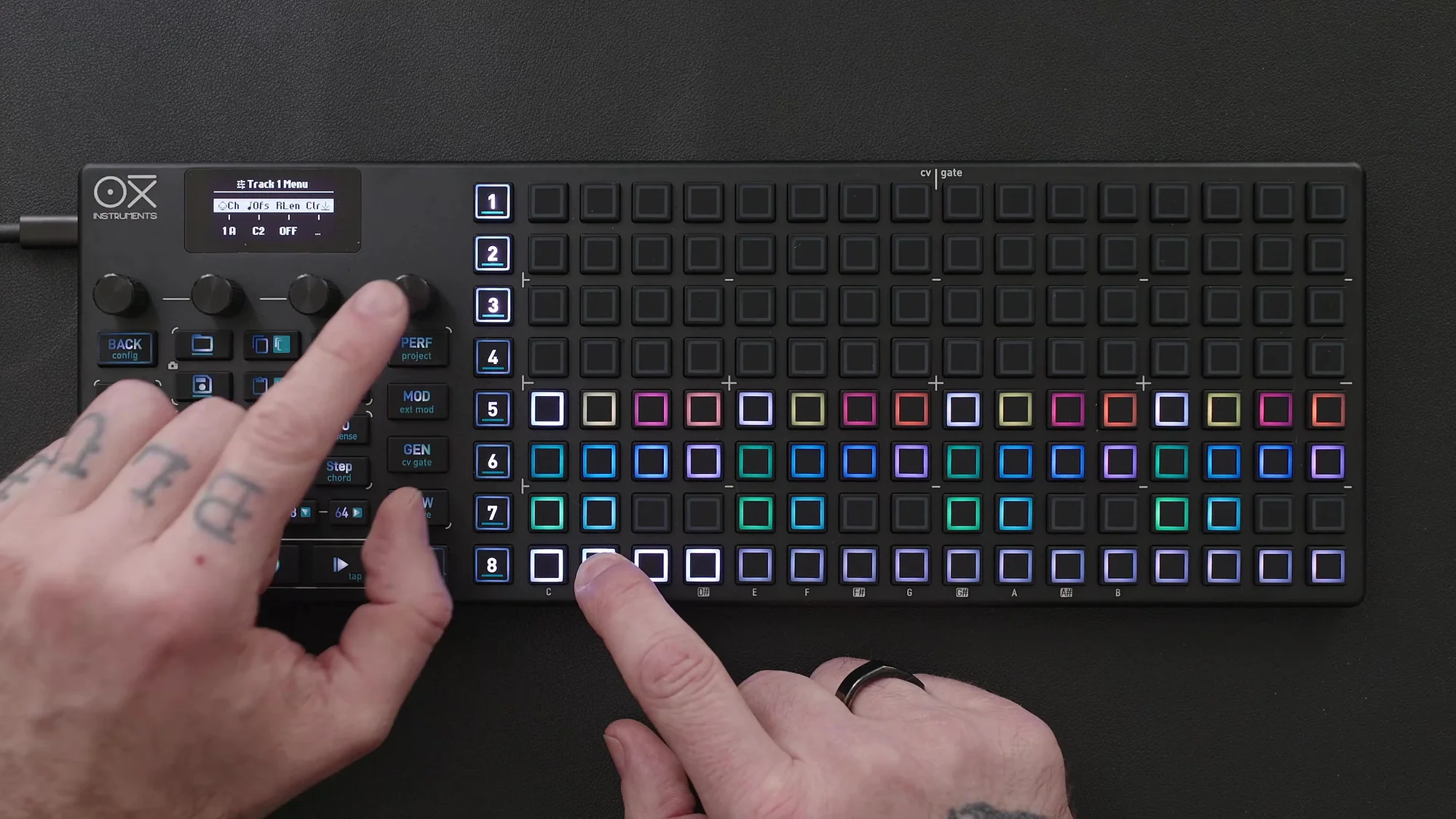
Note Lane
When a trigger fires on the Trig lane, it plays the root note set in the track settings (e.g., C2) by default. The core concept of Matriceal mode is that rhythm and pitch are decoupled.
Press the Note lane button to switch to note settings. Time division and direction can also be configured here.
Inputting Notes
- Encoder input: Select a step and turn the encoder
- Column view: Double-press the Note lane button to display note values for each step in a list view
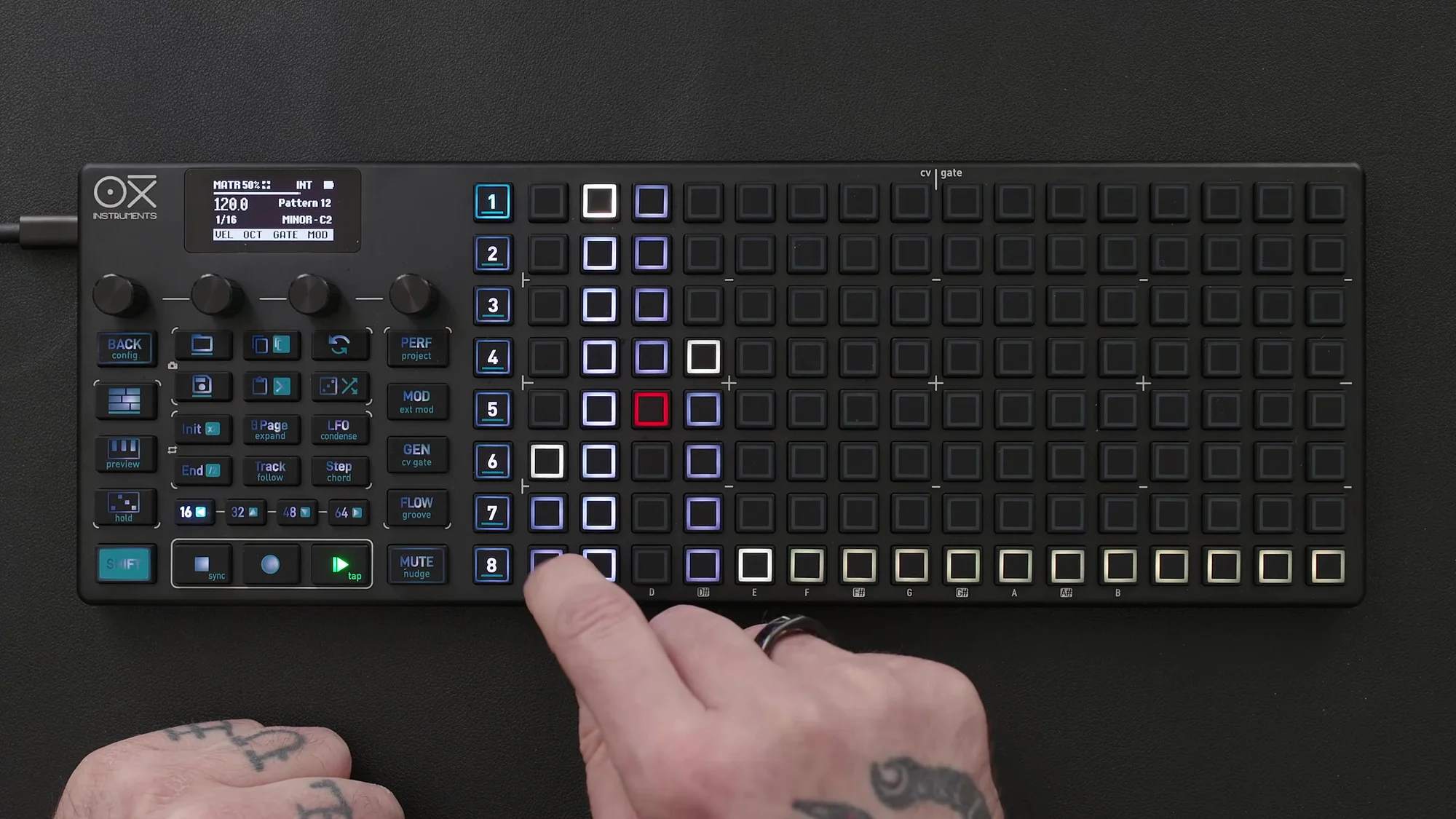
Hold a step to access pitch, note play probability, clear function, and randomization (Encoder 4).
Press Shift and tap a pad to input negative notes (notes lower than the default). Steps with negative notes are displayed in red.
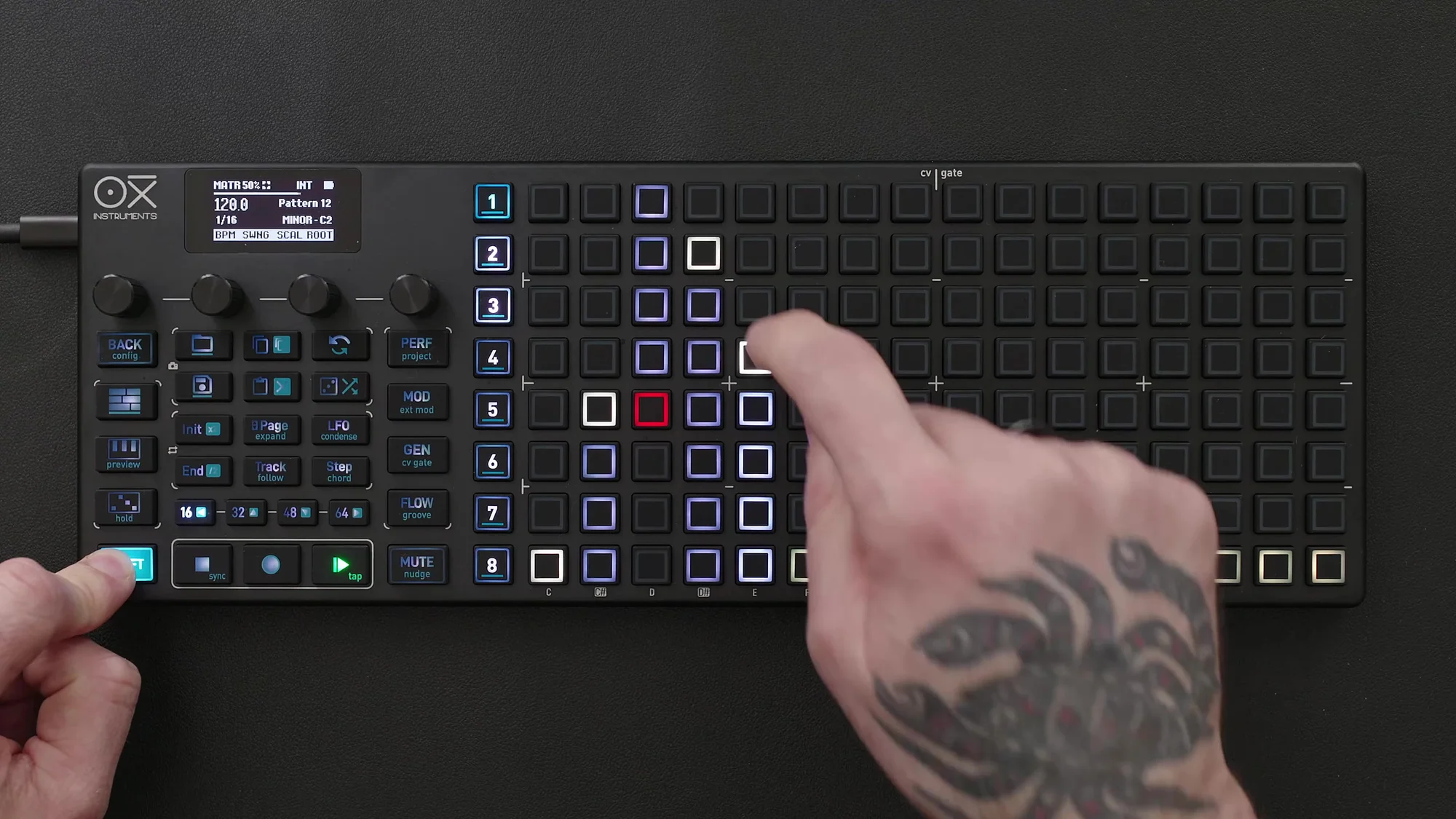
Setting different lengths for the Trig lane and Note lane causes the two lanes to loop independently, creating an evolving sequence.
Interval Lane
The Interval lane is one of the most distinctive features of Matriceal mode. Rather than defining a fixed pitch, it accumulates values to define the next position in the selected scale.
Each time the Interval lane advances, its value is added to the current note. When it reaches the minimum or maximum limit, it jumps to the opposite boundary and continues. It is also evaluated between ratchets.
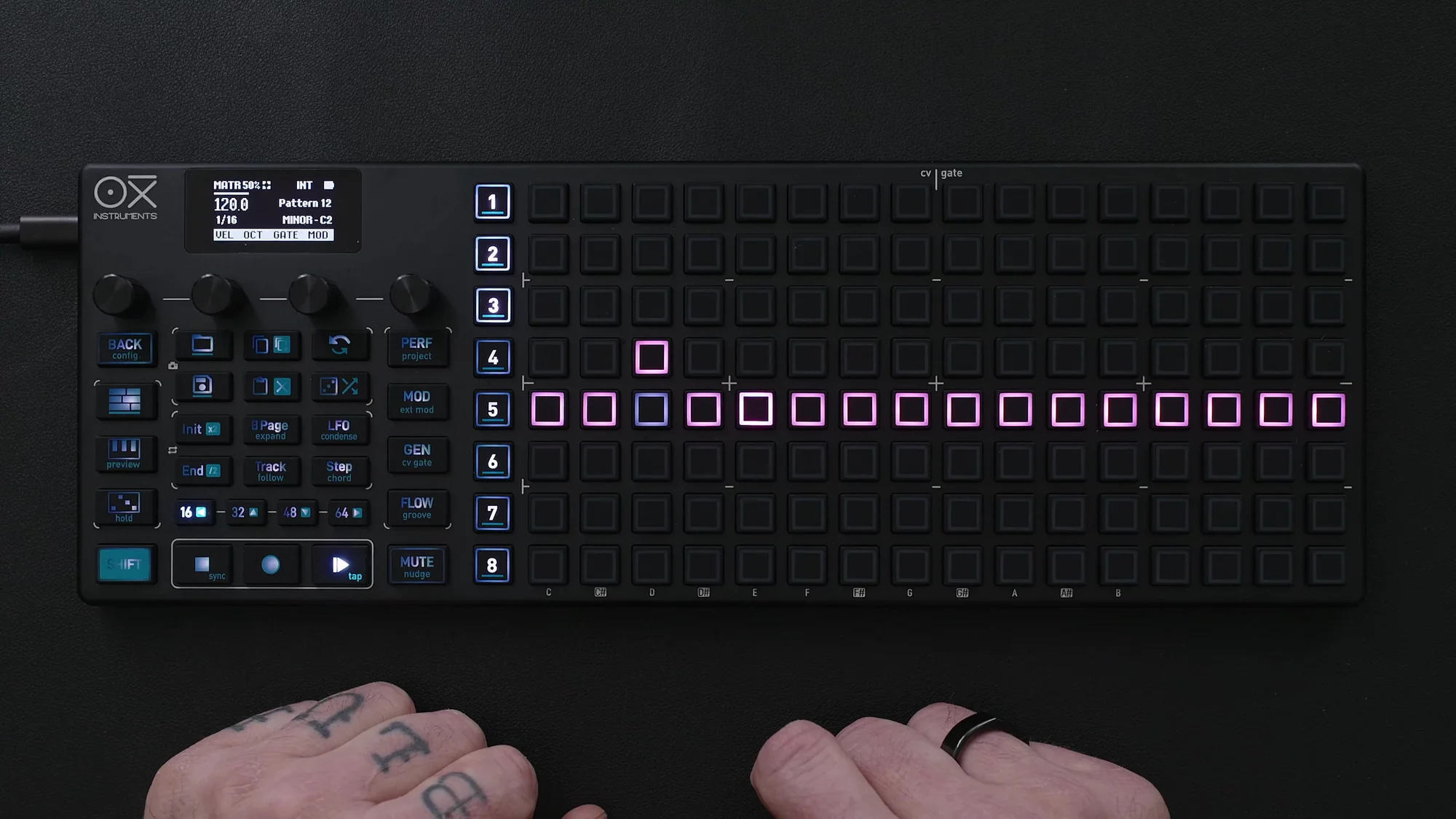
For example, setting the Interval to 1 causes the entire sequence to shift up step by step with each cycle, resetting when it reaches the limit and starting again.
Setting Limits
Press the lane button to set the minimum and maximum values. For example, setting the minimum to -2 and maximum to +2 constrains the pitch changes within that range.
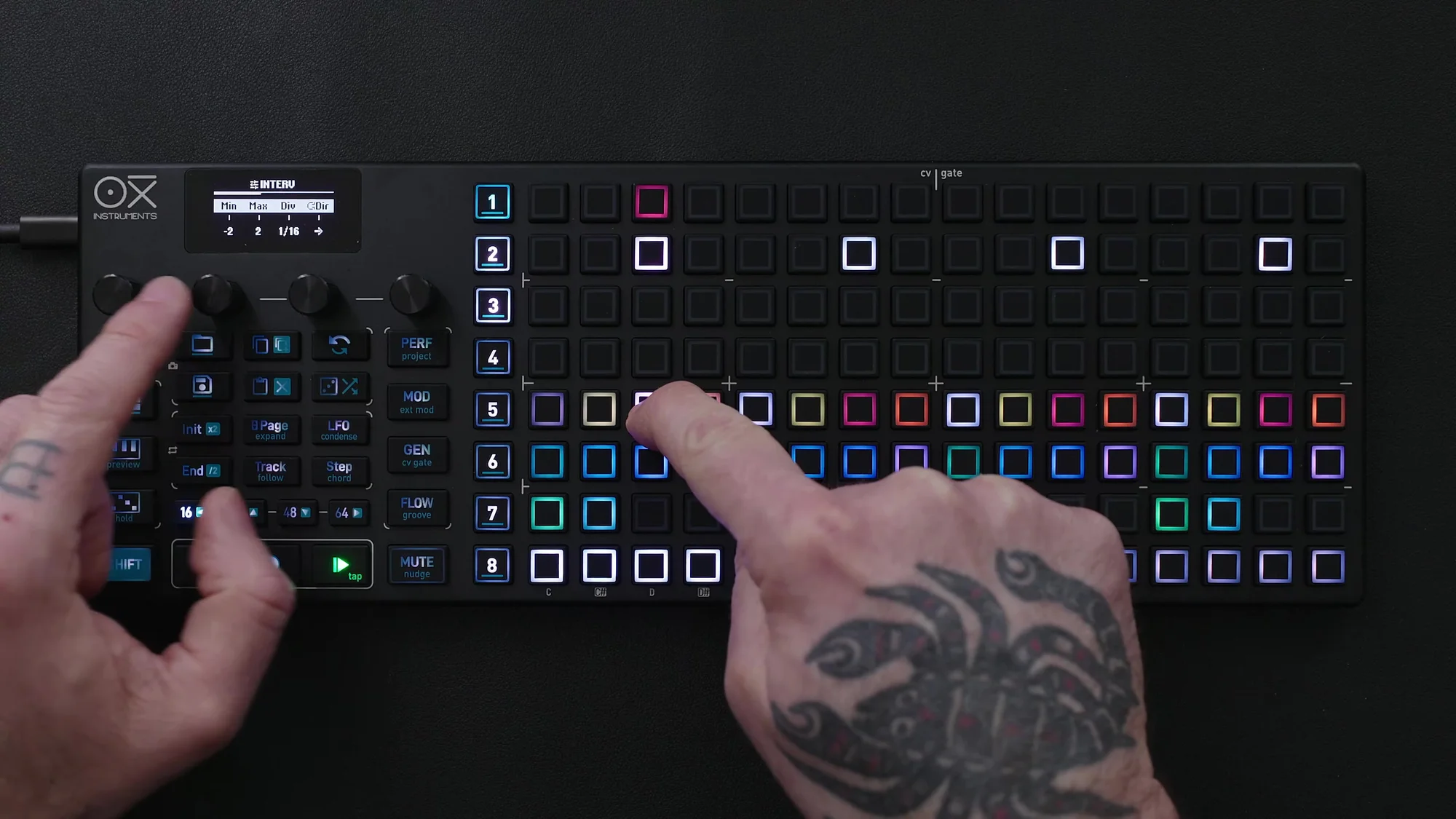
When creating progressions with the Interval lane, using a slower time division (e.g., one bar) and applying subtle changes is effective. The basic approach is to experiment with different Trig combinations to find the sweet spot.
Pulses Lane
The Pulses lane is inspired by classic sequencers like the M-185. It lets you create step repetitions, ties, and ratcheting.
Three Pulse Modes
- Trig per pulse: A trigger fires for each pulse
- Trig at start only: Only the first pulse fires a trigger
- Tied: Pulses are tied together
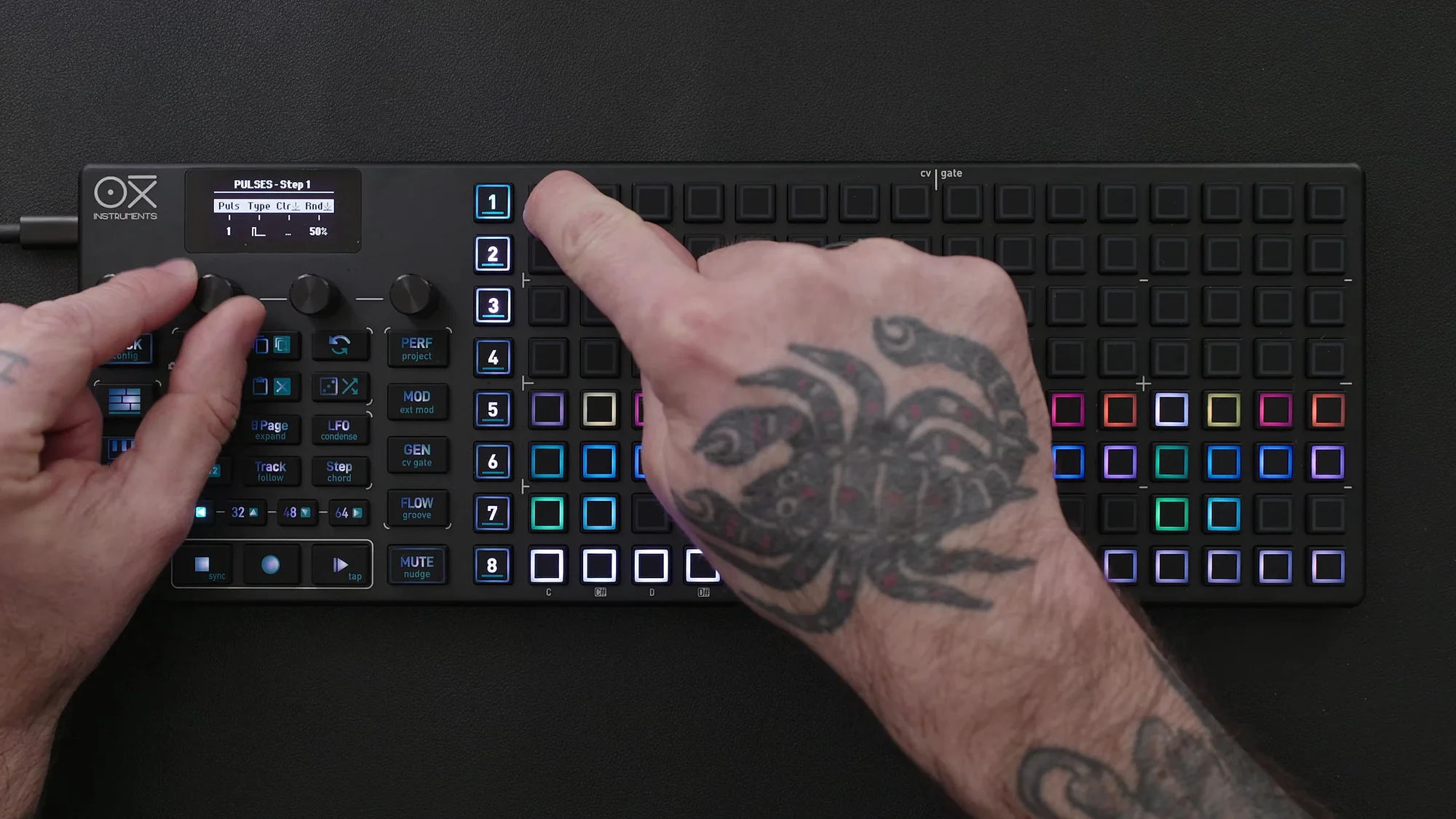
Pulses affect the pattern length — each pulse added to a step extends the pattern by that amount. For more predictable behavior, you can set the reset length in the track menu. For example, setting it to reset every 16 steps controls the length changes caused by pulses.
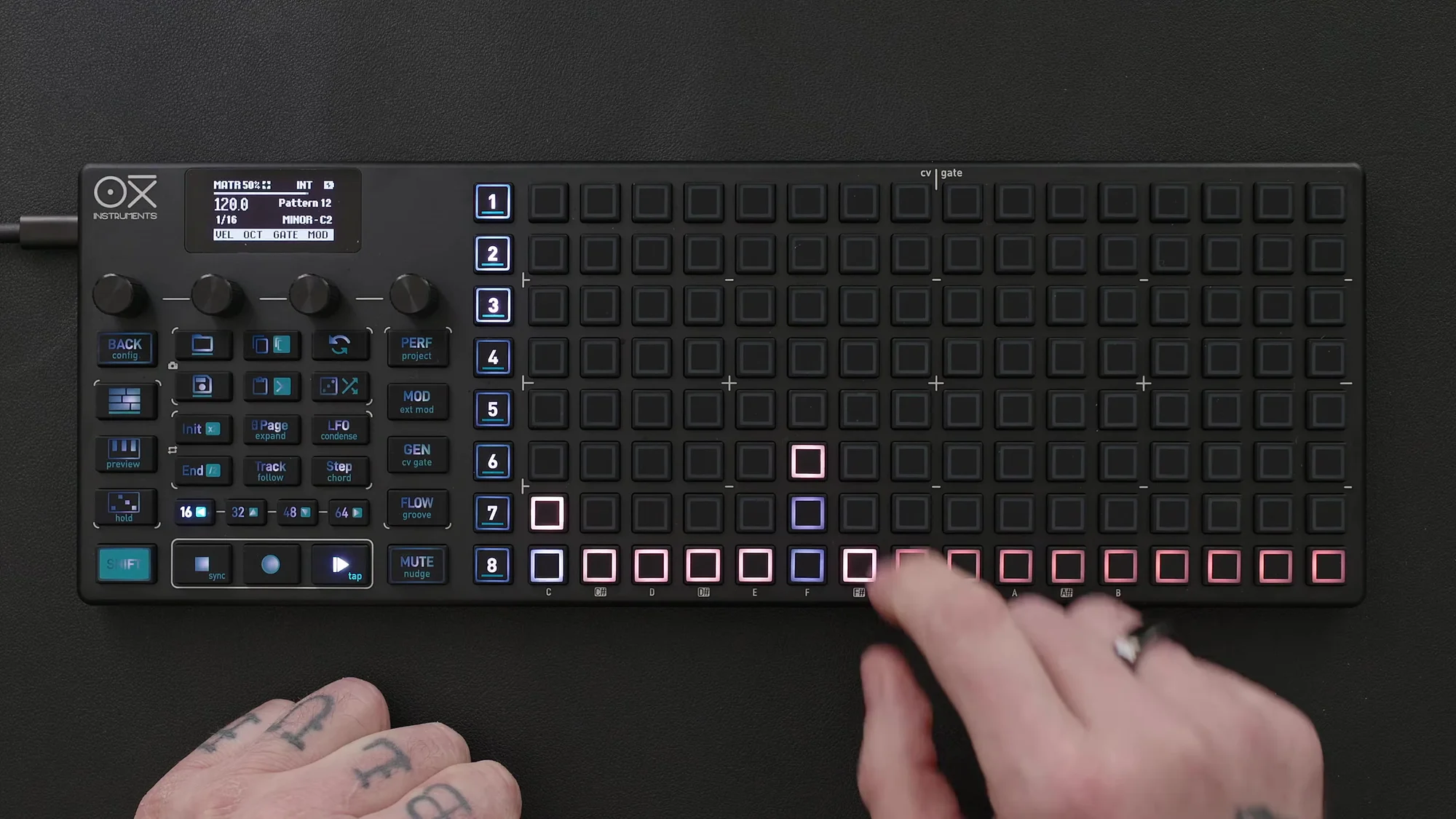
Velocity Lane
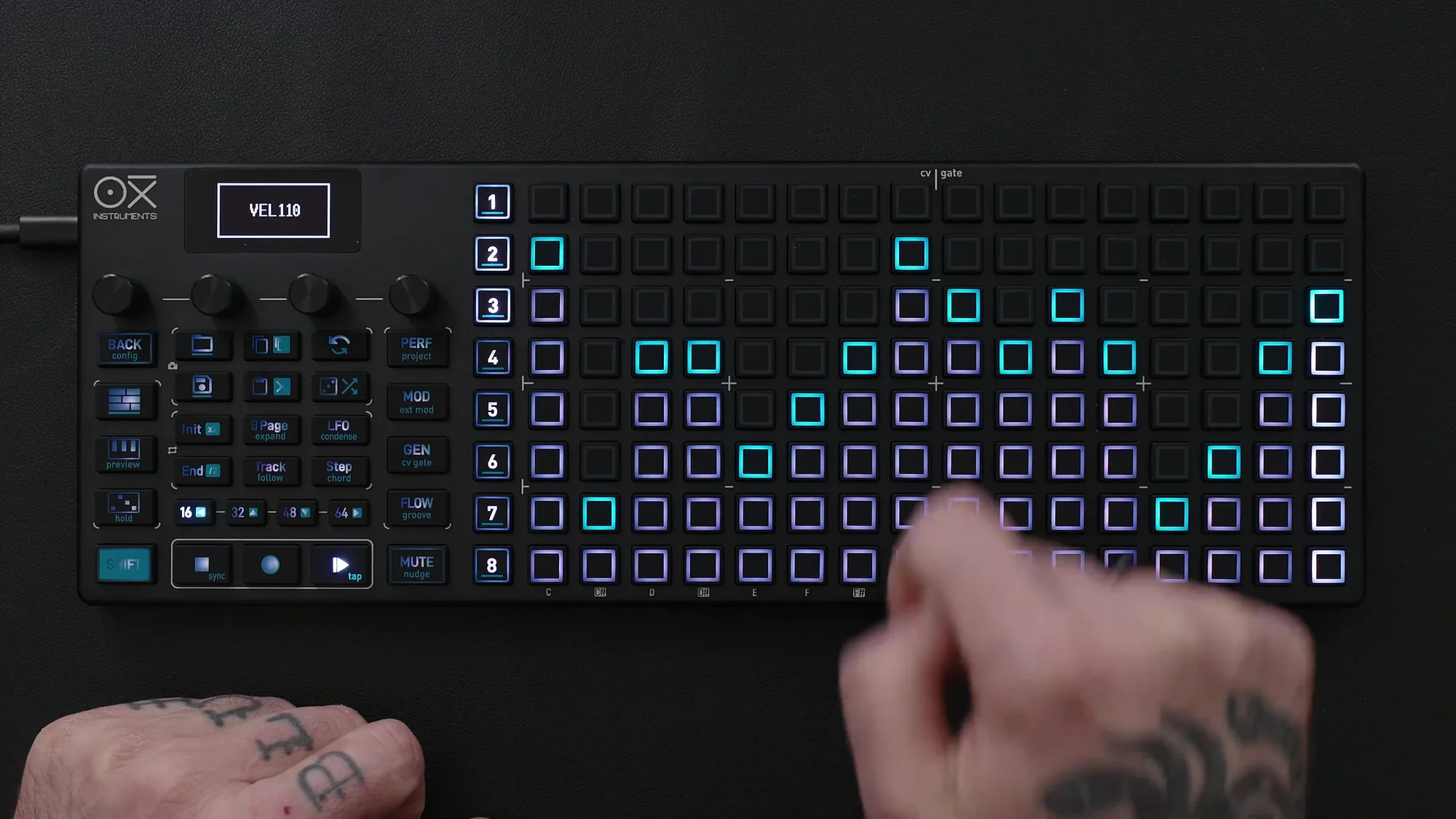
The Velocity lane sets the velocity for each step. An efficient workflow is to randomize first, then fine-tune in column view.
Hold a step and use Encoder 4 to set the randomization amount and execute randomization. Then switch to column view for precise adjustments.
Octave Lane
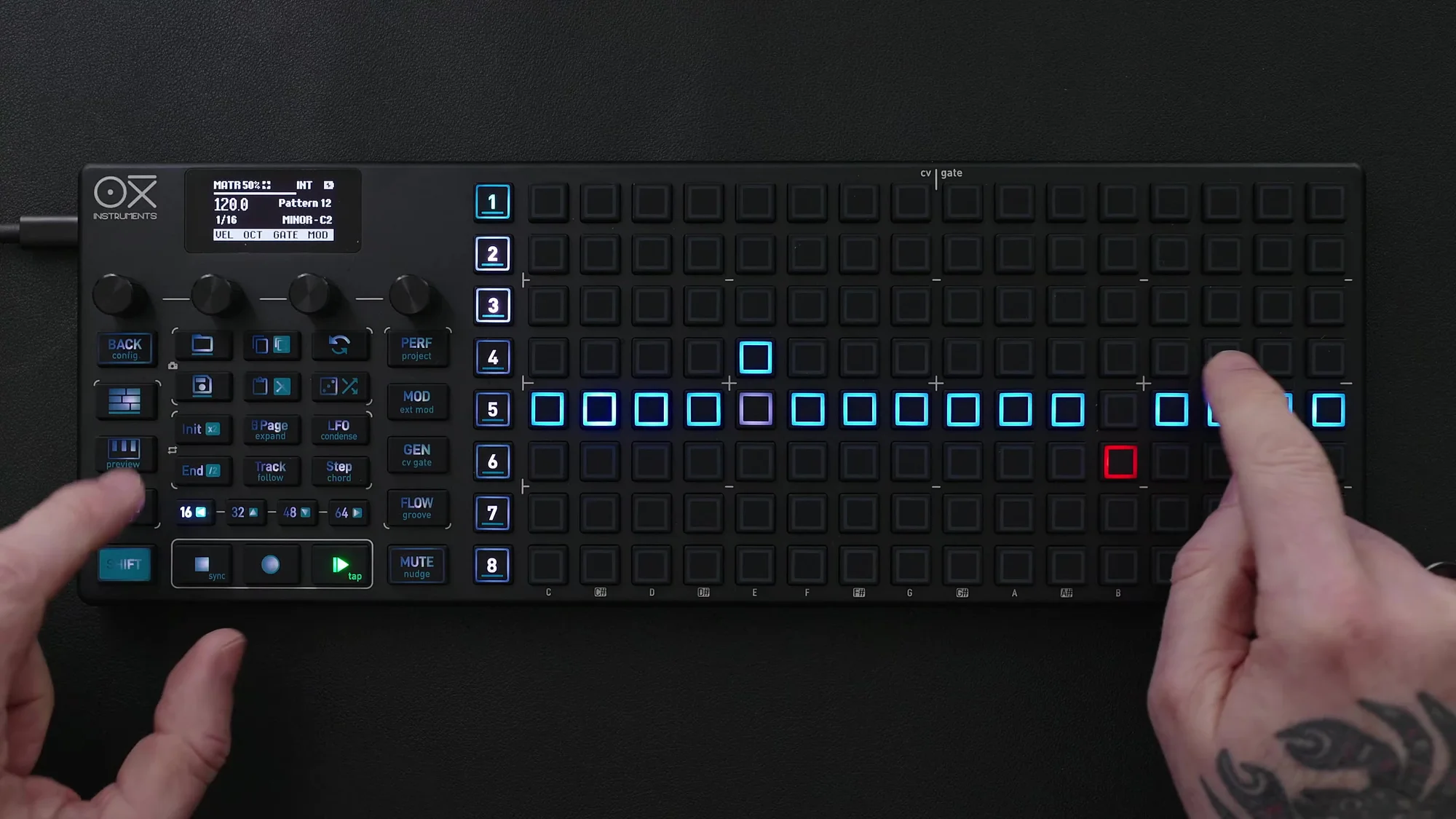
The Octave lane offsets the sequence by octaves. A small amount of variation produces a significant effect.
Using column view, setting just a few steps to +1 or -1 octave adds movement to the sequence. Setting an odd length creates interesting phase shifts with other lanes.
Gate Lane
The Gate lane sets the gate length for notes. In column view, you can visually set everything from the shortest gate to the longest (tie). Setting the column to the top creates a tie.
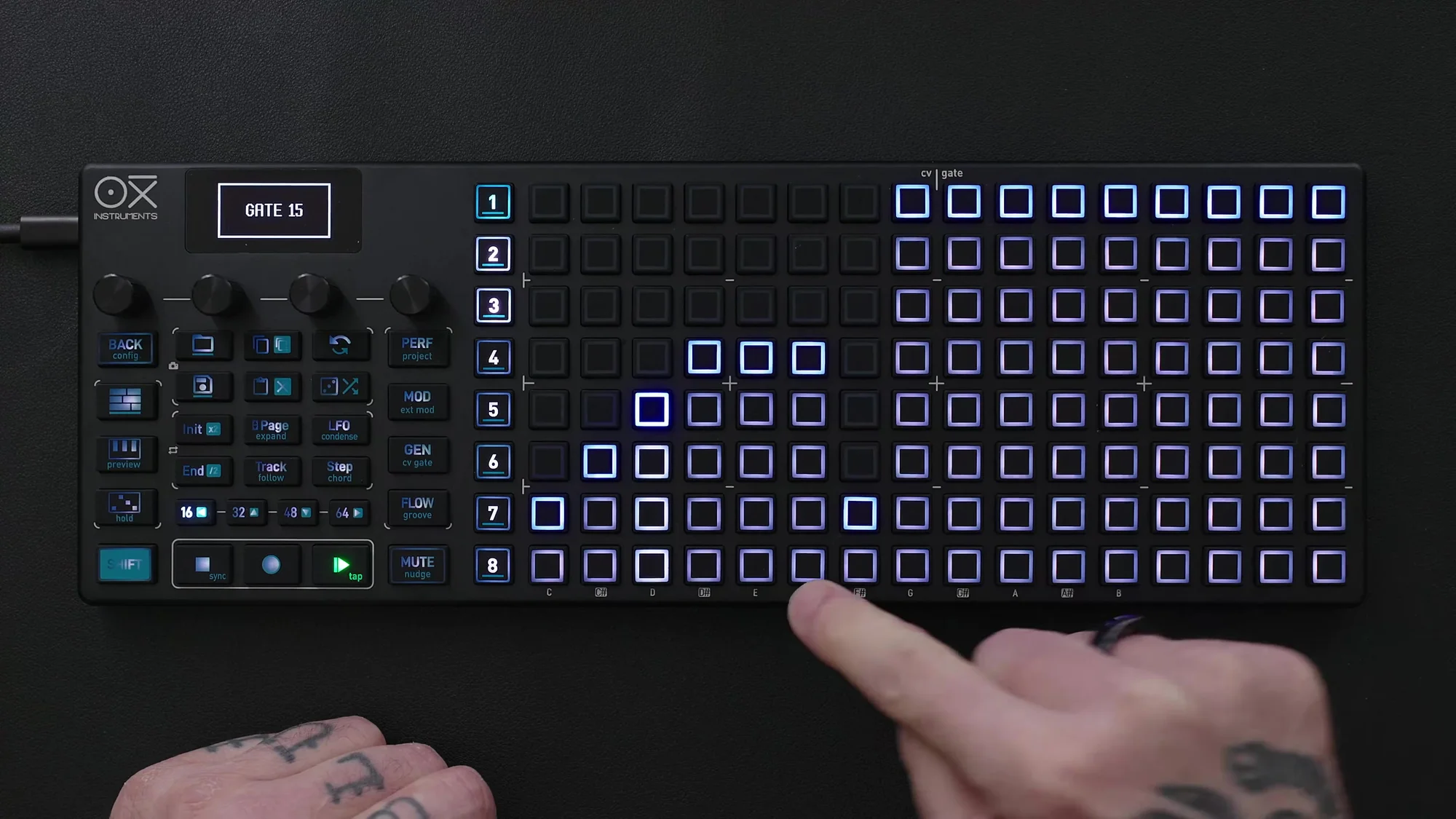
As with other lanes, setting different lengths and time divisions produces even more interesting results.
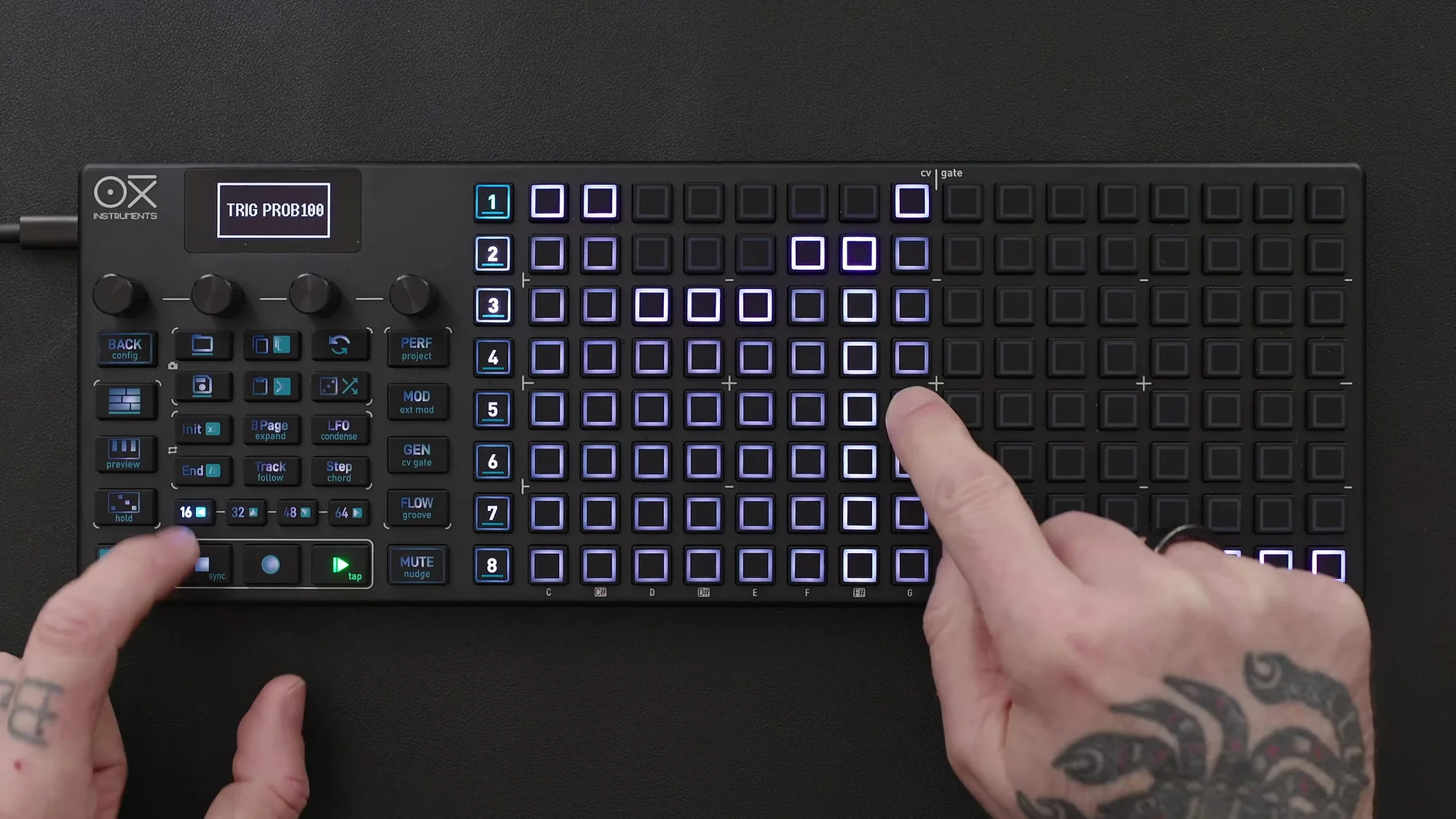
Trigger Probability Lane
The Trigger Probability lane sets the probability of a trigger firing. In column view, a full column means 100%, and an empty column means 0%. Adding just a slight variation introduces a natural fluctuation to the sequence.
Retrigger Lane
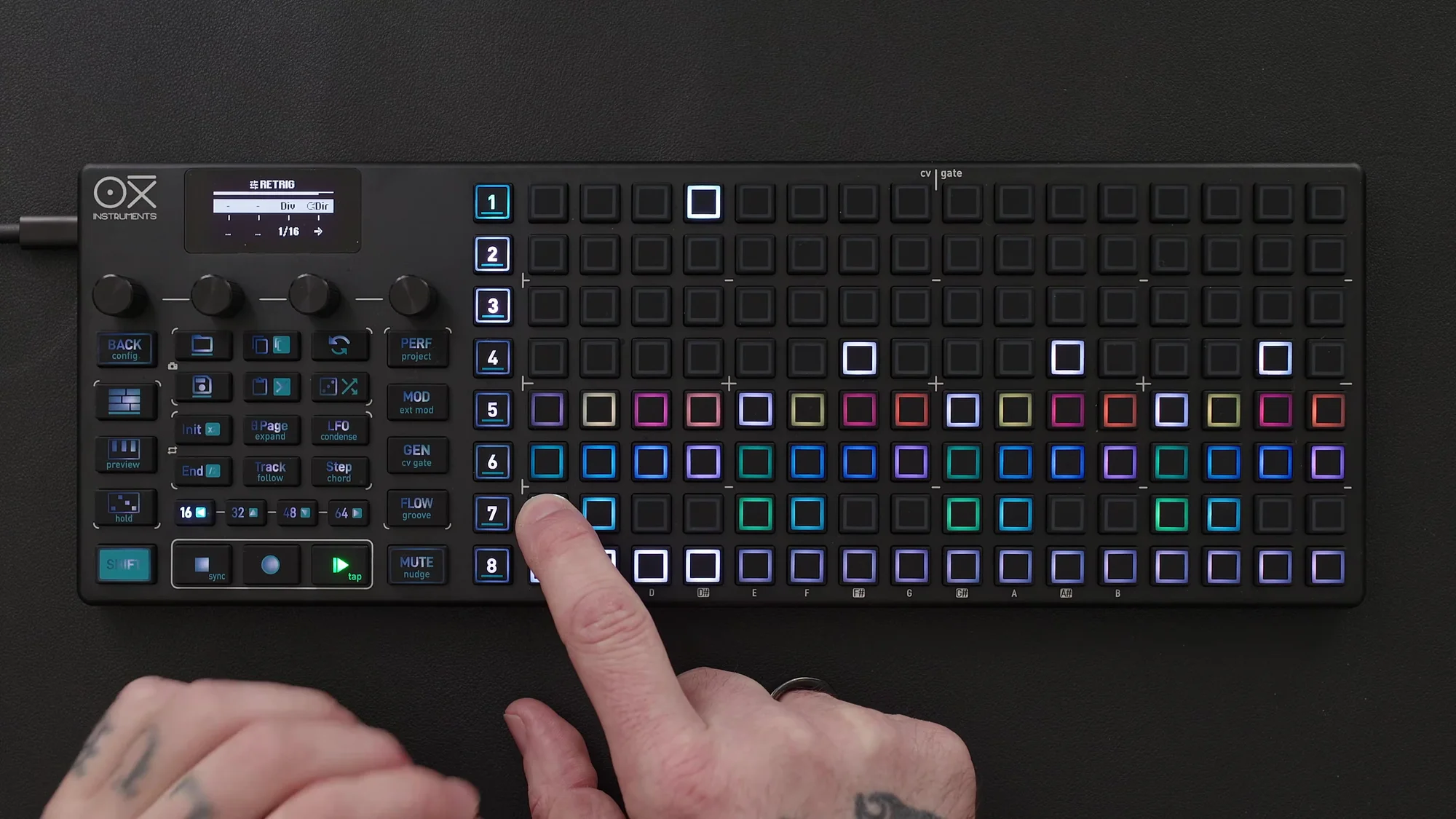
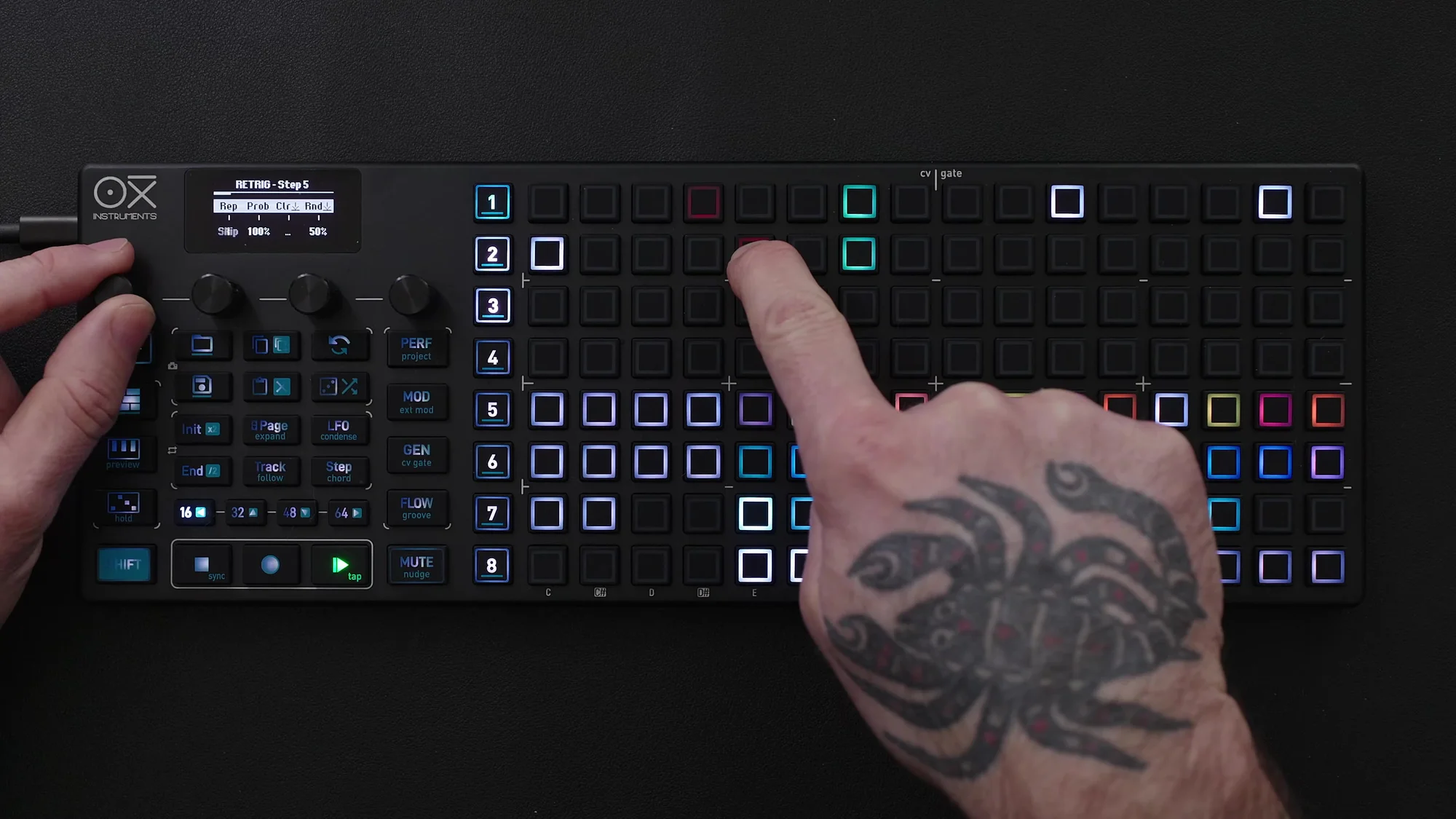
The Retrigger lane generates ratcheting by repeating steps. Setting a probability (e.g., around 30%) so retriggers occur randomly adds accents to the pattern.
CV Glide Lane
The CV Glide lane applies glide (portamento) to pitch. This works only with CV output.
Copy & Paste and Keyboard
Step Copy & Paste
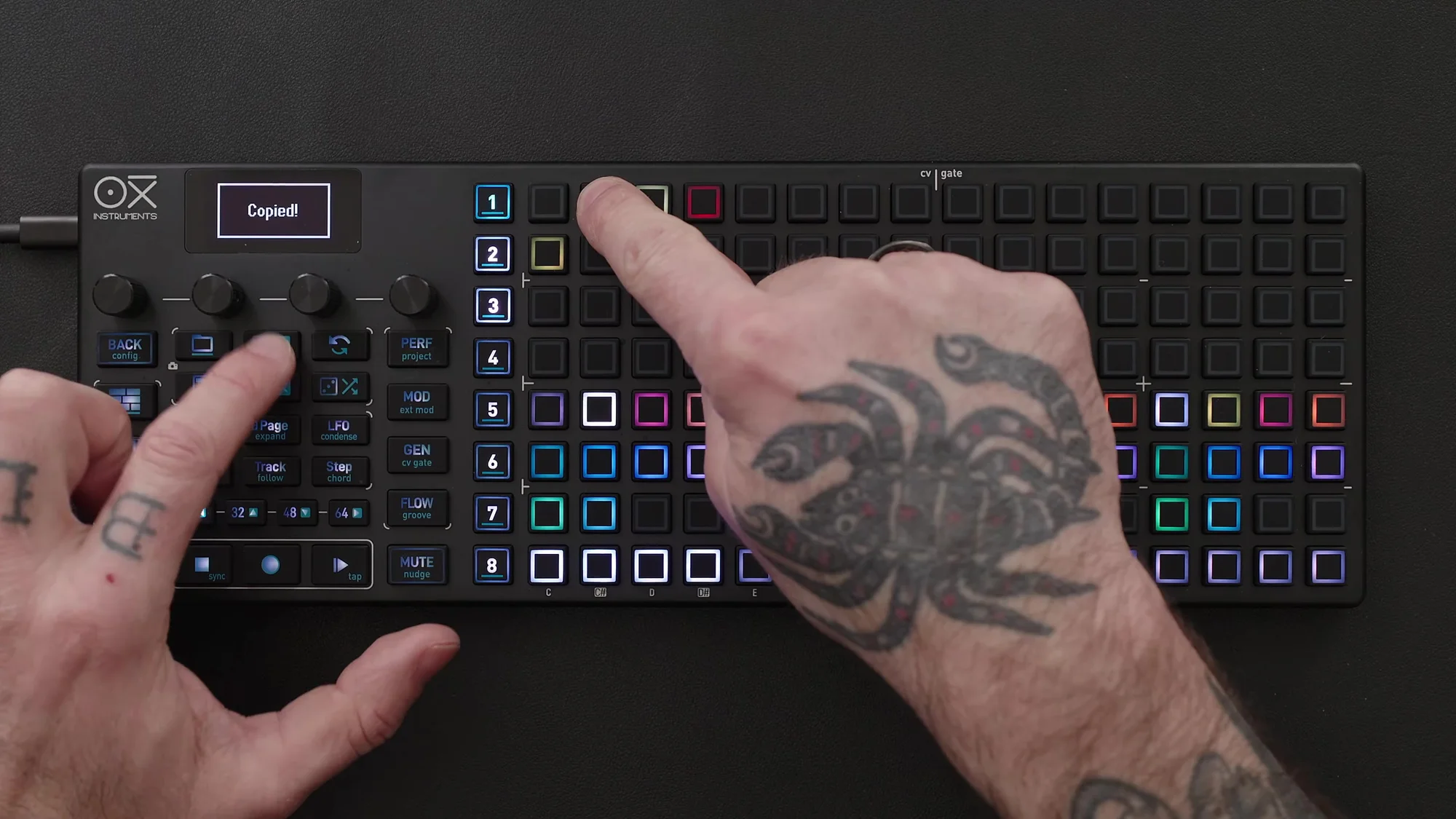
Hold a step and press Copy, then select another step and press Paste for step-level copy & paste. You can also paste to steps in other tracks.
Full Track Copy
Press Copy while holding the track bar to copy an entire track, then paste it to another track.
Keyboard Play and Recording
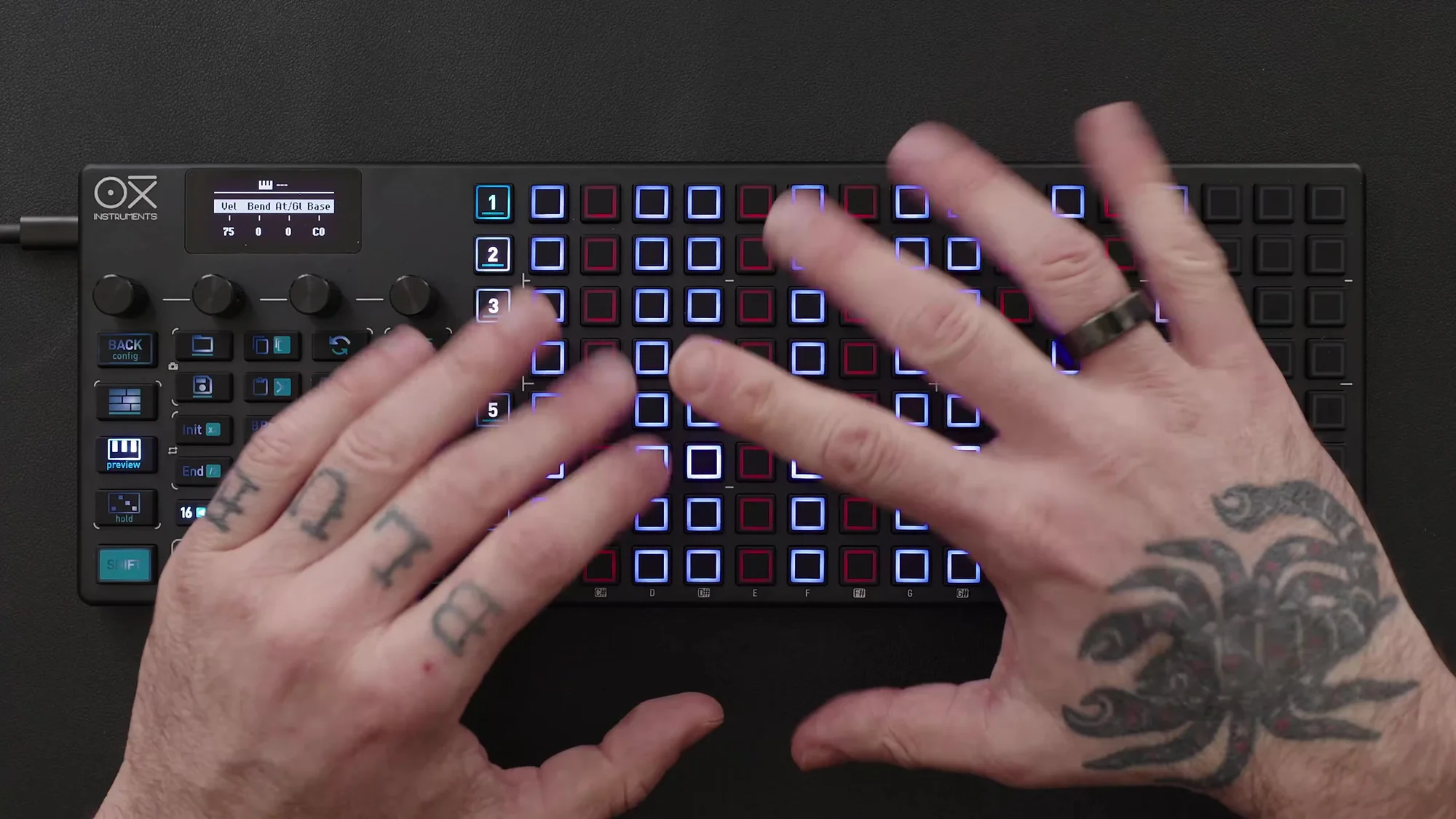
Matriceal mode includes a keyboard play feature for playing on top of your sequence. However, it does not support live recording.
When using an external keyboard, you can record pitch values by pressing Record, holding a trigger, and playing a note.
Using Multiple Tracks
The true power of Matriceal mode emerges when combining multiple tracks. By assigning different MIDI channels to each track, you can build up to four voices of polyphony.
Track Creation Example
Here’s an example workflow for creating a second track:
- Select Track 2 and change the MIDI channel (e.g., channel 3)
- Place 3 triggers in the Trig lane with a length of 3
- Set notes in the Note lane column view with a length of 5
- Configure the Interval lane with limits (e.g., -1 to +3)
- Place different pulses in the Pulses lane, adding ratcheting
- Randomize Velocity
- Set Octave to +1 octave
- Randomize Gate length
- Adjust Trigger Probability
- Add Retriggers
Skip Trigger
To completely skip a trigger, press the step and select Skip in the Repetition settings. That step will be completely skipped, and no trigger will fire.
Track Muting
You can mute individual tracks to check each track’s sound while working.
That wraps up EP.8. This time, I covered all the lanes in Matriceal mode. The key to Matriceal mode is not to overdo it. Start with just a few elements, then set different lengths and time divisions for each lane to let unexpected patterns emerge naturally. The Interval lane in particular enables unique progression generation that isn’t available in other modes.
OXI ONE MKII Product Page
See the links below for OXI ONE MKII product details.
OXI ONE MKII Black Edition, next-generation model with 8-part sequencer. Enhanced generative features, large OLED display, and up to 64-track control.
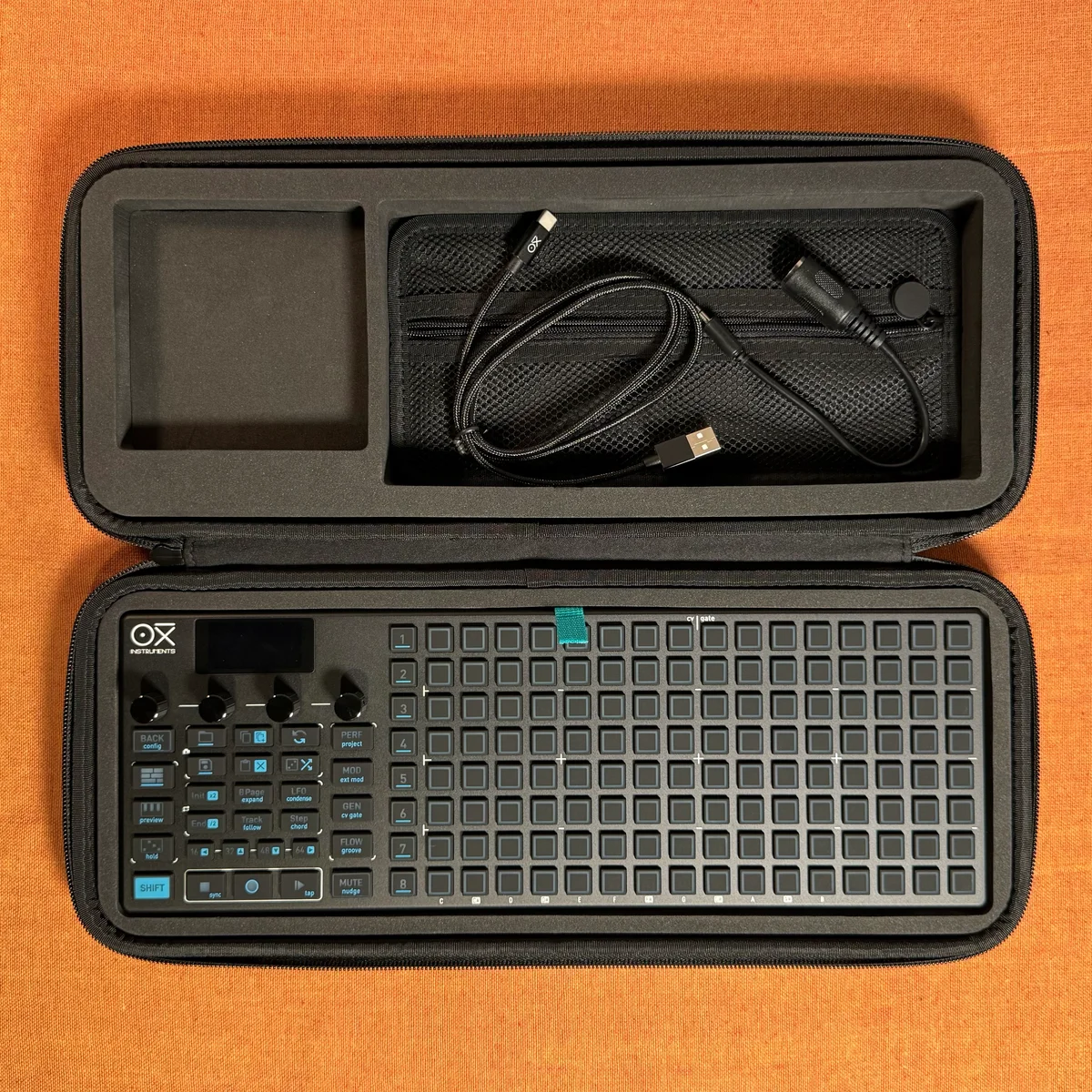
OXI ONE MKII, next-generation model with 8-part sequencer. Enhanced generative features, large OLED display, and up to 64-track control.