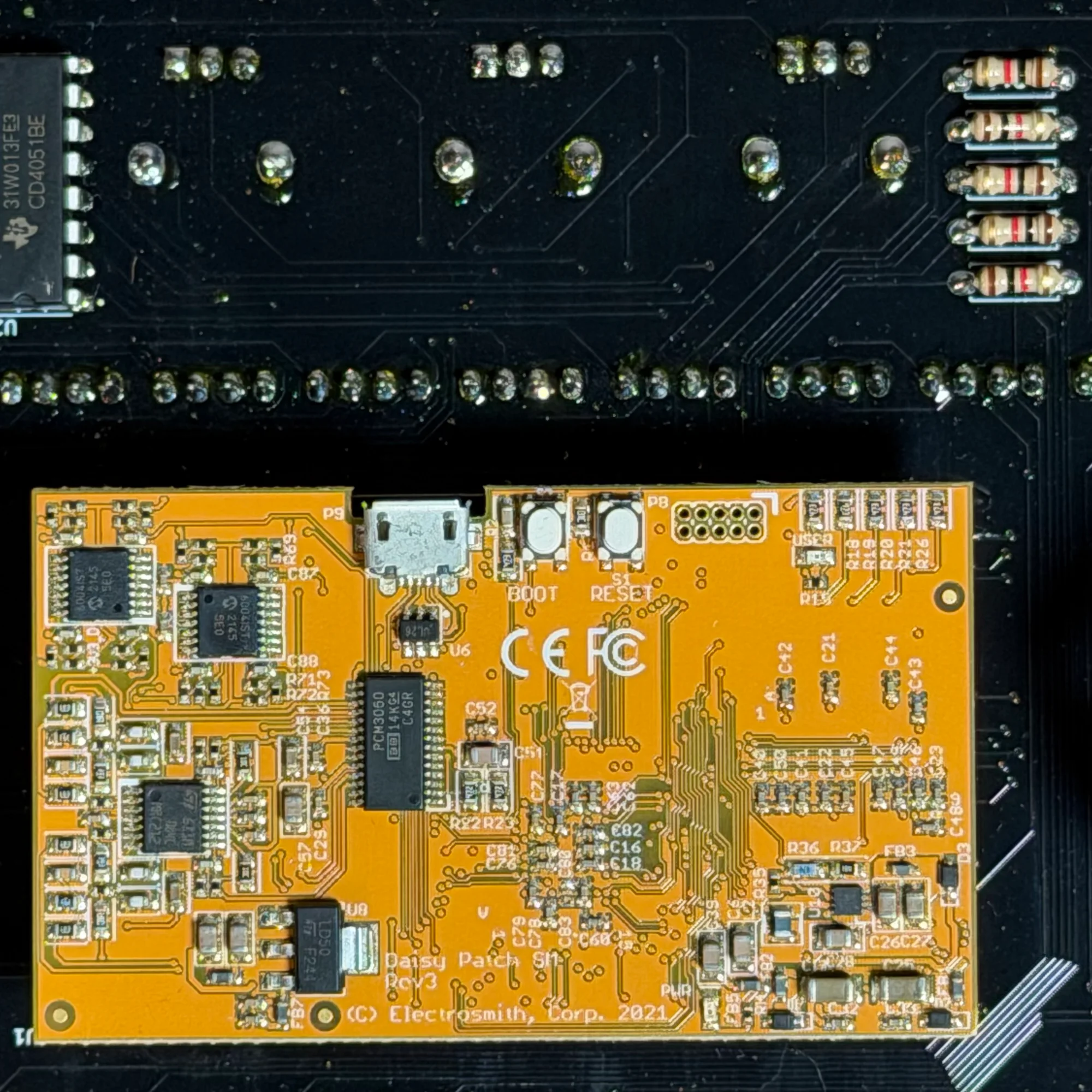
This guide walks you through upgrading the firmware on your OAM Time Machine to v1.1.2. Since v1.1.2 fixes a clicking bug, we recommend this update to all Time Machine users regardless of your current version. It is also required if you want to use the VCA Expander.
- Target Products
- What's in v1.1.2
- How the Firmware Upgrade Works
- Download the Firmware
- Flashing Steps
- After Completion
- Compatibility Note
Target Products
This guide explains how to update the firmware on the Olivia Artz Modular: Time Machine. We recommend it to all Time Machine users since it fixes a clicking bug. You may also need this when you start using the VCA Expander, so refer to it as needed.
A DSP multi-effect module built around a clock-syncable stereo delay. An 8-tap stereo granular delay at its core delivers reverb and granular-style textures, with rich audio I/O and CV control in 22HP.
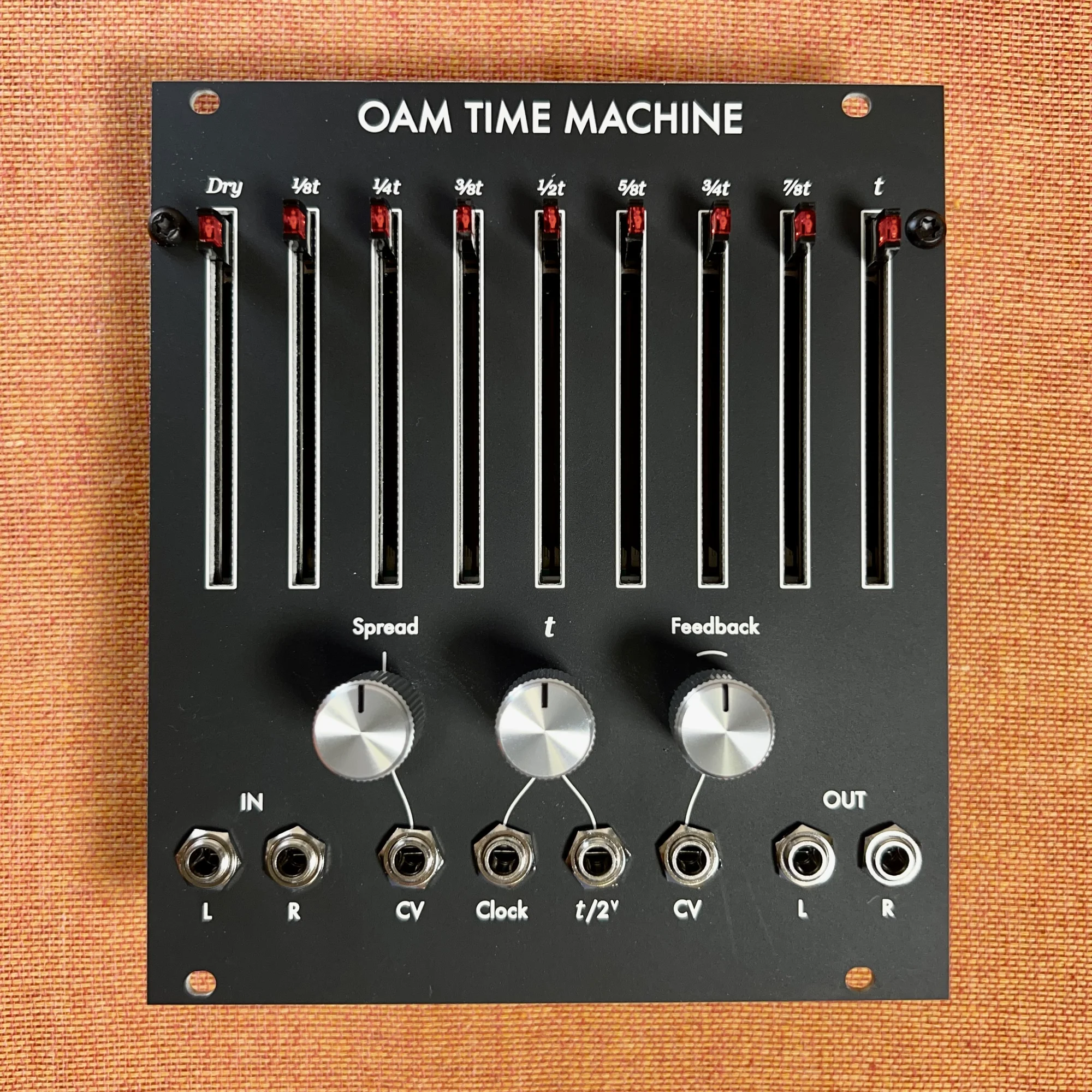
A 2HP expander for the Time Machine with 9 linear VCAs. Each slider passes unity gain at +5V with no cable, or works as an attenuator when patched. Requires Time Machine firmware v1.1.1.
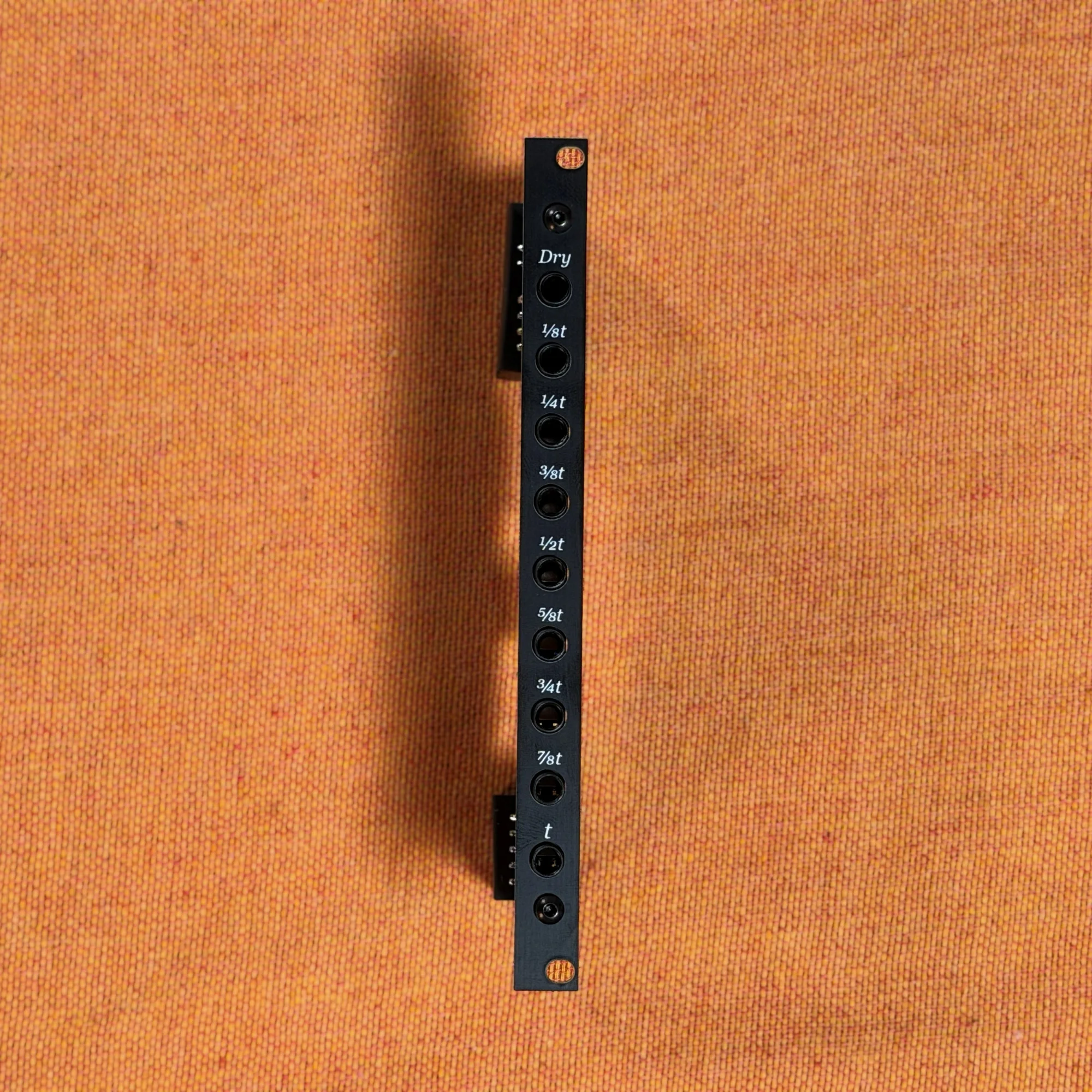
What's in v1.1.2
v1.1.2 fixes a bug present in all previous versions of the firmware (and made worse in v1.1.1) where dropouts/clicks would occur in a number of situations — most notably while adjusting the Spread and t knobs. These clicks are gone in v1.1.2.
Because of this, we recommend updating to v1.1.2 even if your module has a "v1.1.1" marking on the back. And if you are on a firmware older than v1.1.1, this update also enables VCA Expander support on Time Machine.
When Time Machine boots on v1.1.2, its lights sweep from right to left — that's how you know you're on v1.1.2. If you already see this boot pattern, you can skip this guide.
How the Firmware Upgrade Works
Time Machine is built on the Daisy Patch Submodule, a microcontroller board designed for fast audio processing. This board can be updated via USB, and updating means writing the new firmware to this board.
Download the Firmware
Download the firmware file from the link below.
Flashing Steps
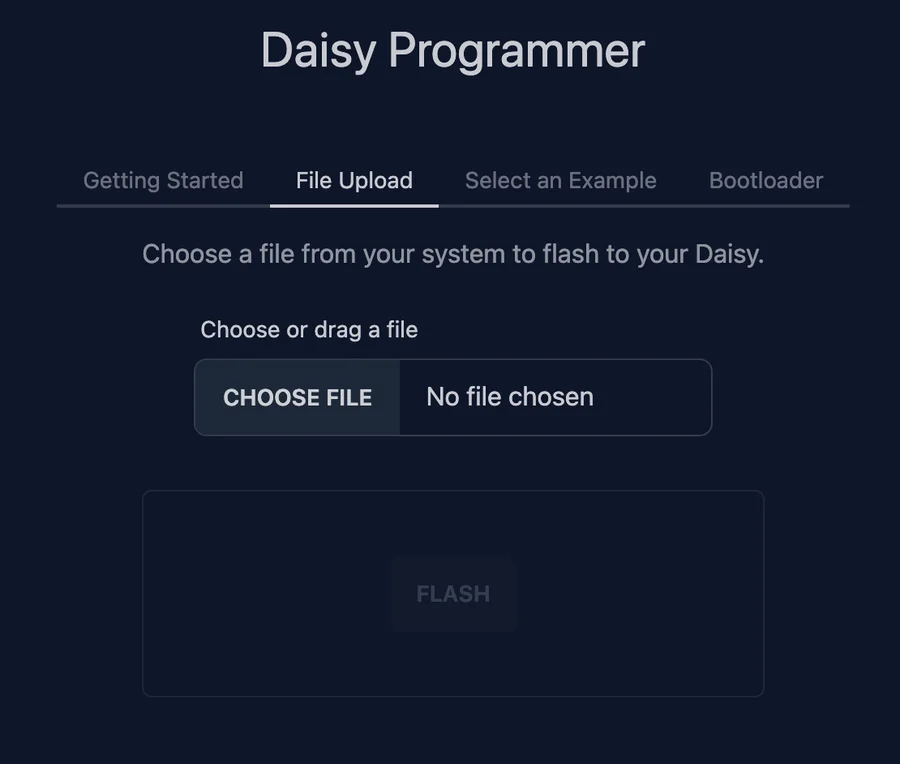
Open https://flash.daisy.audio/ in your browser and follow the steps below.
Step 1
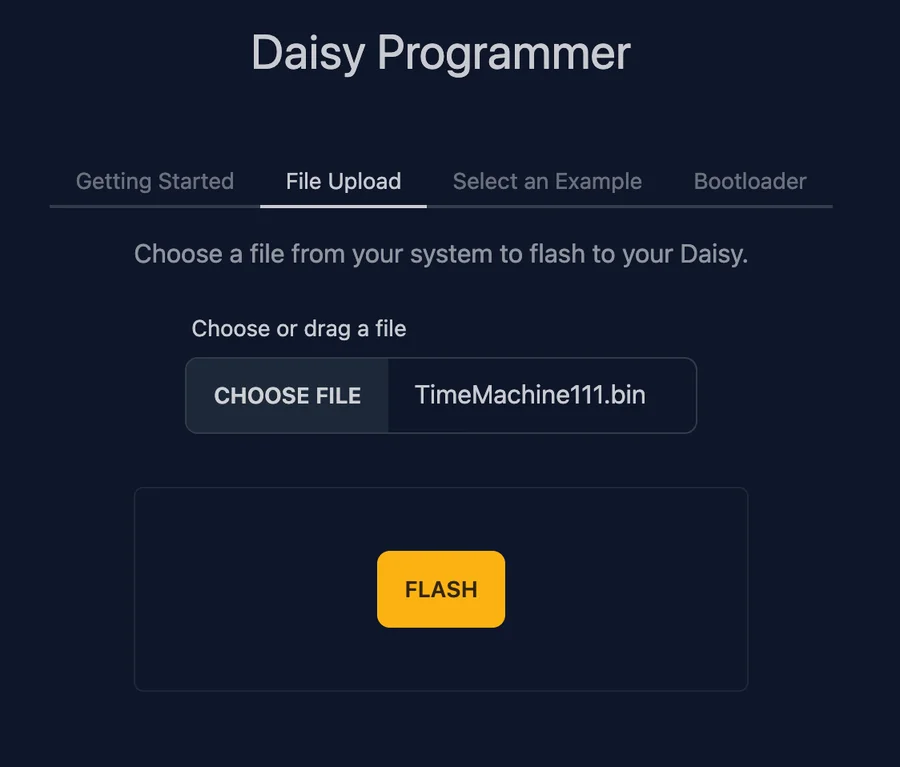
Connect the MicroUSB port on the back of the module to your PC. In the flashing tool, select "File Upload" and then select the downloaded firmware file (.bin), or drag and drop it onto the upload area.
Step 2
Click "Flash" to start the firmware write process.
Step 3
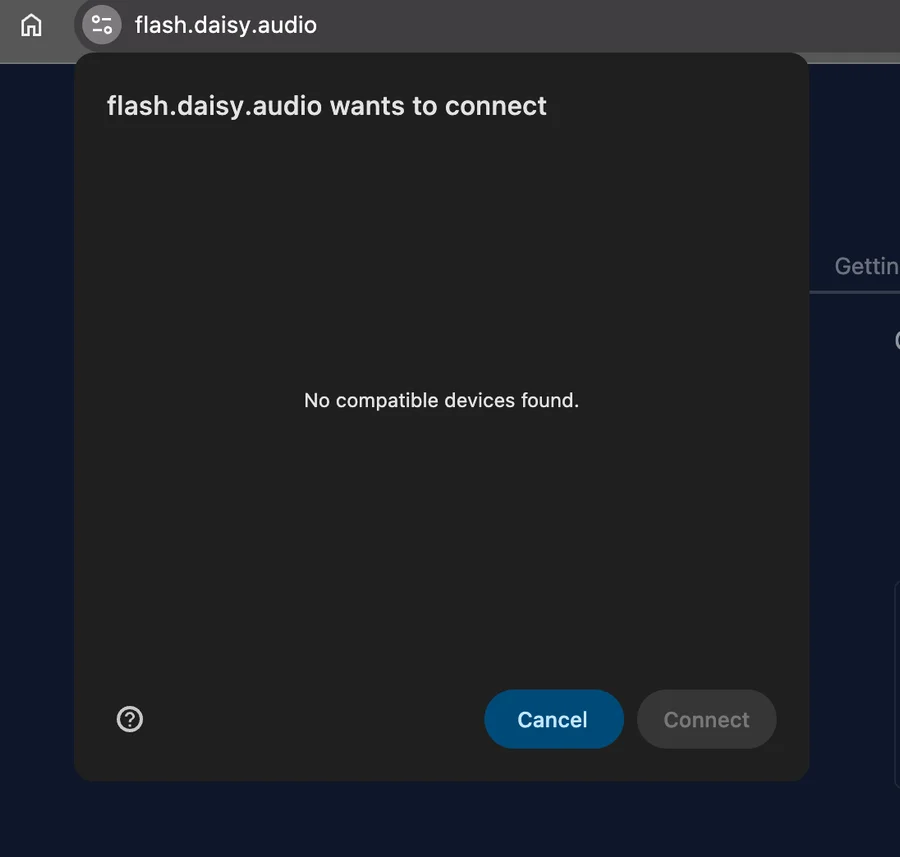
Your browser opens a device-selection dialog, but nothing appears in it yet.
Step 4
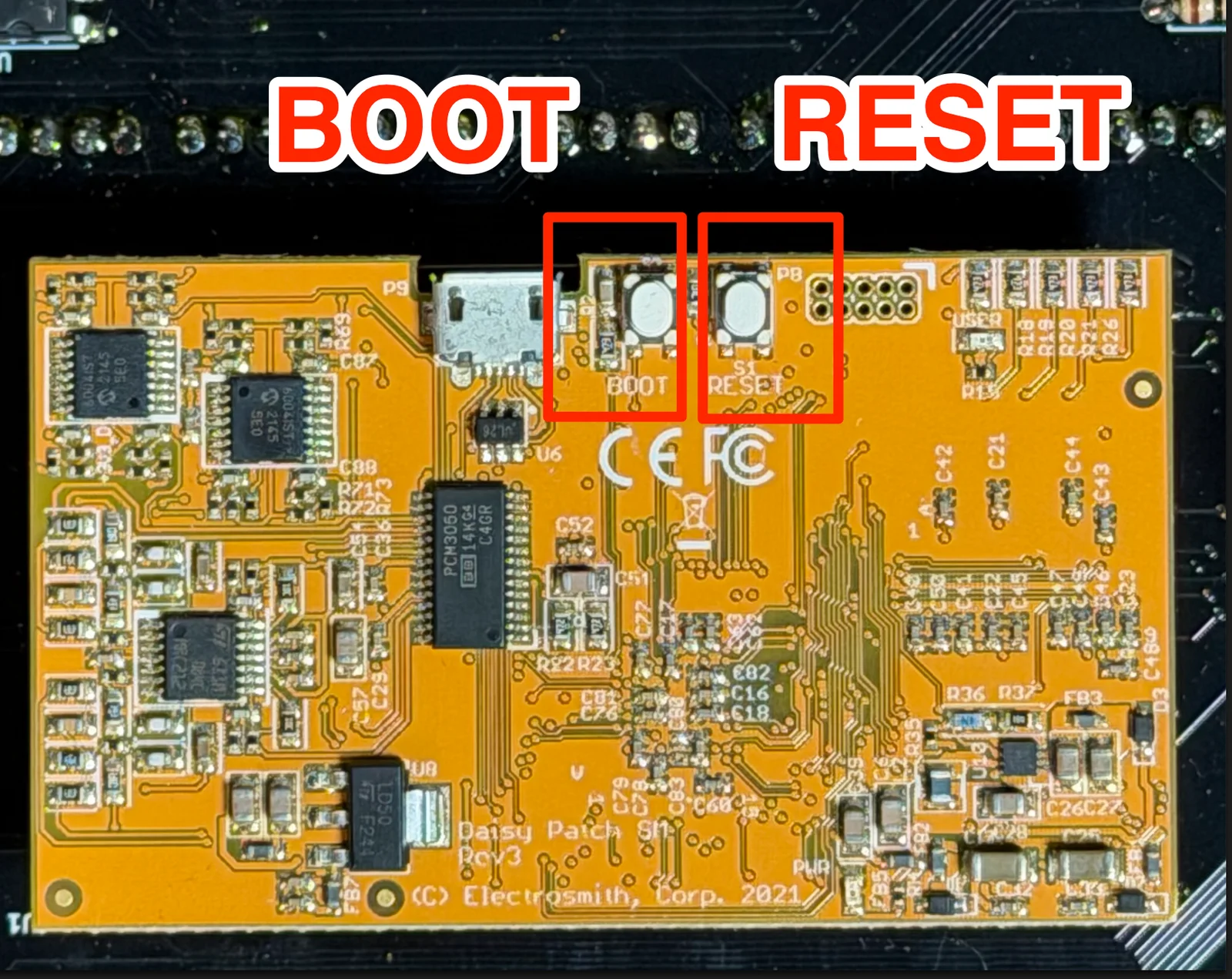
With the dialog still open, operate the Boot and Reset buttons on the module in the following order:
Press and hold the Boot button Press and hold the Reset button Let go of the Reset button Let go of the Boot button
Step 5
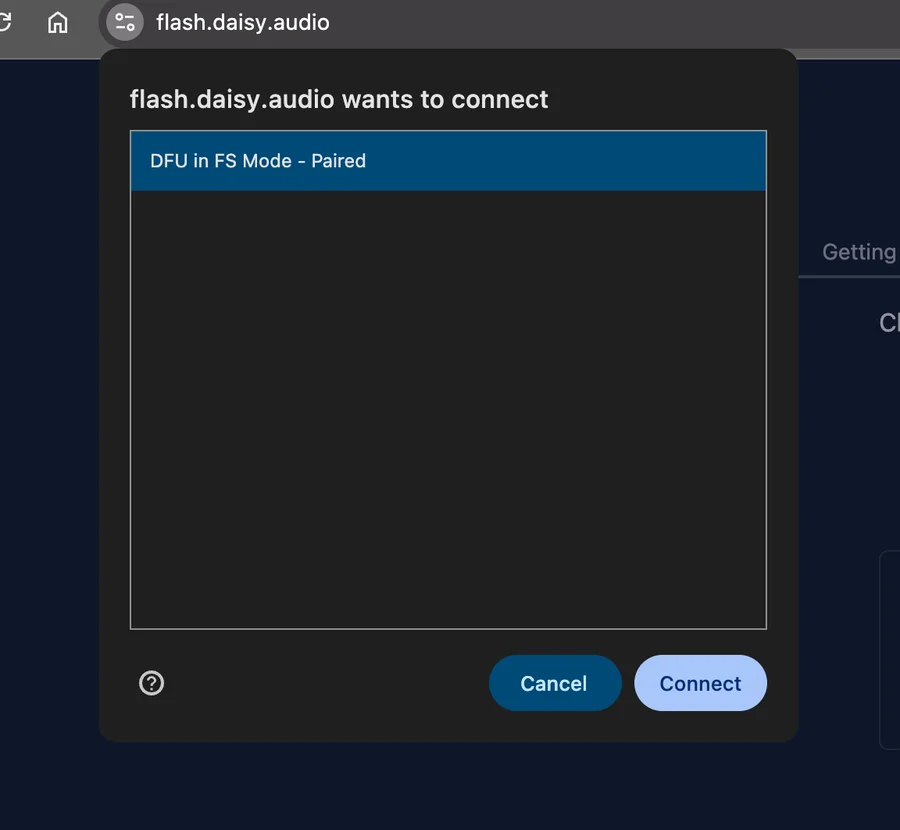
After completing step 4, the Daisy board appears in the dialog — your browser has now recognized the board.
Step 6
Click "Connect" to begin writing the firmware.
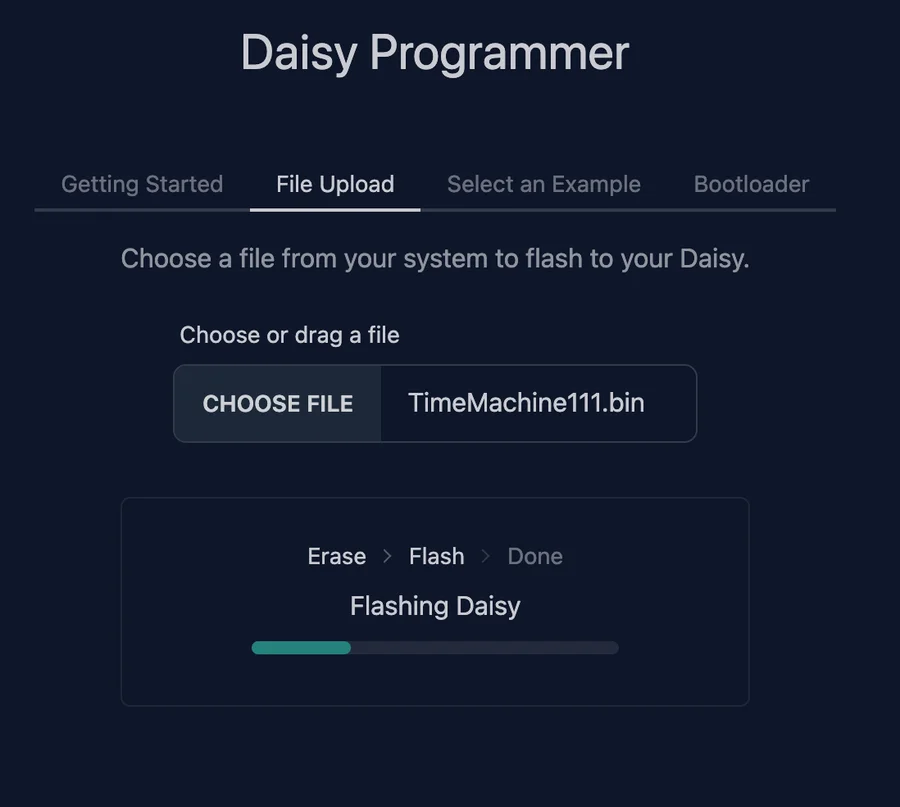
Step 7
When flashing is complete, you will see a screen like this.
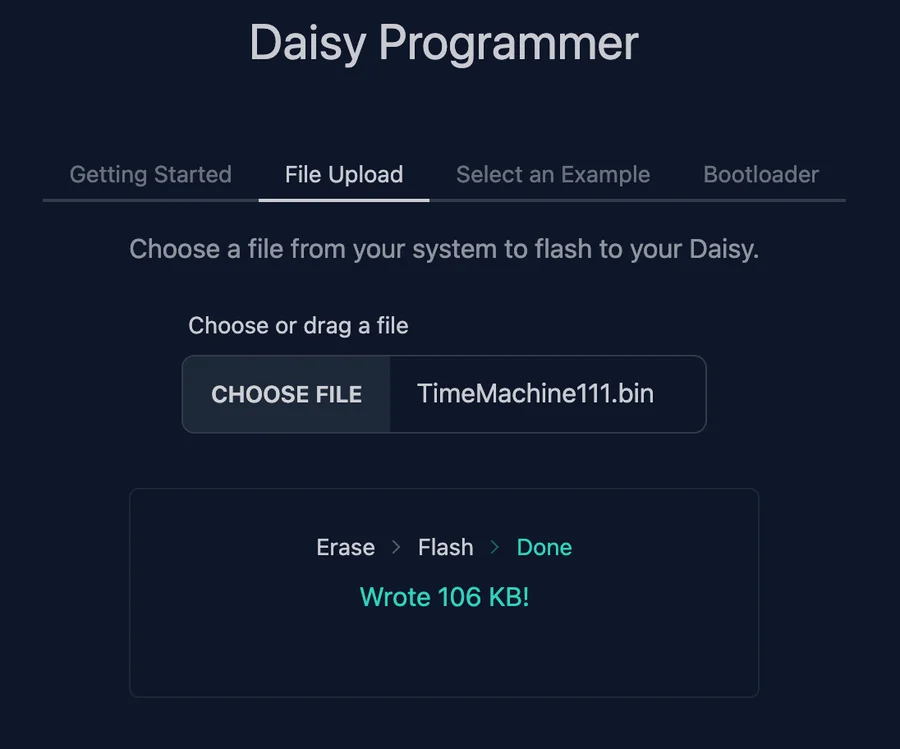
After Completion
Once flashing succeeds, power up the module. If the lights sweep from right to left on boot, the update to v1.1.2 was successful. Your Time Machine is also ready to use with the VCA Expander.
Compatibility Note
The VCA Expander is NOT compatible with the Tiny Time Machine.
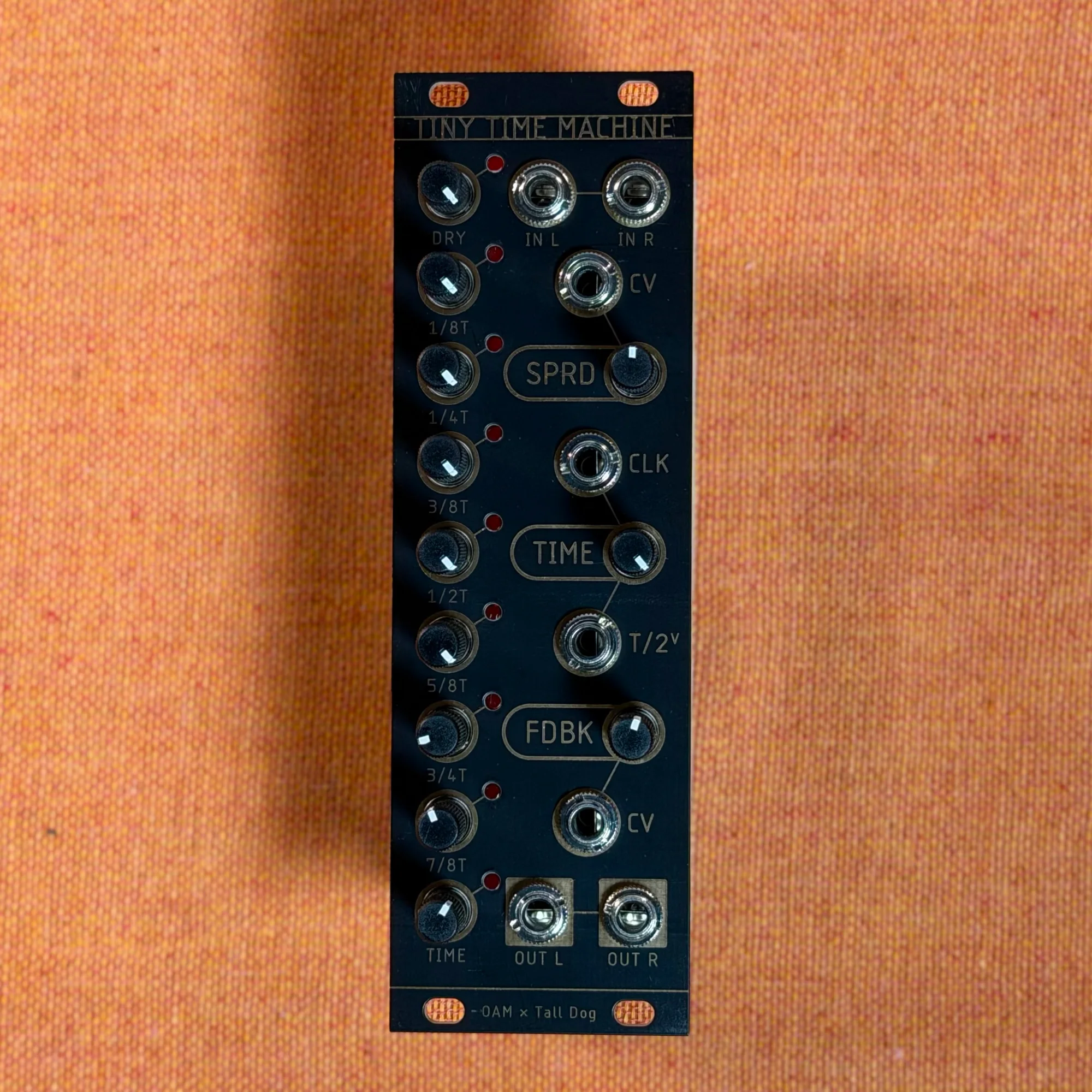
That concludes our walk-through of the OAM Time Machine firmware upgrade procedure.
If you have any questions, please reach out via the Takazudo Modular Discord server — we're happy to help.
We hope you find this helpful.