This page is for customers who have received an AirPay payment URL from Takazudo Modular. It walks you through how to pay by credit card using AirPay, the payment service provided by Recruit.
Paying with AirPay requires a Recruit ID. If you don't have one, you'll be taken to a sign-up screen partway through the payment process. See Creating a Recruit ID later on this page for details.
The Payment Flow
Step 1. Access the QR code or URL
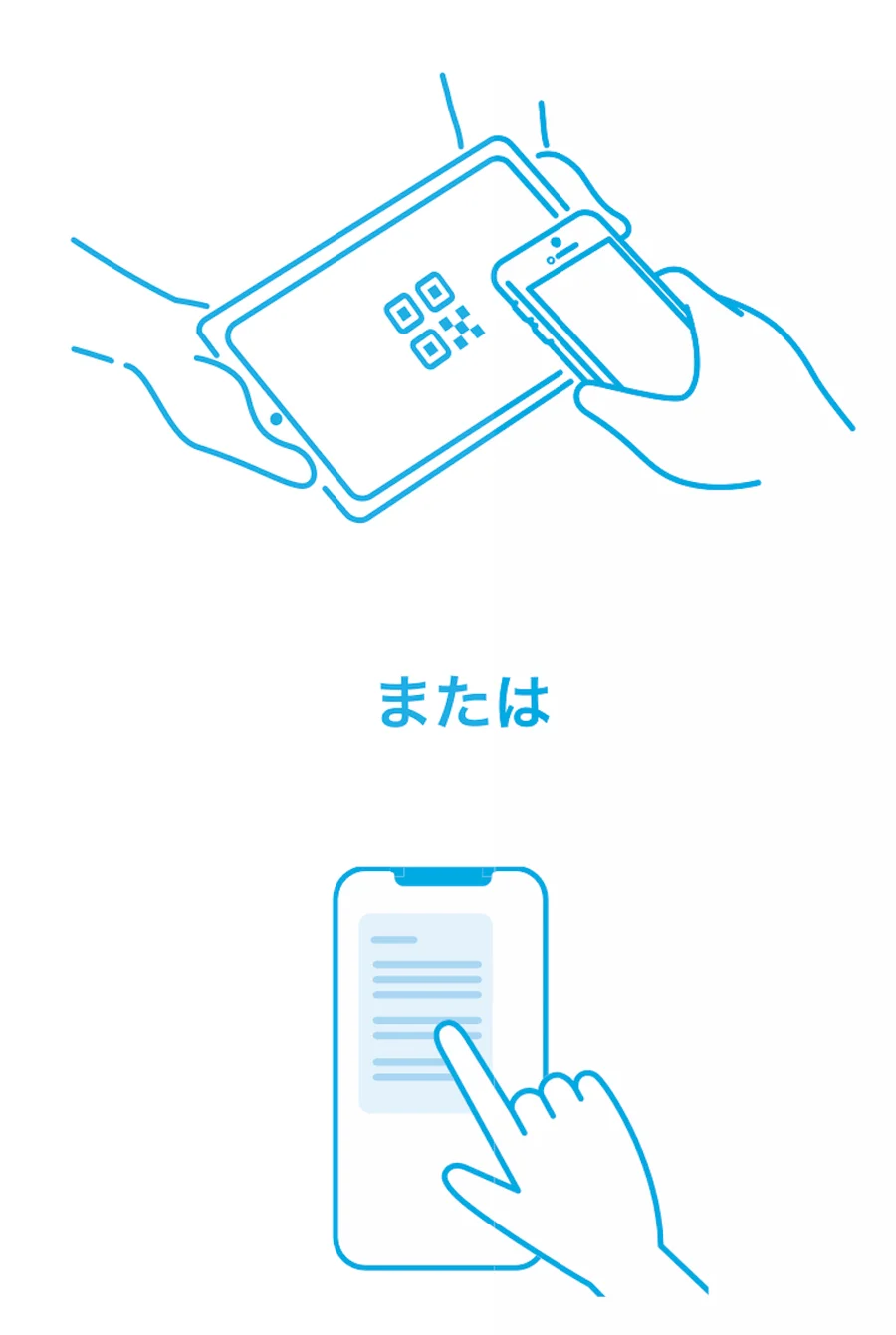
Scan the QR code we sent you, or open the URL in your browser. You'll see a page designed for access from a smartphone.
Step 2. Check the payment amount and details
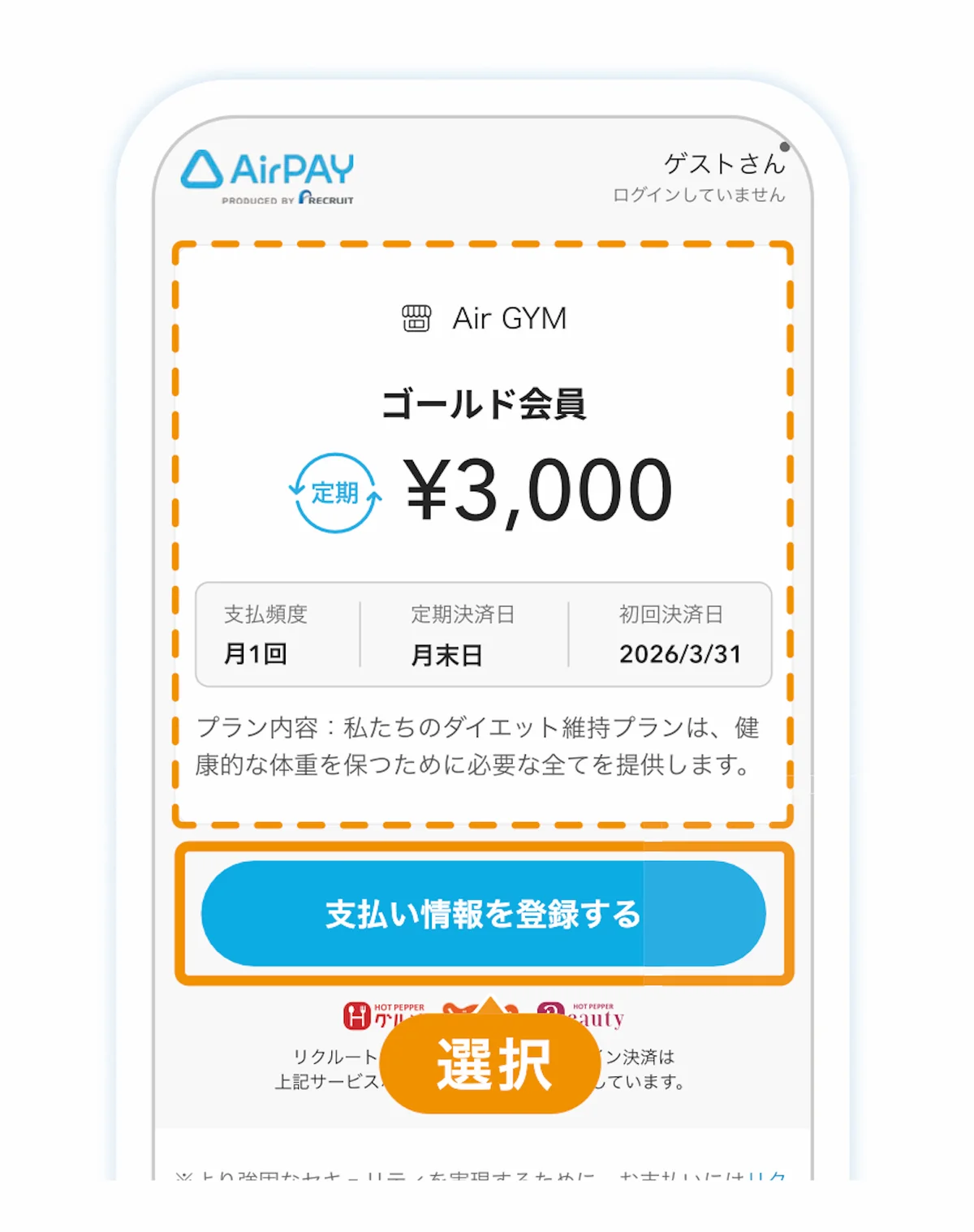
On the page that appears, review the payment amount and details. If everything looks right, select the Register payment information button.
Step 3. Log in with your Recruit ID
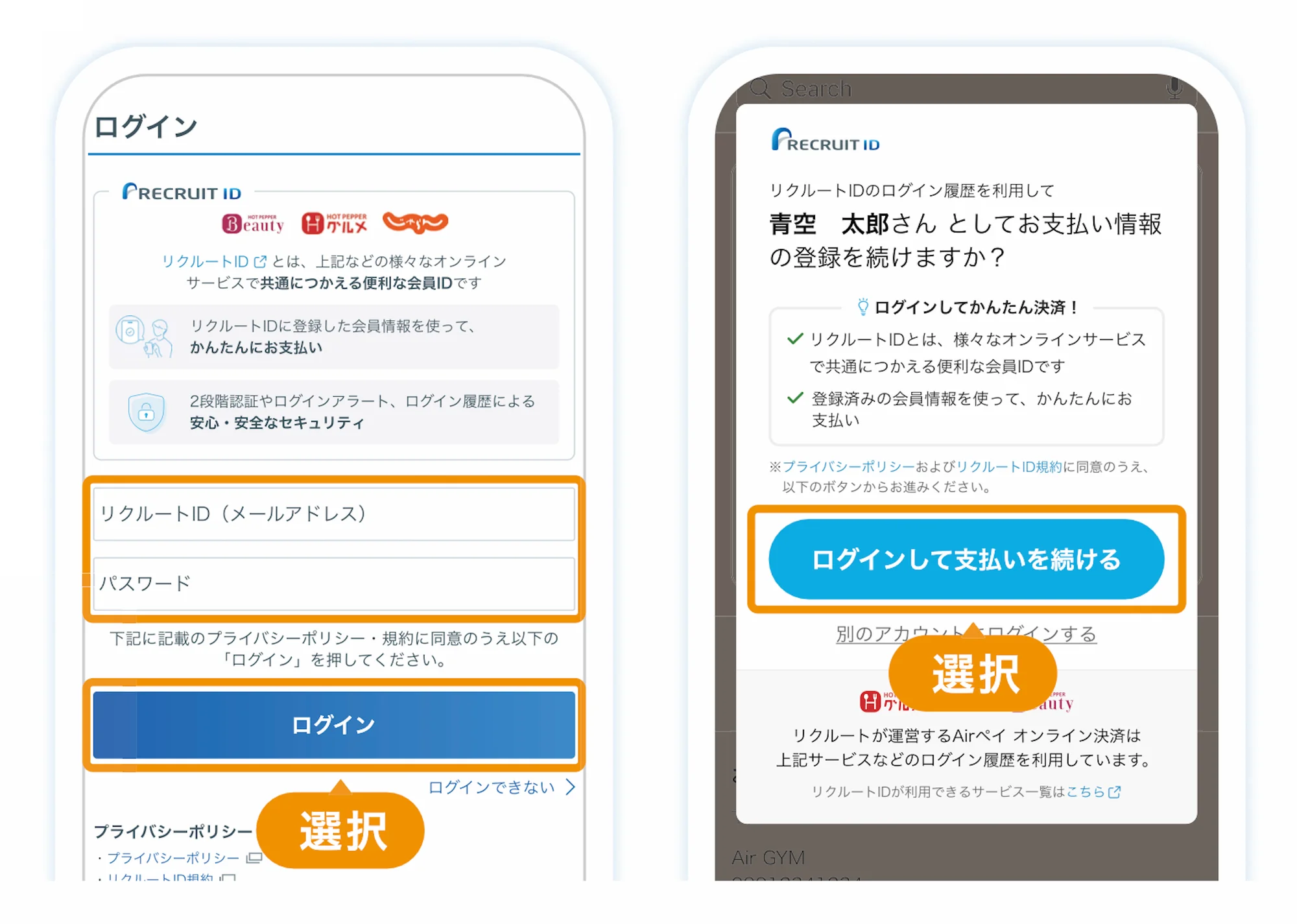
The Recruit ID login screen appears. Enter your Recruit ID and password and select Log in, or if you're already logged in, select Log in and continue to payment.
If you don't have a Recruit ID, you can go to Sign up as a new member from this screen. For detailed steps, see Creating a Recruit ID later on this page.
Step 4. Enter your credit card information
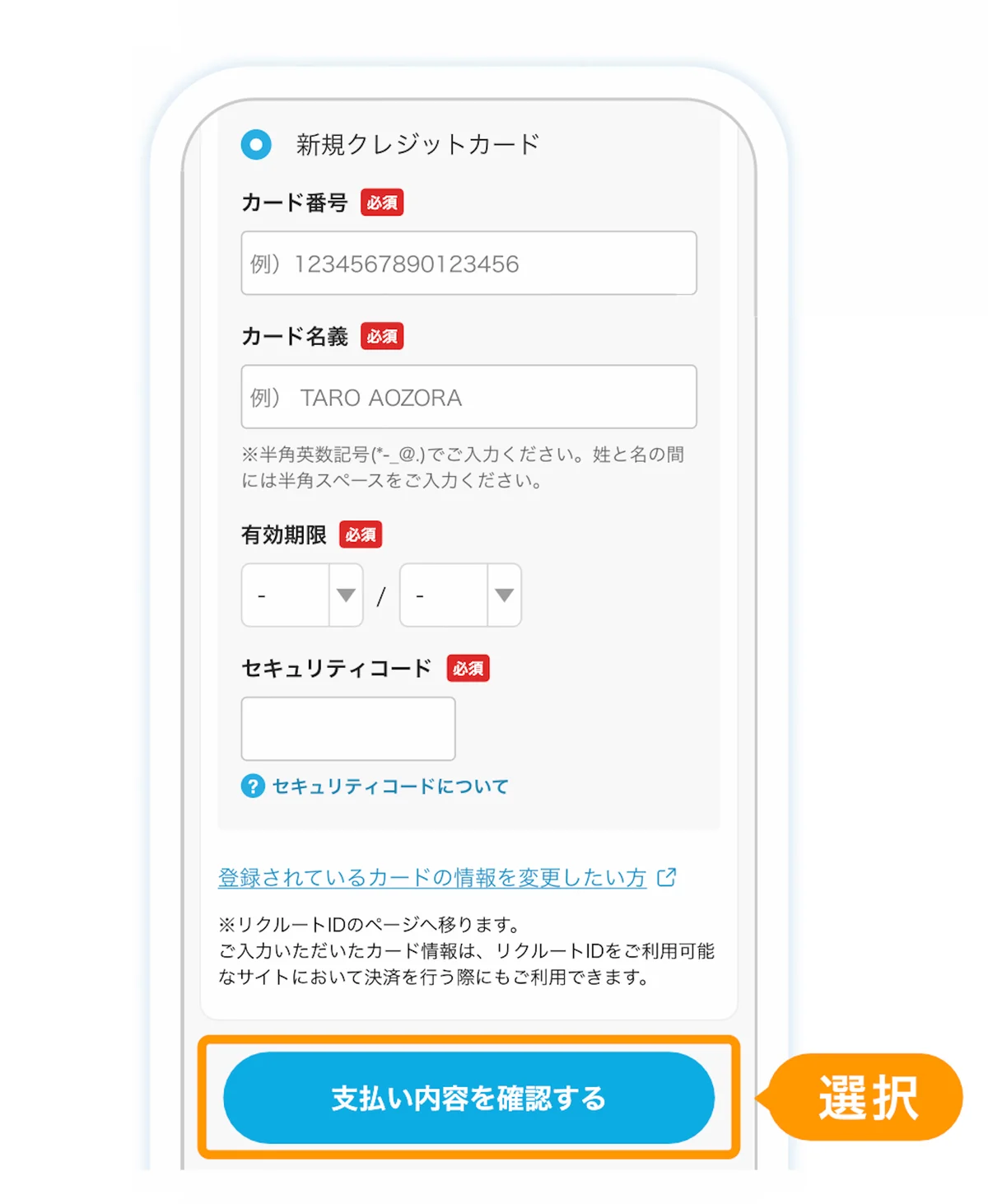
The credit card entry screen appears. Enter your card number, cardholder name, expiration date, and security code, then select the Confirm payment details button.
Step 5. Review your registration details
A confirmation screen with the details you entered appears. Review your customer information and credit card information, and if everything looks right, select the Agree to the above and confirm registration button. To make changes, select Edit payment details.
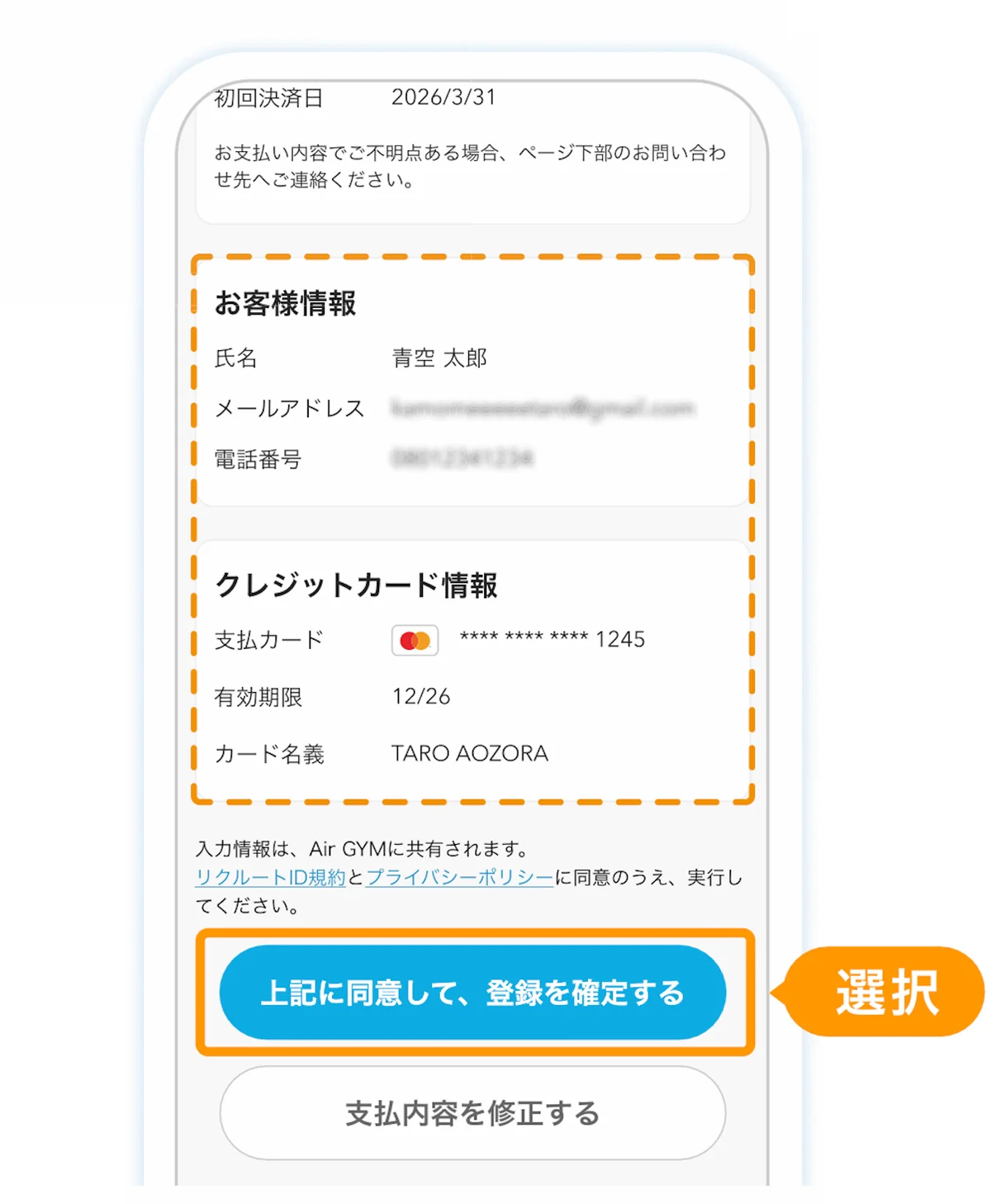
Step 6. Payment complete
When you see the "Registration complete" screen, your payment is done. A payment registration confirmation email will be sent to the email address registered to your Recruit ID.
You'll need your contract number if you ever contact us, so please keep the screen contents or the confirmation email for your records.
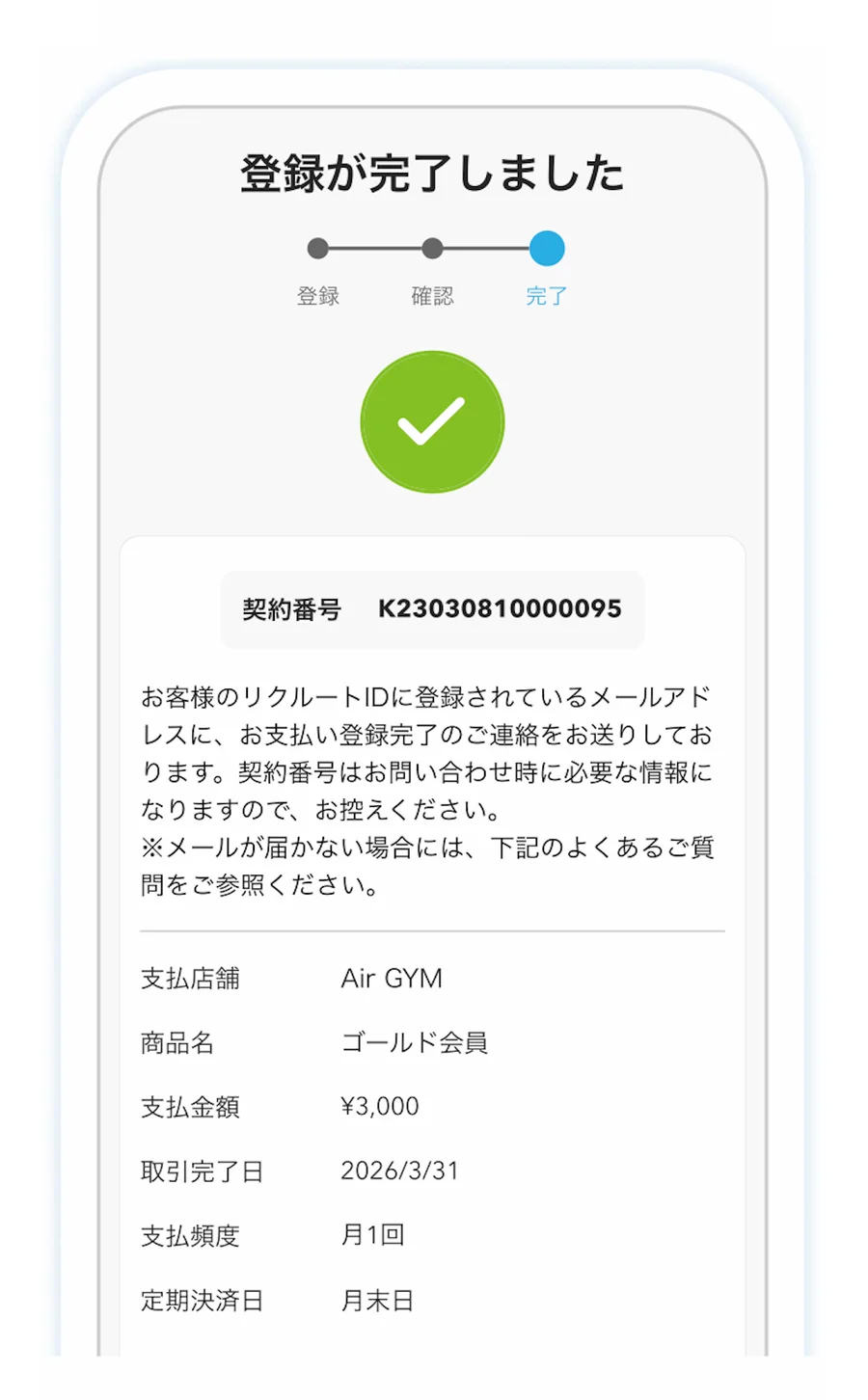
Creating a Recruit ID
These are the sign-up steps for customers who don't yet have a Recruit ID. This is the flow you'll follow if you went to Sign up as a new member from the login screen at Step 3 of the payment flow.
Step 1. Select "Register payment information"
On the payment details confirmation screen, select the Register payment information button.
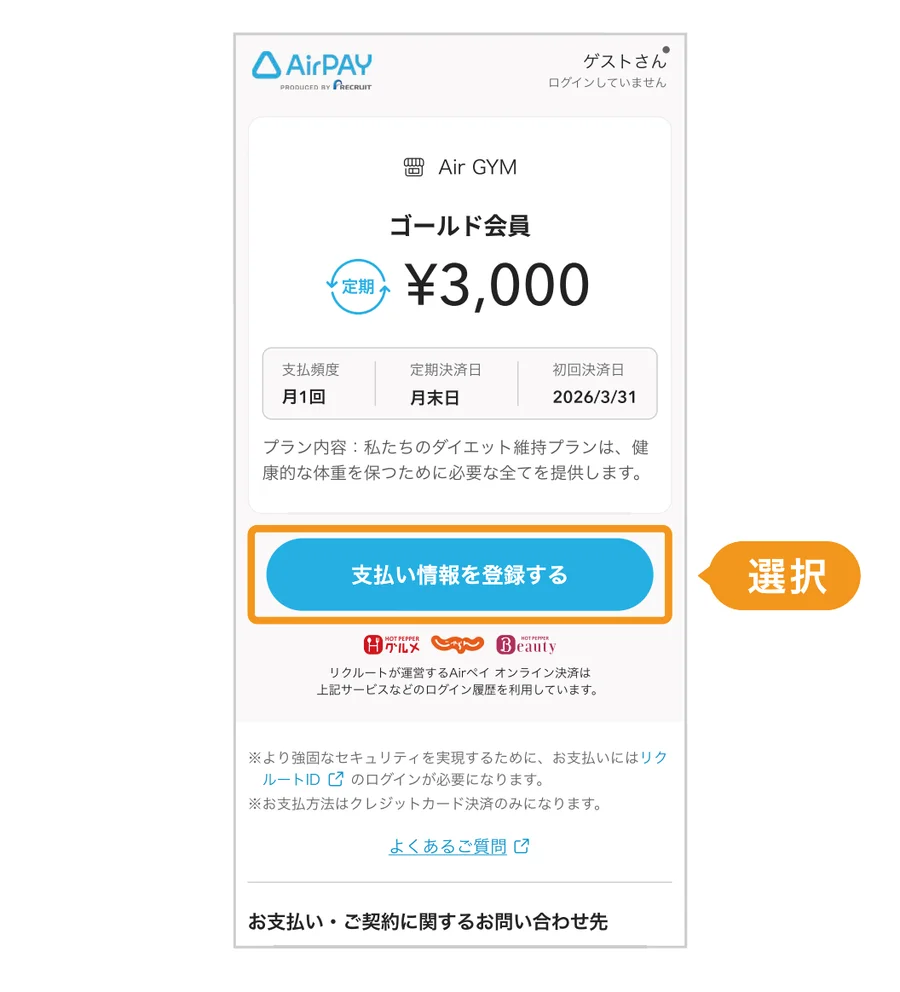
Step 2. Select "Sign up as a new member"
The Recruit ID login screen appears. In the "Don't have a Recruit ID?" section at the bottom of the screen, select the Sign up as a new member button.
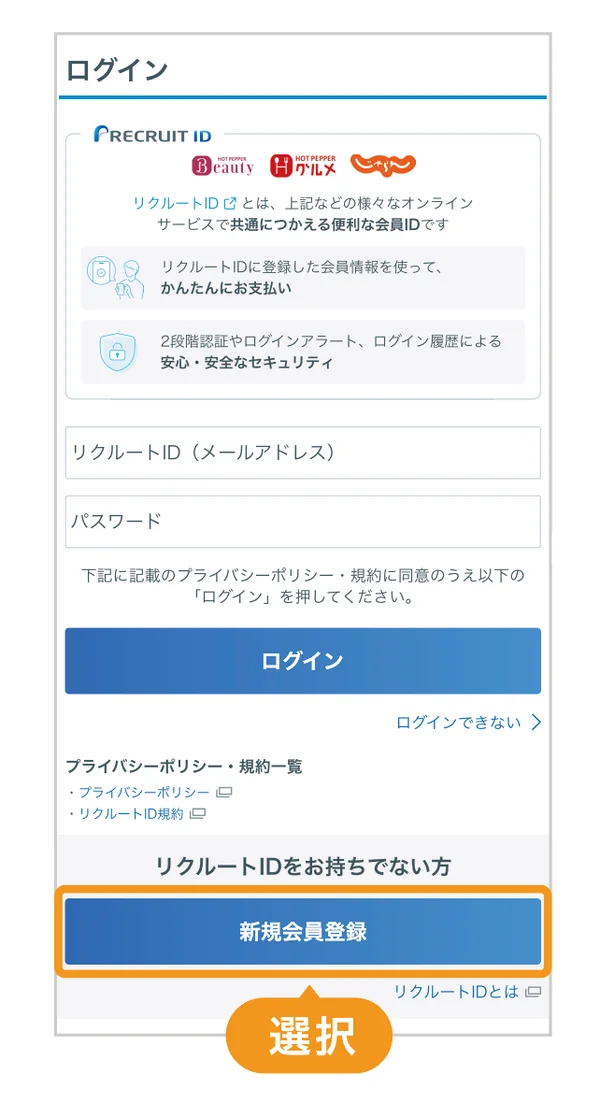
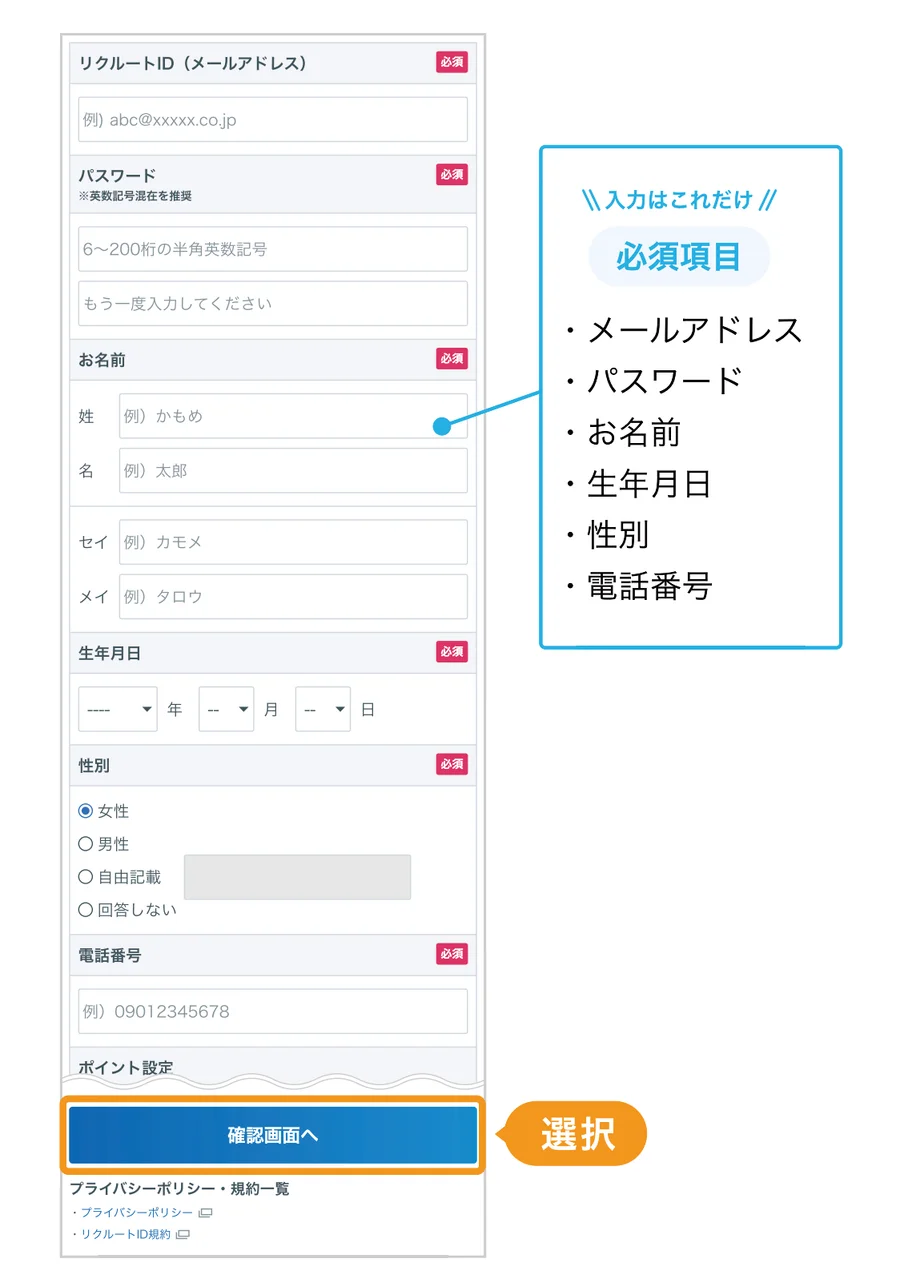
Step 3. Enter your information
On the registration screen, fill in the following required fields.
Email address (used as your Recruit ID)
Password
Name
Date of birth
Gender
Phone number
Once you've filled everything in, select the Go to confirmation screen button.
Step 4. Review your registration information
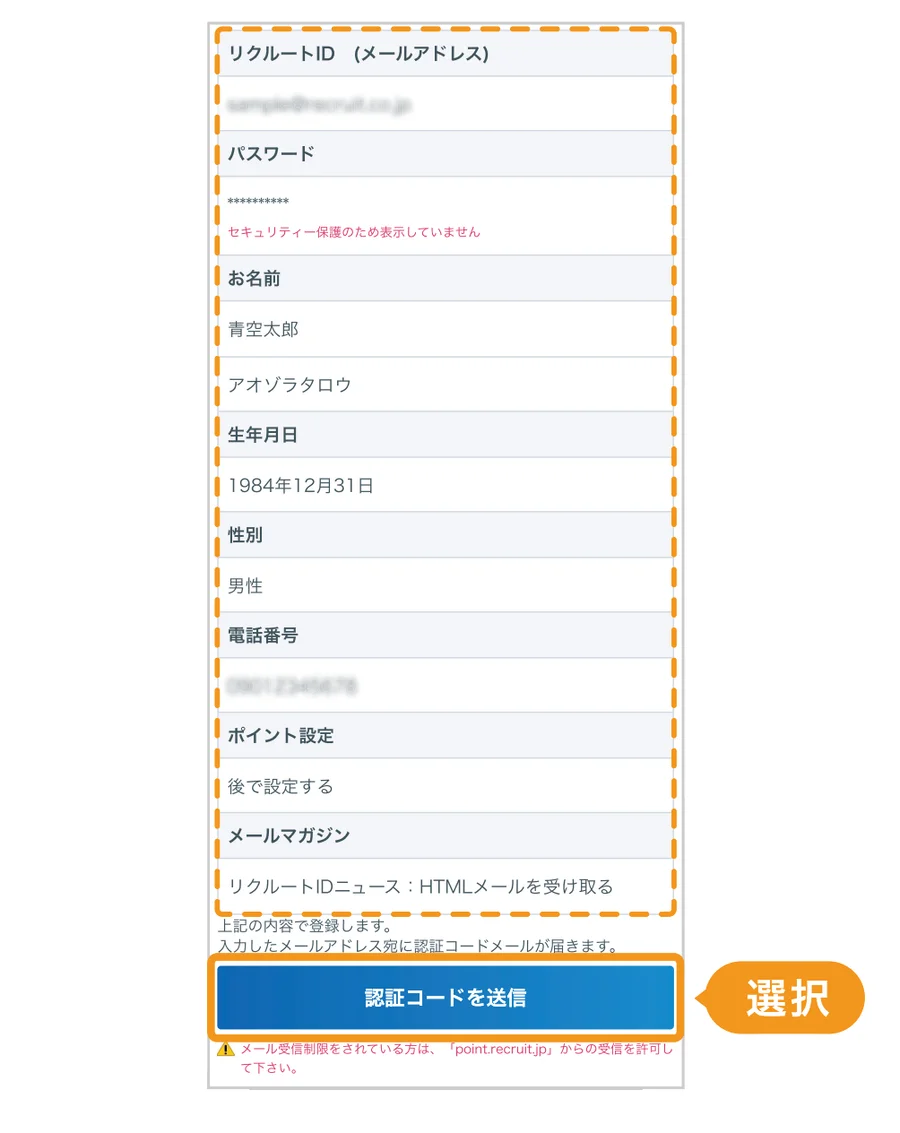
A confirmation screen with the details you entered appears. Review the information, and if everything looks right, select the Send verification code button. An email with a verification code will be sent to the email address you entered.
Step 5. Enter the verification code
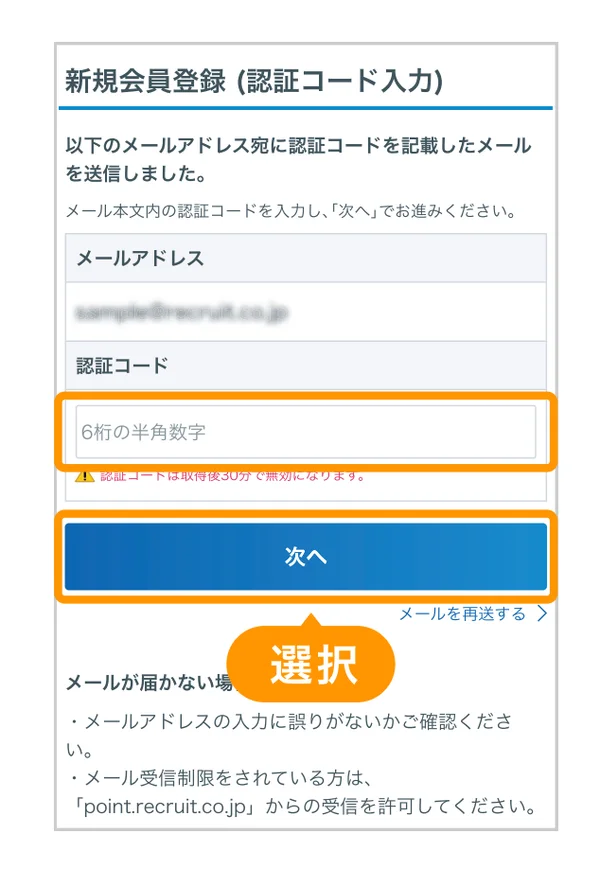
Enter the 6-digit verification code from the email and select the Next button. If the email doesn't arrive, check the email address you entered and your spam filter settings.
The verification code is valid for 30 minutes after it's issued. If it expires, select Resend email.
Step 6. Registration complete
Once your Recruit ID registration is complete, you'll be taken automatically to the payment information registration screen. Continue from Step 4 of The Payment Flow.
Contact
If you have any questions about your payment, please get in touch using the options below.