KiCad Project Workflow
Complete workflow for creating a PCB design in KiCad, from schematic to manufacturing files.
Prerequisites
CRITICAL: Before starting, ensure your KiCad project files are located at the repository root:
zudo-pd/          ← Repository root
├── zudo-pd.kicad_pro       ← Project file must be here
├── zudo-pd.kicad_sch       ← Schematic file
├── zudo-pd.kicad_pcb       ← PCB file (created later)
└── footprints/             ← Footprint library
    └── kicad/
        └── zudo-power.pretty/
The ${KIPRJMOD} variable in KiCad points to the directory containing the .kicad_pro file. If your project is in a subdirectory (like kicad/ or pcb/), relative paths to footprints and libraries won't resolve correctly.
Overview
KiCad uses a modular workflow where you work with different editors in sequence:
- Symbol Editor - Create/import schematic symbols
- Schematic Editor - Draw circuit diagrams
- Footprint Editor - Create/import PCB footprints
- PCB Editor - Layout the physical board
- Manufacturing Output - Generate Gerber files
Stage 1: Symbol Management
1.1 Check Existing Libraries
Before creating custom symbols, check if they already exist in KiCad's standard libraries:
Common libraries for this project:
Device- Resistors, capacitors, inductors, diodes, LEDsRegulator_Linear- LM78xx, LM79xx seriesRegulator_Switching- LM2596, buck/boost convertersConnector- USB connectors, power jacks, headerspower- GND, VCC, voltage symbols
To check:
- Open Symbol Editor
- File → Add Library... → Browse standard KiCad libraries
- Search for your part number or category
1.2 Import Symbols from Standard Libraries
For parts already in KiCad libraries:
- Open Schematic Editor
- Press
A(Add Symbol) - Search by part name (e.g., "LM7812", "USB_C_Receptacle")
- Browse by library category if unsure
1.3 Create Custom Symbols
For parts NOT in standard libraries (like STUSB4500, specialized ICs):
Method 1: Import from EasyEDA/LCSC
Use easyeda2kicad.py to download both symbols and footprints:
# Download symbol + footprint for STUSB4500 (LCSC ID: C2678061)
easyeda2kicad --lcsc_id C2678061 --symbol --footprint

# Files saved to:
# ~/Documents/Kicad/easyeda2kicad/easyeda2kicad.pretty/  (footprints)
# ~/Documents/Kicad/easyeda2kicad/easyeda2kicad.kicad_sym (symbols)
Method 2: Manual Creation
- Open Symbol Editor
- File → New Library... → Create project-specific library (e.g.,
zudo-power.kicad_sym) - Create New Symbol
- Define:
- Pin numbers and names (from datasheet)
- Pin electrical types (input, output, power, passive)
- Symbol shape (rectangle, specialized)
- Reference designator (U, R, C, J, etc.)
Best practices:
- Match datasheet pin numbering exactly
- Use descriptive pin names (VIN, VOUT, FB, EN, etc.)
- Set correct electrical types for ERC (Electrical Rule Check)
- Add datasheet link in symbol properties
Stage 2: Schematic Creation
2.1 Create New Schematic
- Open Schematic Editor (
zudo-pd.kicad_sch) - Set up page properties:
- Title: "USB-PD Modular Synth Power Supply"
- Revision: v1.0
- Date: (automatic)
- Company/Organization (optional)
2.2 Place Symbols
- Press
Ato add symbols - Search and place all components
- Use logical groupings:
- USB-PD input stage (left side)
- DC-DC converters (center)
- Linear regulators (right)
- Output connectors (far right)
Recommended layout flow:
Left to Right = Signal Flow
USB-C Input → DC-DC Conversion → Linear Regulation → Outputs
2.3 Wire Connections
- Press
Wto start wiring - Click start point → Click end point
- Use labels for:
- Power nets:
+15V,+13.5V,+12V,+5V,-12V,-15V - Ground:
GND(use power symbol) - Signal names:
PG(Power Good),EN(Enable),FB(Feedback)
Best practices:
- Use net labels instead of long wires across the page
- Group related components close together
- Keep power flow left-to-right, top-to-bottom
- Add
No Connectflags (X) to unused pins
2.4 Add Power Symbols
- Press
Pto add power symbols - Add for each voltage rail:
+12V,+5V,-12V(outputs)+15V,+13.5V,-13.5V(intermediate)GND(ground reference)
2.5 Add Values and References
For each component:
- Select component
- Press
Eto edit properties - Set:
- Reference (auto-numbered: U1, R1, C1, etc.)
- Value (10µF, 5.1kΩ, LM7812, etc.)
- Footprint (assigned in next step)
- Datasheet URL (optional but recommended)
2.6 Annotate Schematic
Auto-number all reference designators:
- Tools → Annotate Schematic
- Select "Use entire schematic" (for multi-sheet projects)
- Click "Annotate"
Result: R?, C?, U? become R1, R2, C1, C2, U1, U2, etc.
2.7 Electrical Rules Check (ERC)
Before proceeding to PCB:
- Inspect → Electrical Rules Checker
- Run ERC
- Fix all errors:
- Unconnected pins
- Power pins not driven
- Conflicting outputs
- Missing power connections
Stage 3: Footprint Assignment
3.1 Import Footprints
For JLCPCB-compatible parts:
See KiCad Parts Download Guide for detailed instructions.
Quick workflow:
# Download footprint by LCSC ID
easyeda2kicad --lcsc_id C970725 --footprint

# Copy to project directory
cp ~/Documents/Kicad/easyeda2kicad/easyeda2kicad.pretty/*.kicad_mod ./footprints/kicad/
3.1a Add Footprint Library to KiCad
IMPORTANT: Before adding the footprint library, ensure your KiCad project (.kicad_pro file) is located in the repository root directory. The ${KIPRJMOD} variable points to the project file location, so if your project is in a subdirectory (like kicad/), the relative paths won't resolve correctly.
Project structure:
zudo-pd/          ← Repository root
├── zudo-pd.kicad_pro       ← KiCad project file should be here
├── zudo-pd.kicad_sch       ← Schematic file
├── zudo-pd.kicad_pcb       ← PCB file
└── footprints/
    └── kicad/
        └── zudo-power.pretty/   ← Footprint library
            ├── C0603.kicad_mod
            ├── C0805.kicad_mod
            └── ... (37 footprints)
Steps to add footprint library:
- Open Preferences → Manage Footprint Libraries
- From main KiCad window (NOT Symbol Editor)
- Or from PCB Editor: Preferences → Manage Footprint Libraries
-
Click "Project Specific Libraries" tab (at bottom)
-
Add new library:
- Click folder icon (➕) to add library
- Set values:
- Nickname:
zudo-pd(or any name you prefer) - Library Path:
${KIPRJMOD}/footprints/kicad/zudo-power.pretty - Library Format:
KiCad - Options: (leave blank)
- Nickname:
- Click OK
Example configuration:
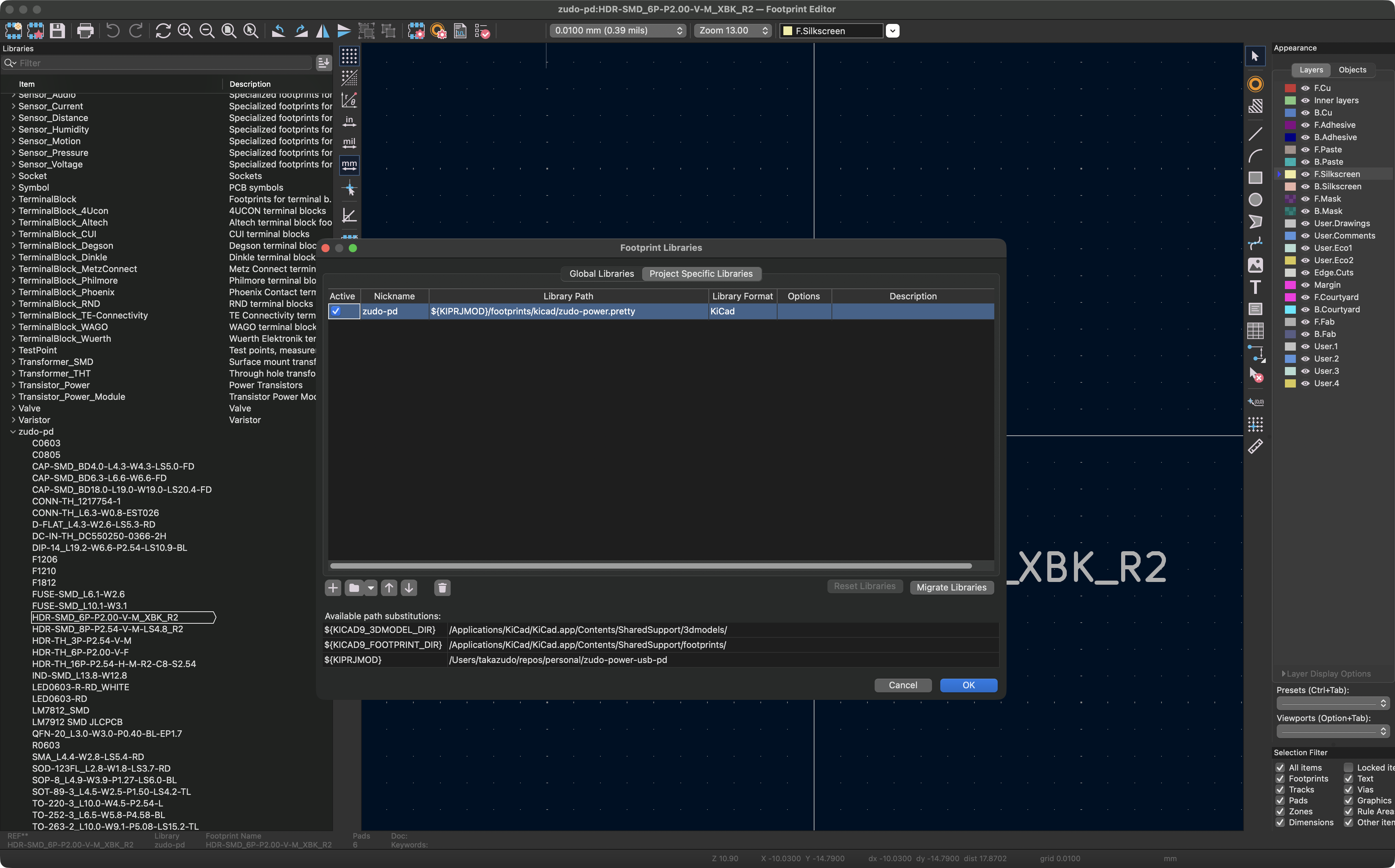
The dialog should show:
- Library nickname:
zudo-pd - Library path:
${KIPRJMOD}/footprints/kicad/zudo-power.pretty - At the bottom, "Available path substitutions" shows the resolved path
Verify the library loaded:
- Open Footprint Editor (from main KiCad window)
- Check left panel - you should see
zudo-pdlibrary - Click on it to expand and browse 37 footprints
- You should see footprints like:
C0603,C0805(capacitors)TO-252-3,TO-263-2(IC packages)SOP-8,SSOP-10(IC packages)- Component-specific footprints
Troubleshooting:
- Library appears empty: Verify the path points to
zudo-power.prettydirectory (not.prettyor other directories) - Path not found: Check that
${KIPRJMOD}resolves correctly by looking at "Available path substitutions" at bottom of dialog - Wrong symbols showing: You opened Symbol Libraries instead of Footprint Libraries - close and reopen the correct dialog
3.2 Assign Footprints to Symbols
- In Schematic Editor: Tools → Assign Footprints
- For each component, select appropriate footprint:
- Resistors/Capacitors:
0805,1206(SMD sizes) - ICs: Match package type from datasheet (SOIC-8, SOT-23-6, etc.)
- Connectors: Match mechanical dimensions exactly
- Large components: Verify pad sizes for current rating
Example assignments:
- LM7812 →
TO-252-2(DPAK) - LM2596S →
TO-263-5(D2PAK) - STUSB4500 →
QFN-24(from LCSC) - 10µF capacitor →
C_0805_2012Metric - 5.1kΩ resistor →
R_0805_2012Metric
3.3 Verify Footprint Assignments
- Check that ALL components have footprints assigned (no "No Footprint" entries)
- Verify footprint sizes match your requirements:
- Small passives: 0805 or 1206 (easy hand soldering)
- ICs: Match JLCPCB assembly capabilities
- Connectors: Match mechanical specs exactly
Stage 4: PCB Layout
4.1 Generate Netlist and Import to PCB
- In Schematic Editor: Tools → Update PCB from Schematic (F8)
- Click "Update PCB"
- PCB Editor opens with all components loaded
First import: Components appear in a cluster, ready to be positioned
4.2 Set Board Dimensions
- Select Edge.Cuts layer
- Draw board outline:
- Press
Ctrl+Shift+Pfor polygon tool - Draw rectangle or custom shape
- Recommended: Start with 100mm × 80mm for this project
4.3 Place Components
Strategic placement:
- Input stage (left):
- USB-C connector on board edge
- CH224Q near connector
- Input capacitors near CH224Q
- DC-DC stage (center):
- LM2596S converters in row
- Inductors next to each converter
- Output capacitors after inductors
- Linear regulators (right of center):
- LM7812, LM7805, LM7912 in row
- Input/output capacitors adjacent
- Output connectors (right edge):
- Power headers on board edge
- Fuses before output
- TVS diodes near output
Best practices:
- Keep signal paths short (especially high-current paths)
- Place decoupling capacitors close to IC power pins
- Orient components for logical layout
- Leave space for heat dissipation (regulators, DC-DC)
- Group by function, not just by type
4.4 Route Traces
Layer strategy:
- F.Cu (Top layer): Power traces, signal routing
- B.Cu (Bottom layer): Ground plane + additional routing
Trace widths (for 1oz copper):
- Power traces (1A+): 0.5mm minimum, 1.0mm recommended
- Signal traces: 0.25mm minimum, 0.3mm recommended
- Ground/return: Wide as possible, or use ground plane
Routing order:
- Route power traces first (+15V, +12V, +5V, -12V)
- Route critical signals (feedback, enable pins)
- Route remaining connections
- Add ground plane on bottom layer (Fill Zone)
Tools:
- Press
Xto start routing - Press
Vto add via (switch layers) - Press
Dto drag component while maintaining connections
4.5 Add Ground Plane
- Select B.Cu layer
- Press
Ctrl+Shift+Zto add filled zone - Draw zone around entire board
- Set net:
GND - Press
Bto rebuild all zones
4.6 Design Rule Check (DRC)
Before manufacturing:
- Inspect → Design Rules Checker
- Run DRC
- Fix all errors:
- Trace clearance violations
- Unconnected nets
- Board outline issues
- Silkscreen over pads
Stage 5: Manufacturing Output
5.1 Generate Gerber Files
- File → Fabrication Outputs → Gerbers (.gbr)
- Settings:
- Include layers: F.Cu, B.Cu, F.Mask, B.Mask, F.Silkscreen, B.Silkscreen, Edge.Cuts
- Coordinate format: 4.6, unit mm
- Check "Use Protel filename extensions"
- Click "Plot"
5.2 Generate Drill Files
- File → Fabrication Outputs → Drill Files (.drl)
- Settings:
- Drill units: Millimeters
- Drill map: PostScript or PDF (for verification)
- Click "Generate Drill File"
5.3 Generate BOM (Bill of Materials)
- In Schematic Editor: File → Fabrication Outputs → BOM
- Use built-in generator or:
- Export to CSV
- Use external tool (KiBoM, InteractiveHtmlBom)
For JLCPCB assembly:
- Must include: Reference, Value, Footprint, LCSC Part Number
- Export as CSV format
- Match JLCPCB template exactly
5.4 Generate Pick-and-Place File
For SMT assembly:
- File → Fabrication Outputs → Component Placement (.pos)
- Format: CSV
- Units: Millimeters
- Includes: Reference, X, Y, Rotation, Layer
5.5 Verify with Gerber Viewer
- Open GerbView (included with KiCad)
- Load all Gerber files + drill file
- Check:
- Board outline correct
- All pads visible
- Silkscreen readable (not over pads)
- Drill holes aligned with pads
- Layers aligned correctly
Stage 6: Order from JLCPCB
6.1 Prepare Files
Create ZIP archive with:
- All Gerber files (.gbr)
- Drill file (.drl)
- BOM (CSV format, JLCPCB template)
- Pick-and-place file (CSV format)
# Example ZIP structure
gerbers.zip
├── F_Cu.gbr
├── B_Cu.gbr
├── F_Mask.gbr
├── B_Mask.gbr
├── F_Silkscreen.gbr
├── B_Silkscreen.gbr
├── Edge_Cuts.gbr
└── drill.drl

bom_jlcpcb.csv
cpl_jlcpcb.csv
6.2 Upload and Configure
- Go to jlcpcb.com
- Upload gerbers.zip
- Configure:
- PCB quantity: 5 (minimum)
- PCB thickness: 1.6mm (standard)
- Surface finish: HASL (lead-free) or ENIG (better quality)
- Copper weight: 1oz (standard for <3A)
- Add SMT assembly service (optional):
- Upload BOM + CPL
- Review component placement
- Check part availability/substitutions
Workflow Summary
1. Symbol Editor
   ↓
2. Schematic Editor → [ERC Pass] → Assign Footprints
   ↓
3. Update PCB from Schematic
   ↓
4. PCB Editor → Place Components → Route → [DRC Pass]
   ↓
5. Generate Outputs (Gerber, Drill, BOM, CPL)
   ↓
6. Verify in GerbView
   ↓
7. Order from JLCPCB
Troubleshooting
Common Issues
Problem: Symbol not found when placing component
- Solution: Add library containing the symbol (Preferences → Manage Symbol Libraries)
Problem: Footprint assignment shows "No Footprint"
- Solution: Add footprint library (Preferences → Manage Footprint Libraries)
Problem: DRC shows "unconnected nets"
- Solution: Check for missing wires in schematic, or use "No Connect" flags
Problem: Gerber viewer shows misaligned layers
- Solution: Check drill origin settings, regenerate Gerbers with correct settings
Problem: JLCPCB BOM upload fails
- Solution: Verify CSV format matches template, check for special characters
Next Steps
After completing the KiCad workflow:
- Documentation:
- Export circuit diagram as SVG (see Create Circuit SVG Files)
- Export footprint previews (see Create Footprint SVG Files)
- Update parts list with LCSC IDs
- Testing plan:
- Order PCBs without assembly first
- Verify board dimensions and mounting holes
- Check component footprints with actual parts
- Then order with assembly
- Version control:
- Commit KiCad project files (.kicad_pro, .kicad_sch, .kicad_pcb)
- Commit Gerber outputs for reference
- Tag release versions (v1.0, v1.1, etc.)